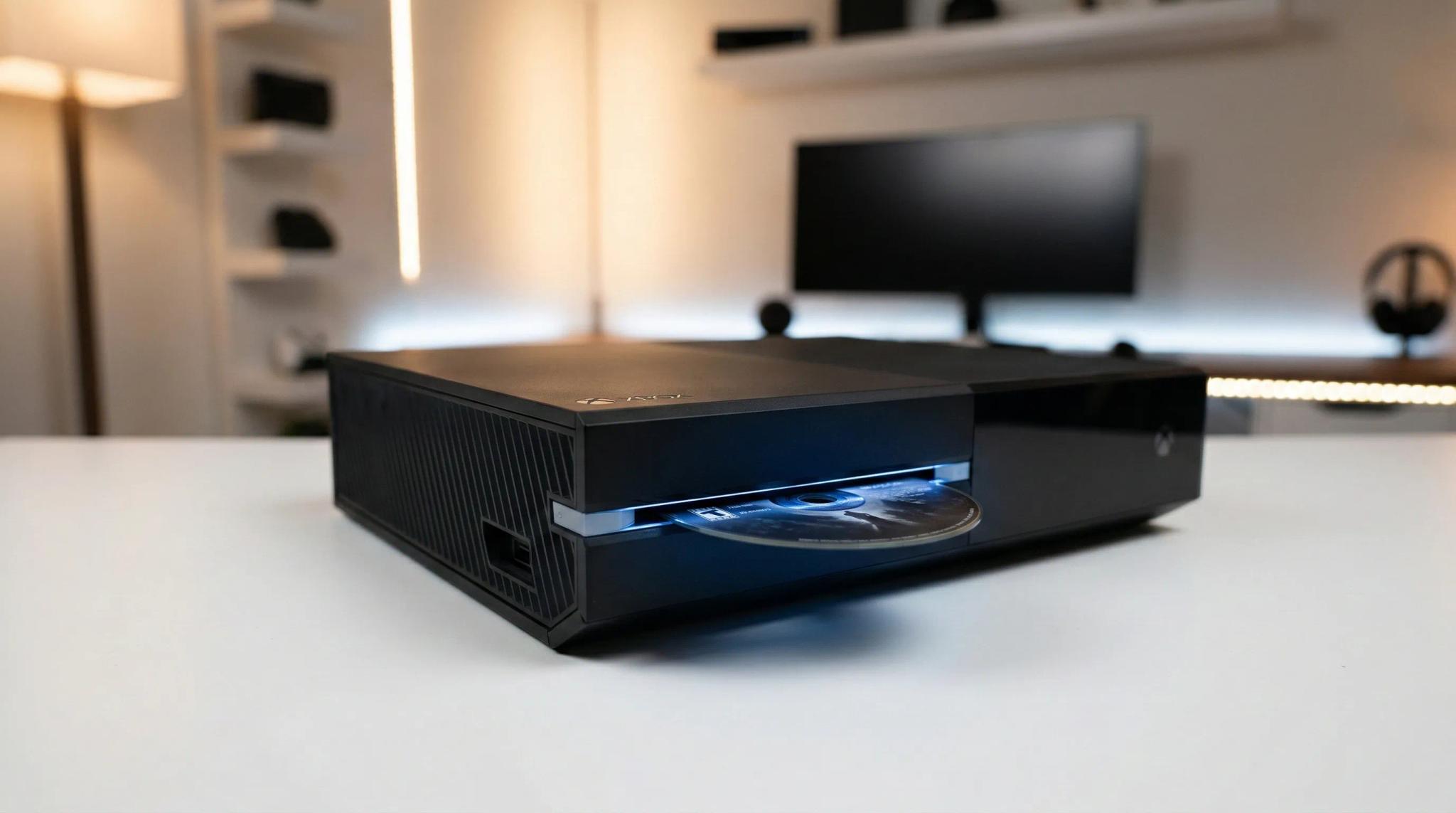
You pop your favourite game into your Xbox One, hear the drive spin up... and nothing happens. Maybe the console flat-out refuses to accept the disc. Maybe it takes the disc in but acts like nothing is there. Maybe there is a grinding noise that sounds like something is seriously wrong inside. Or perhaps the disc is stuck and will not come out no matter how many times you press eject.
Whatever is happening, an Xbox One that will not read discs is properly frustrating — especially when you are sitting with a stack of physical games that are now useless paperweights. The good news is that many disc drive issues have straightforward fixes you can try right now, and the ones that do not are still very much repairable.
At Console Service Centre, we have been repairing gaming consoles since 2011 — over 25,000 consoles repaired. We work on all three Xbox One models (Original, S, and X), and disc drive problems are one of the most common issues we see on the Xbox side of our workshop. This guide covers everything we have learned, so you can troubleshoot the problem yourself and know when it is time to bring it to a professional.
What Quick Fixes Can I Try for My Xbox One Disc Drive?
Before assuming the worst, try these simple fixes. They solve the problem more often than you might expect — saving you time and money.
1. Check the Disc Itself
The disc is the culprit more often than people think:
- Clean the disc with a soft, lint-free microfibre cloth. Wipe from the centre outward in straight lines — never in circles
- Inspect for scratches — hold the disc under a bright light and look at the shiny data side. Deep circular scratches are a problem; light surface marks usually are not
- Check for fingerprints and smudges — even a single thumbprint in the wrong spot can stop a disc from reading
- Try a different disc — if another game works perfectly, the problem is your disc, not your drive
- Try a different type of disc — test a game disc, a Blu-ray film, and a regular DVD. If one type works but others do not, the laser may be partially failing rather than completely dead
2. Position Your Xbox One Correctly
This is an important one that many guides overlook. The Xbox One Original was designed to be used horizontally — lying flat on a stable surface. Using it vertically can cause the disc to sit incorrectly on the spindle, leading to read errors and even disc scratches.
The Xbox One S and X can technically be used vertically with a stand, but if you are experiencing disc read issues, try laying it flat first and see if that resolves the problem. For Xbox Series X or S owners seeing error codes alongside disc problems, check our Xbox Series error codes guide.
3. Perform a Full Power Cycle
A proper restart clears cached data and resets the disc drive controller. This is different from just turning your Xbox off and on again:
- Press and hold the Xbox button on the front of the console for 10 full seconds until it shuts down completely
- Unplug the power cable from the back of the console (and from the external power brick if you have an Xbox One Original)
- Wait 60 seconds — this fully drains residual power
- Plug everything back in and power on
- Try your disc again
This hard reset clears the system cache and often resolves software glitches that prevent the drive from reading discs properly.
4. Clear Persistent Storage
This is an Xbox-specific fix that most troubleshooting guides mention but do not explain properly. Your Xbox One stores Blu-ray data that can become corrupted and interfere with disc reading:
- Press the Xbox button to open the guide
- Go to Settings > Devices & connections > Blu-ray
- Select Persistent Storage
- Select Clear persistent storage
- Restart your console and try your disc again
This clears the Blu-ray player cache without affecting your games, saves, or settings. It is completely safe and often fixes discs that are accepted but will not load.
5. Switch to Energy-Saving Power Mode
The "Instant-On" power mode keeps certain components in a standby state, and in some cases this can cause disc drive issues. Switching to Energy-Saving forces a full shutdown each time:
- Press the Xbox button > Settings > General > Power options
- Change Power mode from "Instant-On" to Energy-saving
- Restart your Xbox One and test the disc drive
If this fixes the problem, you can try switching back to Instant-On later — sometimes the issue is temporary.
If none of these quick fixes sorted you out, let us dig deeper into what is actually going on with your disc drive.
Identify Your Xbox One Disc Drive Problem
Different symptoms point to different causes. Find your symptom below to understand what you are dealing with.
| Symptom | What Is Likely Wrong | Severity |
|---|---|---|
| Disc will not go in at all | Foreign object blocking, roller mechanism jammed, or a disc already stuck inside | Medium - High |
| Drive accepts disc but will not read it | Dirty or failing laser lens, disc damage, or corrupted persistent storage | Low - High |
| Grinding or clicking noise | Mechanical failure — rollers, gears, or motor wearing out | High |
| Disc spins then stops | Laser cannot focus, disc is damaged, or drive motor is failing | Medium - High |
| Console spits the disc back out | Eject sensor malfunction or disc not being recognised | Low - Medium |
| Disc is stuck inside | Eject mechanism failure or foreign object blocking ejection | Medium |
| Drive makes no sound at all | Drive not receiving power, loose connection, or drive board failure | High |
What Causes Xbox One Disc Drive Problems?
Understanding the root cause helps you figure out whether this is something you can sort out at home or whether it needs professional attention. Here are the five most common reasons Xbox One disc drives fail, based on what we see most often in our workshop.
1. Dirty or Damaged Discs
The simplest and most common cause. Discs accumulate fingerprints, dust, and micro-scratches over time, and eventually the laser cannot read the data reliably.
What to look for:
- Visible scratches, especially deep circular ones near the centre
- Fingerprints or smudges on the shiny data side
- Disc warping from heat exposure — leaving discs in direct sunlight or near a heater will warp them
- Cracks near the centre hole (a cracked disc should never be inserted — it can shatter inside the drive)
The fix: Clean the disc with a microfibre cloth, wiping from the centre outward. For stubborn marks, dampen the cloth slightly with water. Never use household cleaners, window spray, or alcohol on game discs.
2. Foreign Objects and Debris Inside the Drive
You would be surprised what we have pulled out of Xbox disc drives over the years: coins, small LEGO bricks, food crumbs, paper clips, and more. In South Africa's warmer climate, insects are a genuine problem too — cockroaches are particularly fond of nesting inside warm electronics, and their droppings cause real issues inside a disc drive mechanism.
Symptoms:
- Drive will not accept a disc (something is physically blocking the slot)
- Unusual rattling or scraping sounds
- Disc goes in but gets stuck halfway
The fix: Tilt the console gently and see if anything falls out of the disc slot. Do not blow air into the slot — that pushes debris onto the laser lens — and never put a vacuum, a tool or anything else into the drive slot to try to fish objects out, as you will almost certainly cause more damage. If something is stuck inside, bring it in to us.
3. Mechanical Drive Failure
The Xbox One disc drive has several moving parts — rubber rollers that grip and pull the disc in, a spindle motor that spins it, and plastic gears that control the eject mechanism. These components wear out over time, especially with heavy use.
Common mechanical failures:
- Roller wear — the rubber rollers lose their grip and can no longer pull discs in or push them out properly
- Motor failure — the spindle motor becomes intermittent or stops entirely
- Gear stripping — the small plastic gears in the eject mechanism strip or crack, causing jams
- Alignment issues — the drive mechanism shifts internally, causing the disc to sit off-centre on the spindle
Symptoms: Grinding noises, discs not being pulled in properly, inconsistent behaviour (works sometimes, not other times), or the motor spinning but the disc not moving.
4. Laser Lens Failure
The laser inside your Xbox One's Blu-ray drive reads data off the disc surface. Over time, the lens can degrade, become misaligned, or simply wear out from thousands of hours of use.
How laser failure presents:
- Dirty lens: Console accepts the disc and tries to read it, then gives up — this sometimes resolves with a power cycle
- Weak laser: Reads some discs but not others — typically newer, cleaner discs work while older or slightly scratched ones do not
- Dead laser: Drive accepts the disc and spins it, but cannot read anything at all
- Partial failure: Reads game discs but not DVDs (or vice versa) — the drive uses different laser wavelengths for different formats
Important note about "cleaning discs": Those "laser cleaning discs" sold online are something we strongly advise against. They have small brushes that are meant to sweep across the laser lens, but they can actually scratch the delicate lens surface and make things worse. When a laser is genuinely failing, it is not a surface dirt problem — the laser diode itself is degrading. A failing laser needs professional replacement, not a cleaning disc.
5. Drive Board or Firmware Issues
The Xbox One disc drive has its own circuit board that manages the drive's functions. When this board develops faults — whether from power surges, age, or manufacturing defects — the disc drive can behave unpredictably or stop working entirely.
Signs of a drive board problem:
- Drive worked perfectly one day, then completely stopped the next with no warning
- Console does not acknowledge the drive at all (no sound, no response to disc insertion)
- Eject button does nothing
- Error messages about the disc drive not being detected
In South Africa, power surges from load shedding are a real contributor to drive board failures. A sudden power spike can damage sensitive electronic components on the drive board, which is why we always recommend using a quality surge protector for your gaming setup.
Xbox One Disc Drive Differences: Original vs S vs X
Not all Xbox One consoles are built the same, and knowing which model you have matters for troubleshooting disc drive problems.
Xbox One Original
- Power supply: The Original is the only Xbox One model with an external power brick. This brick can fail independently of the console, and a failing power brick can deliver inconsistent power to the disc drive, causing intermittent read failures
- Orientation: Designed exclusively for horizontal use. Using it vertically can cause disc reading problems
- Drive type: Uses the earliest generation Xbox One Blu-ray drive
- Common issue: The external power supply degrades over time, delivering less stable power to internal components including the disc drive
Xbox One S
- Power supply: Internal PSU — no external brick
- Orientation: Can be used horizontally or vertically with the official stand
- Drive type: Updated, slimmer Blu-ray drive mechanism
- Common issue: The rollers in the S model's drive seem to wear out slightly faster than the Original, possibly due to the more compact design
Xbox One X
- Power supply: Internal PSU — more powerful than the S model
- Orientation: Designed for both horizontal and vertical use
- Drive type: 4K UHD Blu-ray drive (can play 4K Blu-ray discs, unlike the Original and S)
- Common issue: The X runs hotter than other models due to its more powerful hardware, and heat can accelerate the degradation of disc drive components over time
Key Point for All Models
Regardless of which Xbox One you have, the disc drive is paired to the motherboard — just like the PS5. You cannot simply swap in a replacement drive from another Xbox One and expect it to work. This is why professional Xbox One disc drive repair is so important: a technician who knows what they are doing can replace the laser or mechanical components while preserving the original drive board and its pairing with your motherboard. The same drive-pairing applies to the current generation — if you're on a Series X, see our Xbox Series X disc drive not reading guide.
Software Fixes for Xbox One Disc Drive Issues
If your disc drive was working fine and then suddenly stopped — especially after a system update, a crash, or a power outage — the issue may be software-related. If your Xbox One is also getting stuck on the green loading screen, see our Xbox One green screen of death guide for that specific issue. Try these before concluding it is a hardware problem.
Clear the Blu-ray Persistent Storage
We mentioned this in the quick wins section, but it is worth repeating because it genuinely fixes a lot of disc-related issues:
- Settings > Devices & connections > Blu-ray
- Select Persistent Storage > Clear persistent storage
- Restart your console
Check for System Updates
Outdated system software can cause disc drive problems. Microsoft releases firmware updates that include disc drive controller improvements:
- Press the Xbox button > Settings > System > Updates
- If an update is available, install it
- Restart and test the disc drive
If your console will not update normally, you can try an offline system update using a USB flash drive. Download the update file from Xbox's official support site, save it to a USB drive formatted as NTFS, and plug it into your Xbox One while it is off — then hold the Pair and Eject buttons together while pressing the Xbox button to boot into the troubleshooting menu.
Factory Reset (Keep Games and Apps)
If nothing else works on the software side, a factory reset can resolve deep system corruption without losing your games:
- Settings > System > Console info > Reset console
- Choose Reset and keep my games & apps
- This resets your settings to default while preserving your installed content
- You will need to sign back into your Microsoft account
Important: This will not fix a hardware problem. If the drive is mechanically or electrically faulty, no amount of software resets will help.
When Should I Take My Xbox One Disc Drive to a Repair Shop?
If you have worked through the quick wins, software fixes, and troubleshooting above and the problem persists, it is almost certainly a hardware issue that needs professional attention.
Signs It Is Definitely a Hardware Problem
- Grinding or clicking continues after a full power cycle — internal mechanical parts are worn or broken
- No disc is accepted at all and there is no physical obstruction — the roller mechanism or motor has failed
- Console does not detect the drive — the drive board has failed or the internal connection is broken
- Reads no discs at all consistently — the laser has failed completely
- A burning smell comes from the drive area — stop using the console immediately and bring it in
What Professional Xbox One Disc Drive Repair Involves
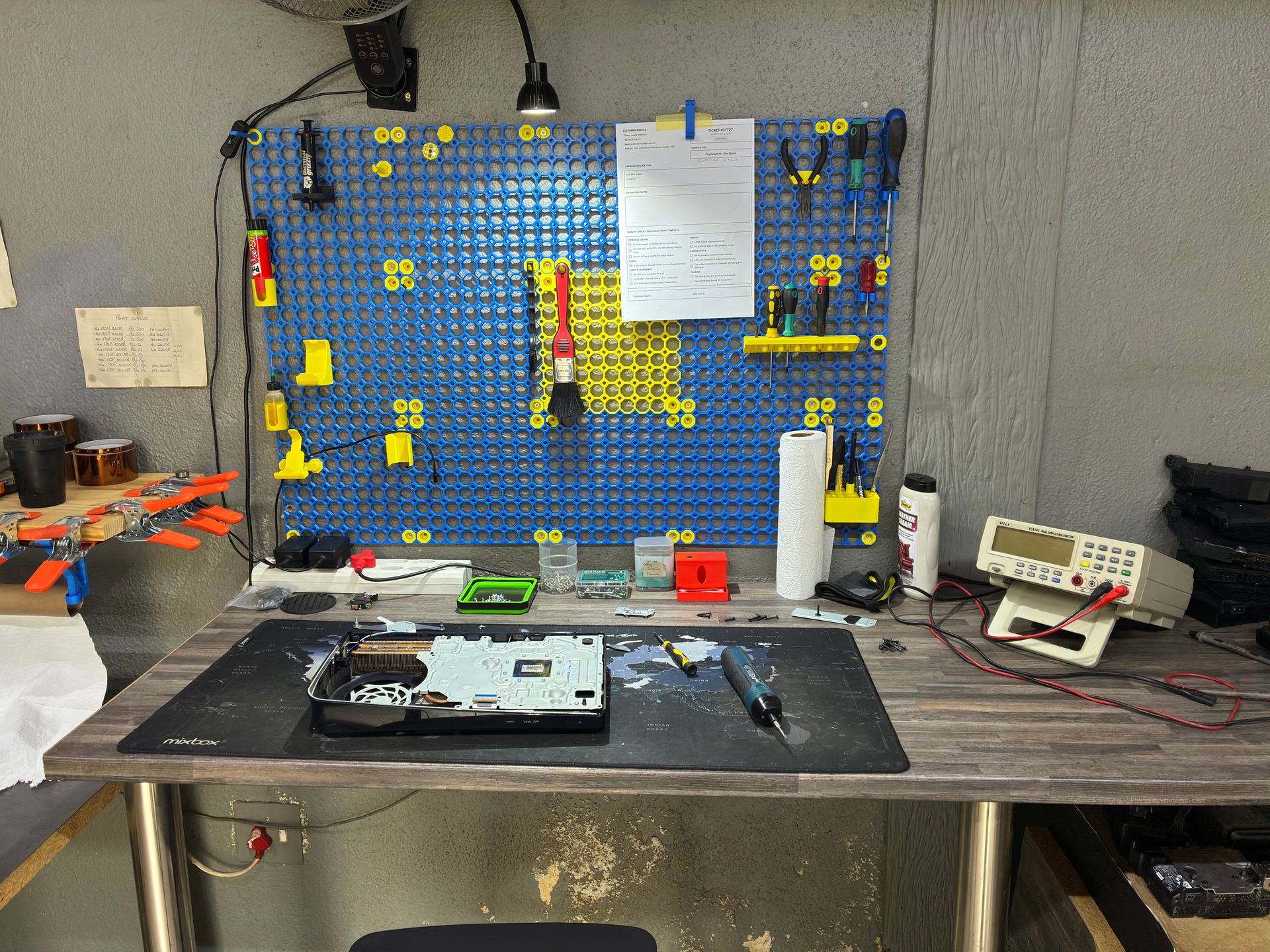
At Console Service Centre, here is how we handle Xbox One disc drive repairs:
Diagnosis first: We test the drive systematically — checking the mechanical components, laser function, drive board, internal connections, and power delivery. This tells us exactly what has failed and the most cost-effective way to fix it.
Repair approaches (from simplest to most complex):
- Cleaning and adjustment — if the drive is full of dust, debris, or insects, a thorough internal clean and mechanical realignment often brings it back to life
- Laser replacement — we replace just the failed laser assembly while keeping your original drive board, preserving the motherboard pairing
- Mechanical repair — replacing worn rollers, stripped gears, or a failed spindle motor
- Full drive mechanism replacement — if the entire mechanical assembly is beyond repair, we replace it while handling the drive pairing properly
- Drive board repair — for electrical faults on the drive's circuit board (the most complex repair)
We always aim for the simplest — and most affordable — repair that properly fixes the problem. There is no point replacing the entire drive when a laser swap will do the job.
Xbox One Disc Drive Repair Pricing
Here are our current disc drive and related repair prices for all Xbox One models.
Xbox One (Original, S and X):
| Repair | Price |
|---|---|
| Laser HOP-B150 Replacement | R1,349 |
| Laser HOP-B150 With Deck | R1,449 |
| Disc Drive Only | R1,599 |
| Complete Drive With Laser | R1,749 |
*Prices shown are the total amount payable.
Get an exact quote on WhatsApp →Not sure what is wrong? WhatsApp us at 087 550 2307 — we respond immediately, 24/7, and can often give you a good idea of what is wrong based on your symptoms before you send your console in.
How Do I Prevent Xbox One Disc Drive Problems?
A bit of care goes a long way in keeping your disc drive working properly for years.
Handle Your Discs Properly
- Hold discs by the edges and centre hole — never touch the shiny data surface
- Store discs in their cases when not in use — do not leave them stacked on your TV stand collecting dust and scratches
- Keep discs away from heat — direct sunlight and heaters warp discs, and in South Africa's summer heat, a disc left on a windowsill can warp in minutes
- Never insert a cracked disc — it can shatter inside the drive and destroy the mechanism
Position Your Console Correctly
- Xbox One Original: always horizontal — it was not designed for vertical use
- Xbox One S and X: horizontal is generally better for the disc drive, even though vertical use is officially supported
- Never move your Xbox One while a disc is spinning inside — this can scratch the disc and damage the laser
Keep the Area Clean
- Do not eat or drink near your Xbox One — crumbs and liquid near the disc slot are asking for trouble
- Keep the area around the console dust-free — dust gets pulled into the drive through the slot
- Keep the disc slot clear — wipe dust from the console's exterior around the slot with a dry cloth, but never put a vacuum or anything else into the slot and never blow air in, which pushes debris onto the lens
Protect Against Power Surges
Load shedding and power surges are a real threat to your Xbox One's disc drive board. We see a noticeable increase in drive board failures after severe load shedding periods:
- Use a quality surge protector rated at 1,000+ joules
- Power down your Xbox One completely before scheduled load shedding — do not rely on Instant-On mode
- Consider a UPS (uninterruptible power supply) for clean, consistent power delivery
- Do not leave a disc in the drive when powering off for extended periods
Do Not Force Anything
- Never force a disc into the slot — if there is resistance, something is wrong
- Do not try to pull a stuck disc out by hand — you will damage the disc and potentially the drive mechanism
- Do not insert objects into the drive slot to retrieve stuck discs or clear blockages
- If a disc is stuck, try the eject button after a full power cycle. If that does not work, bring it to a professional rather than risking further damage
Opening your console yourself risks causing additional damage — broken flex cables, stripped screws, or damaged connectors that make the repair more expensive. We strongly recommend leaving internal repairs to professionals.
Frequently Asked Questions
Why is my Xbox One not reading game discs?
The most common causes are a dirty or scratched disc, corrupted persistent storage data, or a failing laser lens. Start by cleaning the disc, trying a different disc, and clearing the persistent storage (Settings > Devices & connections > Blu-ray > Persistent Storage > Clear). If multiple clean discs all fail to read, the laser lens likely needs professional replacement. At Console Service Centre, we replace lasers while preserving your drive's motherboard pairing, so it is a straightforward repair.
Can I replace my Xbox One disc drive myself?
We strongly advise against it. The Xbox One disc drive is paired to the motherboard — you cannot buy a replacement drive from another console and swap it in. Even if you manage the physical installation, the drive will not function without proper pairing. Beyond that, accessing the drive requires significant disassembly, and mistakes during reassembly can cause additional damage that costs more to fix than the original problem. Professional repair is more reliable and usually more cost-effective.
Why does my Xbox One make a grinding noise when I insert a disc?
A grinding noise usually means a mechanical part inside the drive has failed — typically a stripped plastic gear, a worn roller, or a foreign object caught in the mechanism. Stop inserting discs immediately if you hear grinding. Continued use risks scratching your discs and making the mechanical problem worse. Try a full power cycle first (unplug for 60 seconds). If the grinding persists, the drive needs professional mechanical repair.
How much does Xbox One disc drive repair cost in South Africa?
Xbox One disc drive repairs range from R1,349 – R1,749. See our disc drive pricing tables above for model-specific prices. WhatsApp us at 087 550 2307 — we respond immediately, 24/7. Describe your symptoms and we will give you an honest assessment before you commit to anything. We always provide a firm, no-obligation quote after proper diagnosis.
Is it worth repairing an Xbox One disc drive in 2026?
In most cases, yes. Disc drive repair costs a fraction of what a new console costs, and if you have a library of physical games, those games become unusable without a working drive. The Xbox One still has a massive game library, and physical games can be resold, lent to friends, and do not depend on servers being online. The only scenario where repair may not make sense is if your console has multiple other issues on top of the disc drive problem. Contact us and we will give you an honest recommendation based on your specific situation — we would rather tell you the truth than take money for a repair that is not worthwhile.
Does the Xbox One S have the same disc drive as the Original?
No. While both use Blu-ray drives, the Xbox One S uses a slimmer, updated drive mechanism with a slightly different laser assembly. The S model's drive is more compact to fit the smaller console design. However, both experience similar types of failures — worn rollers, laser degradation, and mechanical wear. The key difference for customers is that the Xbox One Original's external power supply can contribute to disc drive issues through inconsistent power delivery, while the S model's internal power supply is generally more stable.
Can disc drive problems damage my Xbox One?
Generally, no — a faulty disc drive will not damage your console's motherboard, hard drive, or other components. Your digital games, saves, and Xbox account are completely unaffected by disc drive problems. You can continue playing digital games normally even if the disc drive is completely non-functional. The only risk is if a disc shatters inside the drive (from inserting a cracked disc), which could potentially damage the laser and mechanical components beyond repair. Never insert a cracked disc.
Where Can I Get My Xbox One Disc Drive Fixed in South Africa?
An Xbox One that will not read discs does not mean your gaming days are over. Whether it is corrupted storage data you can clear in two minutes or a laser that needs professional replacement, the fix is out there.
Here is why Console Service Centre is your best choice for Xbox One disc drive repairs:
- Console repair specialists since 2011 — over 25,000 consoles repaired
- We know what we are doing — every Xbox One disc drive issue
- 1,346+ Google reviews with a 4.9-star rating
- PlayStation and Xbox specialists — We do not do phones or general electronics, just gaming consoles
- 6-month money-back warranty — If the same issue returns, we fix it free
- All Xbox One models covered — Original, S, and X
Ready to Get Your Xbox One Disc Drive Working Again?
WhatsApp us: 087 550 2307 — We respond immediately, 24/7
Visit us: 6 Bester Street, Witfield, Boksburg
Can't get to us? We offer nationwide courier repairs. Ship your console to us via The Courier Guy, we will fix it and send it back. Simple.
Do not let a faulty disc drive force you to go all-digital or buy a new console. We will diagnose the problem properly, give you an honest quote, and get you back to your physical game library.
Console Service Centre specialises exclusively in PlayStation and Xbox repairs. Whether it is an Xbox One disc drive, a PS5 that will not turn on, or a console that is overheating — we have got you covered. Thinking about DIY repair vs professional repair? Read our guide first. View our full range of Xbox One repair services.
Topics Covered
About the Author

Shaun Potgieter
Founder & Head Technician
Expert console technician with 15+ years of hands-on repair experience.