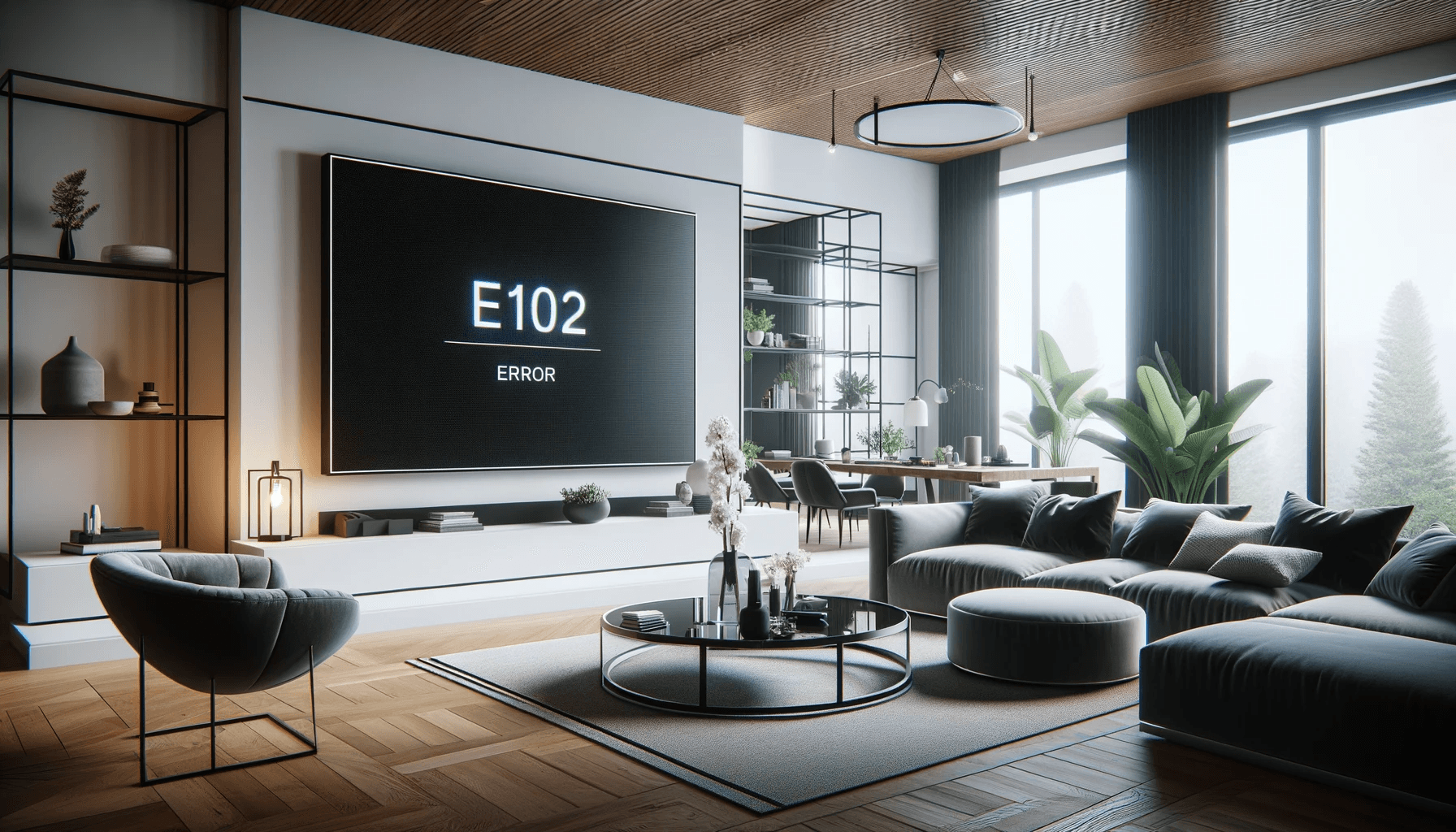
You turn on your Xbox Series X or Series S, and instead of the familiar Xbox dashboard, you are greeted by a screen that says "Something went wrong" followed by an error code. Maybe it is E102. Maybe it is E106. Maybe it is a long hexadecimal string that looks like it belongs in a computer science textbook. Whatever it says, your console is not working and you have no idea what that code means.
You are not alone. Error codes are one of the most common reasons Xbox owners contact us at Console Service Centre, and with over 25,000 console repairs since 2011, we have seen every single one of them. The good news? Many of these errors have straightforward fixes you can try at home. The bad news? Some of them point to serious hardware problems that need professional attention.
This guide breaks down every common Xbox Series X and S error code, explains exactly what each one means, and walks you through the fixes -- from simple restarts to when it is time to hand it over to a professional.
What Should I Try First for Any Xbox Series X or S Error Code?
Before diving into specific error codes, there are a few universal steps that resolve the majority of Xbox Series X and S errors. Try these first, regardless of which code you are seeing.
1. Hard Restart Your Console
This is the single most effective fix for temporary software glitches:
- Press and hold the Xbox button on the front of the console for a full 10 seconds until the console shuts down completely
- Unplug the power cable from the back of the console
- Wait at least 30 seconds (60 seconds is better)
- Plug the power cable back in and turn the console on
This clears the console's temporary memory and forces a clean boot. It resolves many error codes on the spot.
2. Check Your Power Connection
A loose or damaged power cable causes more errors than most people realise:
- Make sure the power cable is firmly seated in both the console and the wall socket
- Try a different wall socket (not just a different plug on the same extension)
- If you are using a surge protector or extension lead, try plugging directly into the wall temporarily
- Check the cable for any visible damage, kinks, or fraying
3. Check Your Internet Connection
Many Xbox errors are network-related, especially codes starting with 0x87 or 0x80:
- Test your Wi-Fi on another device
- If possible, connect with an ethernet cable instead of Wi-Fi
- Restart your router by unplugging it for 30 seconds
- Go to Settings > General > Network settings > Test network connection if your console boots
4. Check Xbox Live Status
Sometimes the error is not your console at all -- it is Microsoft's servers:
- Visit support.xbox.com/en-US/xbox-live-status on your phone or computer
- If services are showing as limited or down, wait it out -- the problem is on Microsoft's end
- These outages usually resolve within a few hours
What Do the "E" Error Codes Mean on Xbox Series X and S?
The most common and concerning error codes on Xbox Series X and S are the E-series errors. These appear on the "Something went wrong" screen during startup, and they almost always indicate a system-level problem.
E100 -- System Update Failed
What it means: Your console tried to install a system update and failed. This is one of the most common Xbox Series X error codes, and it typically points to a problem with the console's internal storage or a corrupted update file.
Common causes:
- Power was lost during a system update (load shedding is a major culprit here in South Africa)
- The internal SSD has a corrupted sector
- A disc drive issue is preventing the update from completing (on Xbox Series X)
Fixes to try:
- Restart from the error screen -- If you see the "Something went wrong" screen, press the D-pad and then A to select "Restart this Xbox"
- Open the Xbox Startup Troubleshooter -- Select "Troubleshoot" on the error screen, then choose "Reset this Xbox" and select "Keep games and apps"
- Offline System Update (OSU) -- If the troubleshooter does not work:
- On a PC, download the latest OSU1 file from xbox.com/xboxone/osu1
- Format a USB flash drive as NTFS
- Copy the downloaded file to the USB drive and extract it so that the
$SystemUpdatefolder is in the root directory - Plug the USB into your Xbox and follow the on-screen instructions
When it needs professional repair: If the E100 error keeps returning after an offline update, the internal SSD may have failed or the disc drive may need attention. On the Xbox Series X, a missing or mismatched disc drive can trigger E100 repeatedly.
E101 -- System Update Error
What it means: Similar to E100, this error occurs when the console cannot complete a system update. The difference is that E101 typically indicates a more persistent update failure.
Common causes:
- Corrupted system files
- Interrupted update process
- Internal storage problems
Fixes to try:
- Follow the same steps as E100 -- restart, troubleshooter, and offline update
- If the troubleshooter is available, try "Reset this Xbox" with the "Remove everything" option as a last resort (this will delete all games and apps, but your saves are backed up to the cloud if you have Xbox Live)
When it needs professional repair: Persistent E101 errors after a full factory reset usually mean the internal SSD is failing and needs replacement.
E102 -- System Software Error
What it means: This is one of the most dreaded Xbox error codes. E102 indicates that the console's operating system has become corrupted or the internal storage cannot be read properly.
Common causes:
- Power interruption during a critical system write (load shedding strikes again)
- SSD degradation or failure
- Corrupted system partition
Fixes to try:
- Hard restart -- Hold the power button for 10 seconds, unplug for 60 seconds, replug and restart
- Startup Troubleshooter -- If available, select "Troubleshoot" and then "Reset this Xbox" (keep games and apps)
- Offline System Update -- Use a USB drive with the latest OSU1 file as described under E100
- Full factory reset -- As a last resort, reset with "Remove everything" from the troubleshooter
When it needs professional repair: E102 is one of the error codes most likely to indicate genuine hardware failure. If the offline update and full reset both fail, the internal SSD is almost certainly compromised. This requires professional board-level repair or SSD replacement.
E105 -- System Update Incomplete
What it means: The console started a system update but could not complete it. The update process was interrupted or the update file itself is corrupted.
Common causes:
- Network disconnection during an online update
- Power loss during update installation
- Insufficient storage space (rare on Series consoles, but possible if the drive is nearly full)
Fixes to try:
- Restart and retry -- The console will often attempt the update again automatically
- Clear local saved games -- From the troubleshooter, this can sometimes free up enough space for the update
- Offline System Update -- Download and install via USB if the online update keeps failing
When it needs professional repair: If E105 keeps appearing despite multiple update attempts, there may be a deeper storage or firmware issue that requires professional diagnosis.
E106 -- System Startup Failure
What it means: Your Xbox cannot start up properly. The console's core system files are missing or corrupted to the point where normal boot is impossible.
Common causes:
- Severe system corruption
- Failed factory reset
- Hardware failure affecting the boot process
Fixes to try:
- Startup Troubleshooter -- This is your best option. From the error screen, select "Troubleshoot"
- Offline System Update -- If the troubleshooter does not resolve it, try a USB-based update
- Full factory reset -- Select "Reset this Xbox" and choose "Remove everything"
When it needs professional repair: E106 often indicates that the console's firmware has been severely corrupted. If a full factory reset via USB does not resolve it, the console needs professional firmware recovery or hardware repair.
What Do the Hexadecimal (0x) Error Codes Mean on Xbox Series X and S?
Beyond the E-series startup errors, Xbox Series X and S consoles also display hexadecimal error codes. These typically appear during gameplay, app launches, or when connecting to Xbox Live.
0x87e10007 -- Game Compatibility Error
What it means: The game you are trying to play is not compatible with your console or the installed version is incorrect.
Fixes:
- Check that the game supports your specific console (some games are Xbox Series X only)
- Uninstall and reinstall the game
- Check for game updates in My Games & Apps > Manage > Updates
0x87DD0006 -- Xbox Live Sign-In Failure
What it means: Your console cannot sign in to Xbox Live. This is almost always a server-side or network issue, not a hardware problem.
Fixes:
- Check Xbox Live status -- this is often a service outage
- Restart your router and console
- Go to Settings > Account > Remove accounts, then re-add your Microsoft account
- Check that your billing information is up to date (expired payment methods can block sign-in)
0x8027025a -- App Didn't Load / Sign-In Problem
What it means: The application or game you were running has stopped unexpectedly.
Fixes:
- Close the app completely: press the Xbox button, highlight the game, press the Menu button (three lines), and select "Quit"
- Clear the console cache with a hard restart (hold power for 10 seconds, unplug for 30 seconds)
- Reinstall the specific game or app if crashes persist
0x80070570 -- File or Data Corruption
What it means: The console has detected corrupted data, usually related to a game installation or download.
Fixes:
- Delete and reinstall the affected game
- If the error appears during installation, try installing from a different source (disc vs digital, or vice versa)
- Check your internet connection stability -- interrupted downloads can cause corruption
0x800708CA -- Controller or Game Upgrade Error
What it means: This error commonly appears when trying to launch an upgraded next-gen version of a game, or occasionally with controller connection issues.
Fixes:
- Go to Settings > System > Console info > Reset console > Reset and Keep My Games & Apps
- Uninstall and reinstall the specific game that triggers the error
- If controller-related, re-pair your controller by pressing the pairing button on both the console and controller
Why Is My Xbox Series X or S Showing a Black Screen or Not Starting?
Not all Xbox errors come with a neat error code. Sometimes your console simply shows a black screen, gets stuck on the Xbox logo, or blinks its power light without ever booting up.
Black Screen After Startup
What it means: Your console powers on (you can hear the fan and see the power light), but your TV shows nothing.
Common causes:
- Incorrect display resolution settings
- Faulty HDMI cable or loose connection
- HDMI port damage on the console
- TV compatibility issue after a system update
Fixes to try:
- Check the basics -- Make sure the HDMI cable is firmly connected to both the console and the TV, and that your TV is set to the correct input
- Try a different HDMI cable -- Faulty cables are more common than you might think
- Boot in low-resolution mode:
- For Xbox Series X: Press and hold the Power button + Eject button simultaneously until you hear a second startup chime (about 10 seconds)
- For Xbox Series S: Press and hold the Power button + Bind button (the small button on the left side) until you hear a second chime
- This forces the console to output at 640x480, which works on virtually any TV
- Reset display settings -- Once booted in low-resolution mode, go to Settings > General > TV & display options and set the resolution to match your TV
When it needs professional repair: If a new HDMI cable and low-resolution boot do not work, the Xbox Series HDMI port may be damaged. This is a common issue we repair -- bent or broken pins inside the port require micro-soldering with a hot air rework station. It is not a DIY repair.
Stuck on Xbox Logo / Green Screen
If your Xbox Series X or S gets stuck on the Xbox loading animation and never reaches the dashboard, you may be experiencing what is sometimes called the "Green Screen of Death." We have a dedicated guide for Xbox green screen issues that covers this in detail.
Power Light Blinking Then Shutting Off
What it means: Your console attempts to start, the power light comes on briefly (or blinks), and then the console shuts down.
Common causes:
- Overheating protection kicking in
- Power supply failure
- Corrupted system files from a power interruption
- Internal hardware failure
Fixes to try:
- Ensure proper ventilation -- Make sure the console has at least 10-15cm of clearance on all sides, especially the top vent (Series X) or the black grille (Series S)
- Clean the vents -- Run a low-powered vacuum along the external vents to lift the dust out (the method we use on the bench, as it pulls dust out rather than driving it deeper). Do not open the console
- Hard restart -- Hold power for 10 seconds, unplug for 60 seconds, replug
- Try the Startup Troubleshooter -- If the console stays on long enough, attempt a system reset
When it needs professional repair: A console that consistently powers on and then shuts off within seconds usually has a hardware problem -- either a failing power supply, overheating components, or a short circuit on the motherboard. These are issues that require professional diagnosis and repair. If your Series X shows no power at all rather than blinking, work through our Xbox Series X won't turn on guide first.
Important: Opening your console yourself risks causing additional damage -- broken flex cables, stripped screws, or damaged connectors that make the repair more expensive. We strongly recommend leaving internal repairs to professionals.
Why Do Xbox Error Codes Happen More Often in South Africa?
Living in South Africa adds a few unique challenges that can trigger Xbox error codes more frequently.
Load Shedding and Power Surges
Load shedding is the number one cause of Xbox error codes we see in our workshop. When the power cuts out during a system update or while the console is writing data to the SSD, it can corrupt the operating system and trigger E100, E102, or E106 errors.
Even worse, when the power comes back, the voltage spike can damage the internal power supply. We have written a complete guide to protecting your console from load shedding that every South African gamer should read.
Our recommendations:
- Always use a quality surge protector (not just a multi-plug)
- Consider an uninterruptible power supply (UPS) that gives your console time to shut down safely
- Never leave your console in rest mode during scheduled load shedding -- shut it down completely beforehand
- If power goes out unexpectedly, do not panic -- just let the console restart naturally and it will usually recover
Slow or Unstable Internet
Many Xbox error codes (especially the 0x87 and 0x80 series) are triggered by network issues. South Africa's internet infrastructure can be inconsistent, and dropped connections during game downloads or system updates lead to corrupted installations.
Tips for South African Xbox owners:
- Use a wired ethernet connection whenever possible -- it is far more stable than Wi-Fi
- If you must use Wi-Fi, keep the console as close to the router as possible
- Schedule large game downloads and system updates for off-peak hours when your connection is fastest
- If a download fails repeatedly, pause it, restart your router, and resume
When Should I Take My Xbox Series X or S for Professional Repair?
You have tried the hard restart. You have attempted the offline update. You have even done a full factory reset. The error code keeps coming back. At this point, the problem is almost certainly hardware-related, and here is what that usually means:
Signs Your Xbox Needs Professional Repair
- E100, E101, E102, or E106 errors persist after multiple reset attempts and an offline USB update
- The console shuts down within seconds of powering on
- Black screen persists even with a new HDMI cable and low-resolution boot
- Grinding or clicking sounds from the disc drive (Xbox Series X) -- see our Xbox One disc reading guide for disc-specific troubleshooting
- The console feels unusually hot or the fan is extremely loud -- this could indicate overheating issues
- Burning smell -- turn the console off immediately and do not use it until inspected
What Professional Repair Involves
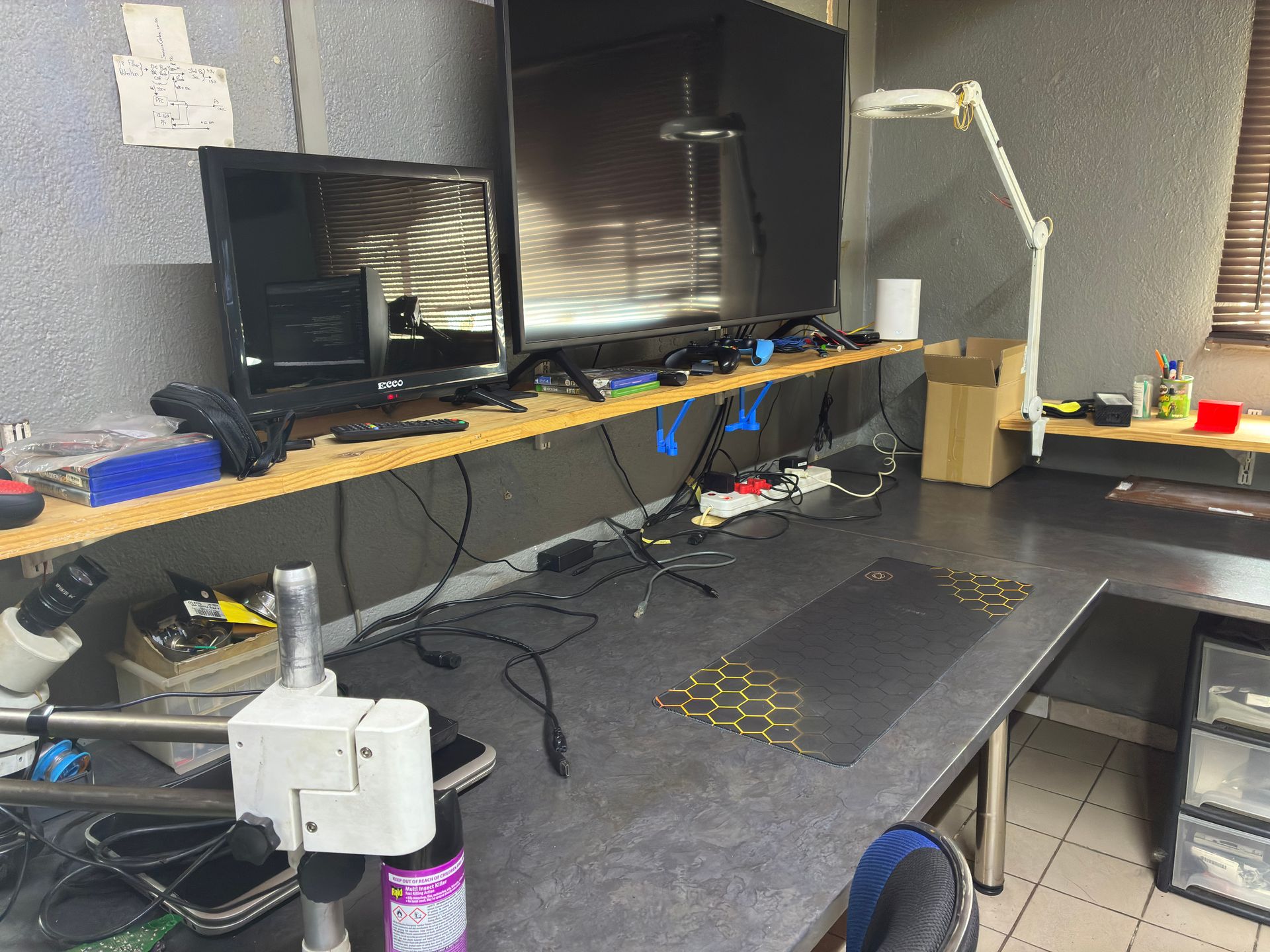
At Console Service Centre, we diagnose Xbox Series X and S errors using professional equipment:
- SSD diagnosis and replacement for persistent E-series errors
- HDMI port micro-soldering for black screen and display issues
- Power supply repair for consoles that will not turn on or keep shutting off
- Disc drive repair for Series X units with drive-related error codes
- Full service including thermal paste replacement, dust removal, and component inspection
Every repair comes with our 6-month money-back warranty -- if the same issue returns within six months, we fix it free.
Xbox Series Repair Pricing
Since error codes can indicate many different underlying problems, here are our current prices for all Xbox Series repairs.
Xbox Series S:
| Repair | Price |
|---|---|
| NFD Replacement (ESD) | R1,149 |
| Full Service | R1,249 |
| HDMI Port Replacement | R1,299 |
| HDMI Port Trace Repair | R1,499 |
| Fan Replacement | R1,599 |
| HDMI IC NB7N621M Replacement | R1,799 |
| Power Supply | R1,849 |
*Prices shown are the total amount payable.
Get an exact quote on WhatsApp →Xbox Series X:
| Repair | Price |
|---|---|
| NFD Replacement (ESD) | R1,149 |
| Drive Repair | R1,249 |
| Full Service | R1,249 |
| Power/Eject Button Flex Cable Connector Nexus FPC | R1,399 |
| HDMI Port Replacement | R1,449 |
| Fan Replacement | R1,499 |
| HDMI Port Trace Repair | R1,499 |
| HDMI IC NB7N621M Replacement | R1,799 |
| Power Supply | R2,099 |
*Prices shown are the total amount payable.
Get an exact quote on WhatsApp →Not sure what is wrong? WhatsApp us at 087 550 2307 -- we respond immediately, 24/7, and can often give you a good idea of what is wrong based on your symptoms before you send your console in.
How Can I Prevent Xbox Series X and S Error Codes?
Prevention is always better (and cheaper) than repair. Here is how to keep your Xbox running error-free:
Keep Your Console Well-Ventilated
- Leave at least 10-15cm of clearance around all vents
- Never place your console in an enclosed TV cabinet -- the heat has nowhere to go
- Xbox Series X works best standing vertically with the top vent completely clear
- Xbox Series S should have the black grille facing up or outward with nothing blocking it
Protect Against Power Issues
- Use a surge protector rated for electronic equipment (not a cheap multi-plug from the hardware store)
- Consider a UPS if you live in an area with frequent load shedding
- Always shut down your console properly before unplugging it
- Never unplug the power cable while the console is on or in sleep mode
Maintain Your Console
- Keep the external vents clear of dust using a low-powered vacuum (work the nozzle along the vents from the outside, never open the console)
- A professional Xbox Series full service every 12-18 months keeps internal components clean and thermal paste fresh
- Keep your console's system software up to date -- updates often fix bugs that cause error codes
Manage Your Storage
- Keep at least 10-15% of your SSD free at all times -- a completely full drive can cause system instability
- Regularly uninstall games you no longer play
- Move less-used games to an external USB drive (note: Xbox Series X|S optimised games must run from the internal SSD or the official Seagate expansion card)
Frequently Asked Questions
What does Xbox error code E102 mean?
E102 on Xbox Series X or S means the console's operating system has become corrupted or the internal SSD cannot be read properly. It is usually caused by a power interruption during a system update, which is particularly common in South Africa due to load shedding. Try a hard restart first, then an offline system update via USB. If the error persists after a full factory reset, the internal SSD likely needs professional repair or replacement.
Can I fix Xbox Series X error codes myself?
Many Xbox error codes can be resolved at home with a hard restart (hold the power button for 10 seconds, unplug for 30-60 seconds) or an offline system update via USB drive. Network-related errors (codes starting with 0x87 or 0x80) are often fixed by restarting your router or waiting for Xbox Live servers to come back online. However, persistent E-series errors (E100, E102, E106) that survive a full factory reset typically indicate hardware failure that requires professional repair.
Why does my Xbox Series X keep showing error codes after load shedding?
When load shedding cuts power to your console during a system update or while it is writing data to the SSD, the sudden shutdown can corrupt critical system files. This triggers E100, E102, or E106 errors. Additionally, the power surge when electricity returns can damage the internal power supply. To protect your console, always shut it down completely before scheduled load shedding and use a surge protector or UPS.
How much does Xbox Series X error code repair cost in South Africa?
Xbox Series X repairs range from R1,249 – R2,099 and Xbox Series S repairs from R1,249 – R1,849. See our pricing tables above for full details, or our console repair cost guide for a broader overview. For an accurate quote on your specific issue, WhatsApp us at 087 550 2307 with a description of your error code and symptoms -- we respond immediately, 24/7.
What is the Xbox Startup Troubleshooter?
The Xbox Startup Troubleshooter is a built-in recovery tool that appears when your console detects a startup problem. It gives you options to reset your console, perform an offline system update, or restore factory settings. You can also access it manually by pressing and holding the Bind button + Eject button (Series X) or Bind button + Power button (Series S) for 10-15 seconds during startup until you hear two tones.
Does resetting my Xbox delete my game saves?
If you select "Reset and keep my games and apps," your installed games, apps, and cloud-saved game data are preserved. Only console settings are reset. If you select "Remove everything," your installed games and apps are deleted, but game saves stored in the cloud are safe — cloud saves are free and do not need a subscription. You will need to re-download your games after a full reset.
My Xbox Series S has error code E100 but it has no disc drive -- why?
While E100 is often associated with disc drive issues on the Xbox Series X, on the Series S (which is digital only), E100 typically points to an SSD or firmware problem instead. The troubleshooting steps are the same -- try a hard restart, then the startup troubleshooter, then an offline USB update. If none of these work, the console likely needs professional diagnosis.
Where Can I Get My Xbox Series X or S Fixed in South Africa?
Here is why Console Service Centre is your best choice for Xbox error code repair:
- Console repair specialists since 2011 -- over 25,000 consoles repaired
- We know what we are doing -- every error code, every model
- 1,321+ Google reviews with a 4.9-star rating
- PlayStation and Xbox specialists -- We do not do phones or general electronics
- 6-month money-back warranty -- If the same issue returns, we fix it free
Ready to Get Your Xbox Working Again?
WhatsApp us: 087 550 2307 -- We respond immediately, 24/7
Visit us: 6 Bester Street, Witfield, Boksburg
Can't get to us? We offer nationwide courier repairs. Ship your console to us via The Courier Guy, we will fix it and send it back. Simple.
Topics Covered
About the Author

Shaun Potgieter
Founder & Head Technician
Expert console technician with 15+ years of hands-on repair experience.