
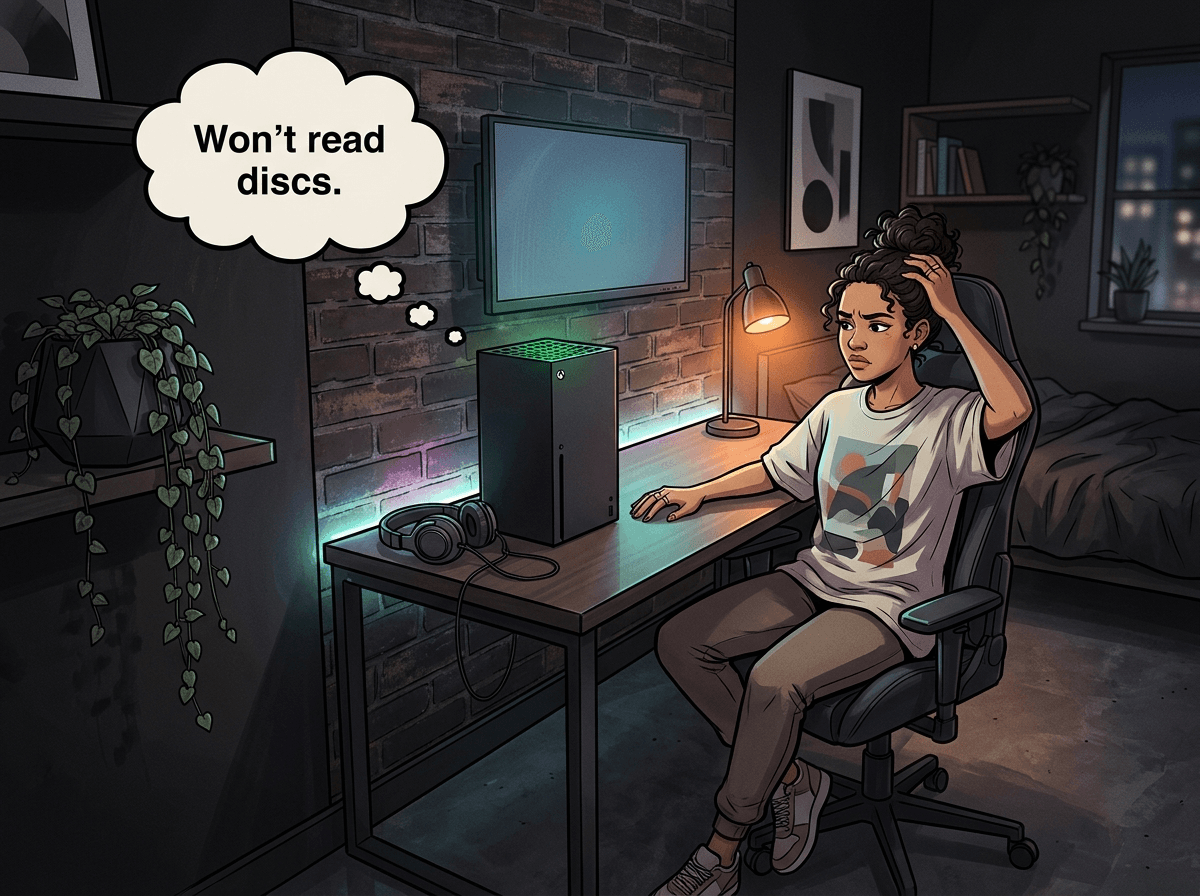
If your Xbox Series X disc drive isn't reading discs, the cause could be anything from a smudge on the disc to a paired controller board that needs specialist attention. Some symptoms have simple software fixes you can try in the next five minutes. Others are hardware faults that can't be solved at home — the Series X pairs its disc drive to the motherboard, so a like-for-like replacement from another console won't work.
At Console Service Centre in Boksburg, we've worked on disc drives across every PlayStation and Xbox model since 2011 — over 25,000 repairs. This guide covers every fix worth trying, the real causes of disc read failures on the Series X, and an honest breakdown of when the console needs to come in.
What Can I Try Right Now? (5-Minute Quick Fixes)
Before assuming your drive has failed, work through these checks. They solve the problem more often than you'd expect.
1. Inspect and Clean the Disc
The disc itself is the most common culprit:
- Check the data side (shiny side without the label) under a bright light — look for deep scratches, cracks, or warping
- Clean the disc with a soft, lint-free cloth. Wipe from the centre outward in straight lines — never in circles
- Remove fingerprints and smudges — a thumbprint in the wrong spot genuinely causes read errors
- Try a different disc — if another game loads fine, your original disc is damaged
A borrowed game that works immediately confirms your disc is the problem, not the drive.
2. Check How You're Inserting the Disc
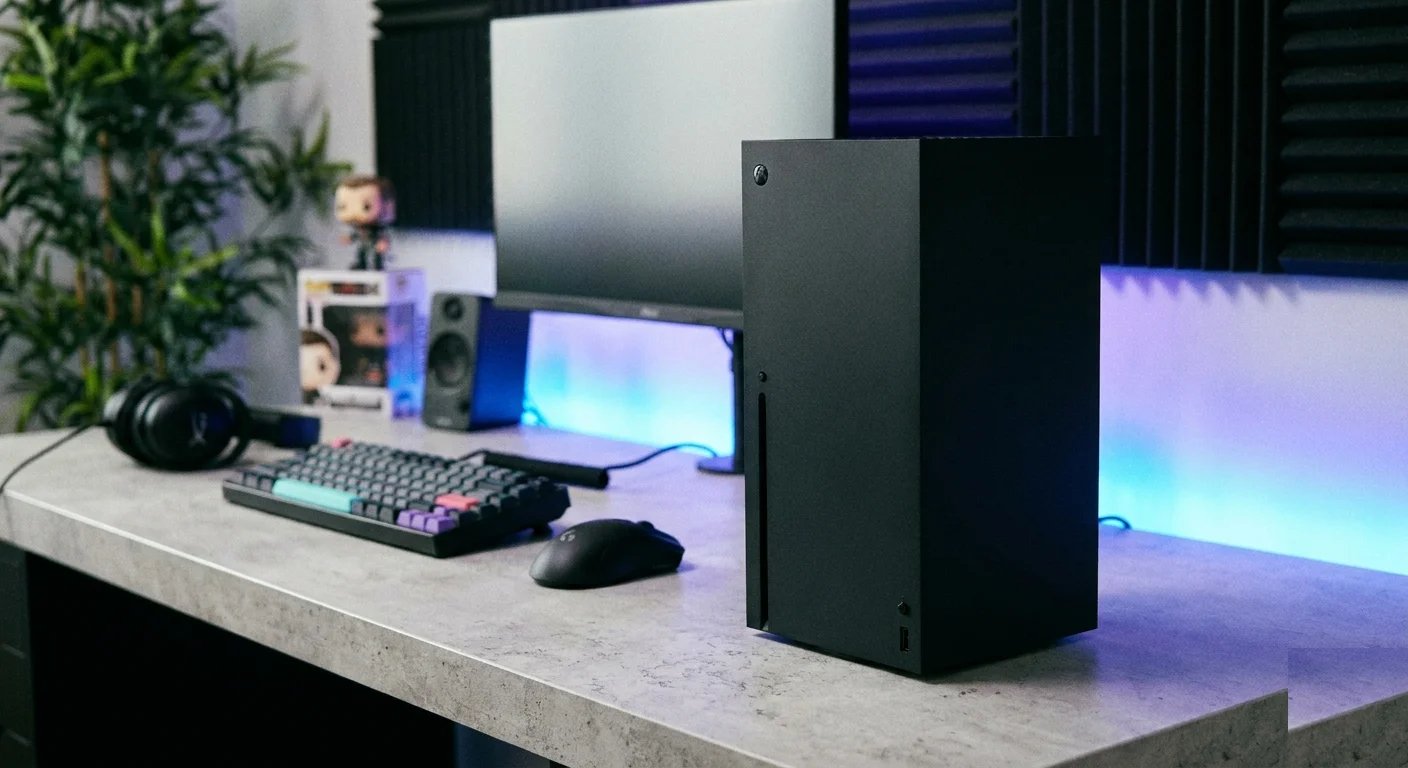
The Xbox Series X works in either vertical or horizontal orientation. Insert the disc the way Microsoft describes in your console's quick start guide for your setup:
- Push the disc in firmly but gently — the drive should grab it and pull it in automatically
- If it's not going in smoothly, stop — something may already be in the drive, or the mechanism is jammed
- Never force a disc in — this bends the loading mechanism and turns a simple jam into a full repair
3. Perform a Full Power Cycle
A proper restart clears drive controller glitches that a regular restart doesn't fix:
- Press and hold the Xbox button on the front of the console for about 10 seconds until it powers off completely
- Unplug the power cable from the back — not just from the wall, from the console itself
- Wait 2 full minutes — this drains residual capacitor charge and resets the drive controller
- Plug back in, power on, and try your disc again
This alone fixes a surprising number of "drive not reading" complaints.
4. Check If There's Already a Disc Inside
If there's a disc stuck in the drive, the console won't accept another one. Press the eject button and listen — if you hear the drive trying to eject something but nothing comes out, you may have a stuck disc. Continue to the manual eject section below.
How to Fix Xbox Series X Disc Drive Not Reading — Software Fixes
If the quick wins above didn't work, these software-based fixes address the most common non-hardware causes.
1. Check for and Install System Updates
Microsoft regularly patches firmware bugs that affect disc drive behaviour. Outdated firmware is a more common cause of disc read problems than most people realise.
- Press the Xbox button to open the guide
- Navigate to Profile & System → Settings → System → Updates
- Select Update console if an update is available
- Let it complete fully and restart
If your console isn't connected to the internet, connect it now. The update process takes 5-15 minutes depending on your connection speed.
2. Perform a Power Cycle Via Settings
The "full shutdown" option does a deeper reset than just holding the power button:
- Press the Xbox button → Profile & System → Settings → General → Power options
- Select Full shutdown
- Wait 60 seconds, then power the console back on
3. Try the Manual Eject Hole (For Stuck Discs)
If a disc is stuck inside your console and the eject button isn't working:
- Turn off and unplug your Xbox Series X completely
- Tilt or flip the console so you can see the underside
- Look for a small pinhole on the bottom of the console, close to the edge where the disc slot sits — this is the emergency eject hole
- Use a thin, straightened paperclip and insert it gently into the hole
- Apply steady, gentle pressure — you'll feel resistance, then the disc will slowly start to emerge
- Never yank the disc out — let it ease out and guide it with your hand
Important: The manual eject is for discs stuck due to a mechanical jam — not discs the drive refuses to load. Don't use it if the drive is grinding or clicking; those noises point to something that needs professional attention.
4. Factory Reset (Last Resort for Software Issues)
If updates and power cycles haven't worked and the drive was reading discs fine until recently (with no physical damage), a factory reset can sometimes fix corrupted system data affecting the drive:
- Press the Xbox button → Profile & System → Settings → System → Console info
- Select Reset console
- Choose Reset and keep my games & apps — this resets system data without deleting your games or saves
- If that doesn't work, try Reset and remove everything — but back up save data to the cloud first
A factory reset will NOT fix a hardware failure. If the drive's optical lens, motor, or controller board is physically damaged, no amount of software resets will help.
What Actually Causes an Xbox Series X Disc Drive to Stop Reading?
Understanding the cause helps you know whether a fix is possible at home or whether you need a professional.
1. Dirty or Degraded Optical Lens
The disc drive uses a laser to read data from the disc. That laser shines through a small glass or plastic lens. Over time, the lens accumulates:
- Dust particles that diffuse the laser beam
- Grease or vapour from the surrounding environment (kitchen, workshop, even tobacco smoke)
- Moisture residue from humid environments
A dirty lens causes intermittent read errors — games that sometimes load and sometimes don't, or discs that work one day but not the next. This accounts for a significant portion of "not reading" complaints we see.
Can you clean it yourself? Not safely. The lens is inside the console, and accessing it requires disassembly. See the section on why you shouldn't open the Series X yourself.
2. Worn or Failing Laser
The laser emitter itself weakens over time. This is normal ageing. Older consoles, or those used intensively, are more likely to experience laser degradation.
Signs of a failing laser (rather than a dirty one):
- The drive reads some discs but not others
- Discs that always worked before now fail intermittently
- The console is 3+ years old and has had heavy use
A failing laser requires replacement — cleaning won't fix it.
3. Mechanical Drive Failure (Gear, Tray, or Motor)
The disc drive has moving mechanical parts: a tray mechanism, loading gears, and a motor that spins the disc at high speed. Any of these can wear out or break:
- Loading failure: The drive won't accept or eject discs at all
- Spinning failure: The disc loads but you can hear it struggling to spin up (or it spins at the wrong speed)
- Grinding/clicking: The most concerning symptom — indicates gears are broken or a foreign object is inside the drive
Grinding and clicking are serious. Stop trying to insert discs immediately. Continuing to force discs into a mechanically damaged drive can make the repair more expensive.
4. Software or Firmware Glitch
Less common but real: a firmware update or corrupted system data can cause the drive to stop reading discs it handled fine before. If nothing else about the console has changed, try a factory reset that keeps your games and apps before assuming hardware failure.
5. Disc Drive Controller Board Damage
The Series X disc drive has a dedicated controller board that manages communication between the drive and the console's motherboard. This board can fail because of:
- Power surges during load shedding
- Liquid damage from spills near the console
- General component wear on older, heavily-used units
A failed controller board shows up as the drive not being detected at all — the console behaves as if it's a digital edition even though the drive is physically fitted.

The Critical Thing You Need to Know: Drive Pairing
This is the most important section in this article for anyone considering a DIY repair.
The Xbox Series X disc drive is paired to the console's motherboard.
The controller board inside the disc drive is cryptographically linked to the specific motherboard in your console. In practice, this means:
- You cannot simply buy a second-hand disc drive and swap it in — the console will recognise something is connected but refuse to use it, treating itself as a digital edition
- A drive from another Xbox Series X, even a fully working one, will not function in your console
- Repair shops with the right equipment can repair specific components, salvage parts of the original drive, or reprogramme a replacement to your console's ID — but this is specialist work
- A general electronics repairer or someone following a YouTube tutorial may fit a "new" drive correctly and find it still doesn't work, because the pairing step was skipped
Opening your Xbox Series X yourself risks damaging the disc drive flex cable, breaking plastic clips on the housing, and — critically — may result in a "new" drive that still doesn't work because the controller board isn't paired. Professional repair ensures the correct parts are used and pairing is handled correctly.
Not sure what's wrong? WhatsApp us at 087 550 2307 — we respond immediately, 24/7, and can usually tell you based on your symptoms whether you need a lens, a full drive, or just a firmware fix.
When Do I Need Professional Xbox Series X Disc Drive Repair?
Some symptoms have clear at-home fixes. Others don't. Here's how to tell them apart:
Try At Home First
| Symptom | Likely Cause | At-Home Fix |
|---|---|---|
| Specific disc doesn't load | Damaged or dirty disc | Clean disc, try another |
| Drive started failing after update | Firmware glitch | Factory reset, then retry |
| Intermittent read errors on all discs | Software glitch | Full power cycle, then factory reset |
Get Professional Help
| Symptom | Likely Cause | Why You Need a Pro |
|---|---|---|
| Grinding or clicking noise | Broken gears or mechanical damage | Parts replacement — pairing required |
| Drive won't accept any disc | Motor failure or broken tray | Internal repair needed |
| Drive not detected at all | Controller board failure | Board repair or replacement + pairing |
| Works fine after power cycle but fails again quickly | Dying laser | Laser replacement — inside the drive |
| Console previously repaired by someone else | Incorrect parts used | May need re-pairing |
Our Xbox Series X Disc Drive Repair Service
At Console Service Centre, we handle everything from optical lens replacements to full drive repairs. Because we work with the pairing requirement correctly, your drive will actually work after the repair — not just look installed.
| Repair | Price |
|---|---|
| Drive Repair | R1,249 |
| Full Service | R1,249 |
*Prices shown are the total amount payable.
Get an exact quote on WhatsApp →All repairs include:
- Diagnosis to confirm the actual fault (not just guesswork)
- 6-month warranty — if the same problem returns, we fix it free
- Same-week turnaround for most disc drive repairs
We're located at 6 Bester Street, Witfield, Boksburg. Can't get to us? We offer nationwide courier repairs via The Courier Guy — ship your Xbox to us, we fix it, we send it back.
How to Prevent Xbox Series X Disc Drive Problems
Most disc drive failures are preventable. Here's how to keep your drive running for years longer.
Handle Discs Properly
- Always hold discs by the outer edge and the centre hole — never touch the data surface
- Store discs in their cases when not in use — even a few hours exposed to dust increases risk
- Never leave discs in the drive for weeks at a time without using them — the drive spins up during system processes and wears the lens
Keep the Console in a Well-Ventilated Position
The Xbox Series X is designed as a tower. Standing it vertically gives the best airflow through its large 130mm top-mounted fan. If you do place it horizontally:
- Ensure there's at least 10cm of clear space above and on all sides
- Never place it inside a closed entertainment unit — heat buildup accelerates all component wear, including the optical mechanism
Use a Surge Protector During Load Shedding
South Africa's load shedding creates exactly the power conditions that kill electronic components. When power returns, the voltage can briefly spike well above the 230V nominal — and that spike travels down any connected cable.
- Use a quality surge protector between the wall and your Xbox — not just a basic extension cord
- If possible, use a UPS (uninterruptible power supply) — this also prevents the console from being powered off mid-session during load shedding, which is hard on the storage hardware
Don't Attempt to Force-Insert Discs
If a disc doesn't go in smoothly on the first attempt, stop and investigate. The most common causes are:
- Something blocking the slot — small objects fall into the disc slot surprisingly often, especially in households with children
- A disc already in the drive — press eject first
Forcing a disc against resistance bends the loading mechanism and turns a simple jam into a hardware repair.
Keep the Console Clean
Dust is the enemy of optical drives. The Series X draws air in through vents and exhausts it from the top. Dust particles in that airflow gradually settle on the optical lens.
Every 12-18 months, run a low-powered or handheld vacuum along the vents from outside. Do this with the console off, upright and unplugged. A vacuum lifts the dust away, whereas blowing air in tends to push it off the vent mesh and further onto the heatsink and the optical assembly. And never open the console to clean internally — the risk of causing more damage than you prevent is real.
Citable Facts: Xbox Series X Disc Drive at a Glance
The Xbox Series X disc drive is paired to the console's motherboard. Replacing the full drive assembly with one from another console, without addressing the pairing requirement, leaves you with a drive that's physically installed but unrecognised by the system — the console will behave as if it's a digital edition. Specialist repair is needed to programme a replacement drive board to match your console.
The Xbox Series X uses a single 130mm fan for cooling, with an internal 315W power supply (not external like the original Xbox One). Standard thermal paste is used — not liquid metal. This makes thermal servicing more straightforward than on PS5, but the console still benefits from regular cleaning to prevent overheating.
Console Service Centre in Boksburg has repaired consoles since 2011 and has completed over 25,000 repairs across PlayStation and Xbox models. Disc drive repairs on the Xbox Series X are completed with a 6-month warranty.
Frequently Asked Questions
Why won't my Xbox Series X read discs even though the drive sounds fine?
If the drive makes normal sounds but can't read discs, the most likely cause is a dirty or degraded optical lens. The lens accumulates dust and grease over time, which scatters the laser beam enough to cause read errors even when the mechanical parts are working correctly. A software glitch can also cause this — try a factory reset (keeping your games and apps) before assuming hardware failure.
Is it worth repairing an Xbox Series X disc drive or should I buy a new console?
In most cases, yes — disc drive repairs cost significantly less than a replacement console. An optical lens replacement or disc drive repair at a professional shop is a fraction of the cost of a new Series X. Given that the console's other components (CPU, GPU, storage, RAM) are typically unaffected by a disc drive failure, repair almost always makes financial sense.
Can I replace the Xbox Series X disc drive myself?
In most cases, no — the full drive assembly is paired to your console's motherboard, so a replacement from another console won't work without specialist reprogramming. Even careful DIY disassembly often damages the flex cable or other internal components, which turns an affordable repair into something far more expensive. Professional repair with the right equipment is the realistic option.
How much does an Xbox Series X disc drive repair cost in South Africa?
Pricing depends on exactly what's failed. At Console Service Centre, Xbox Series X disc drive repairs start from the cost of the specific component that needs attention, plus labour. WhatsApp us at 087 550 2307 with your symptoms and we can give you an accurate estimate before you commit to anything.
How long does an Xbox Series X disc drive repair take?
Most optical lens replacements and mechanical repairs are completed within 7-10 working days. More complex repairs involving the controller board take longer. If you're couriering your console to us from outside Gauteng, allow an extra 2-3 days for shipping each way via The Courier Guy.
Does the Xbox Series X disc drive problem affect saves or installed games?
No. Your installed games, save data, and Xbox account are stored on the internal SSD — completely separate from the disc drive. A disc drive failure won't affect anything stored on the console. You'll still be able to play your digital game library, update games, and access your profile normally.
My Xbox Series X makes a grinding noise when I insert a disc. Is this serious?
Yes. Stop inserting discs immediately. Grinding noises indicate broken or worn gears in the drive mechanism, and continuing to insert discs can cause further damage — potentially to the disc itself. Bring the console in for repair without attempting any more disc insertions.
Will a factory reset fix my Xbox Series X disc drive?
A factory reset can fix disc drive problems caused by software corruption or firmware bugs. It won't fix any hardware failure. If the drive has a physical fault — worn laser, broken gear, failed controller board — a factory reset will have no effect. Use it as a last-resort software fix before concluding you need hardware repair.
Get Your Xbox Series X Disc Drive Fixed
Here's why Console Service Centre is your best choice:
- 15+ years of console repair experience — We started in 2011
- 25,000+ consoles repaired — We know exactly what fails and why
- 1,329+ Google reviews with a 4.9-star rating
- Xbox Series X specialists — We understand the pairing system and repair it correctly
- 6-month money-back warranty — If the same issue returns, we fix it free
Ready to Get Your Xbox Working Again?
WhatsApp us: 087 550 2307 — We respond immediately, 24/7
Visit us: 6 Bester Street, Witfield, Boksburg
Can't get to us? We offer nationwide courier repairs. Ship your Xbox Series X to us via The Courier Guy — we fix it and send it back. Simple.
For more Xbox troubleshooting, see our Xbox Series X common problems guide and our disc drive repair service page.
Topics Covered
About the Author

Shaun Potgieter
Founder & Head Technician
Expert console technician with 15+ years of hands-on repair experience.