
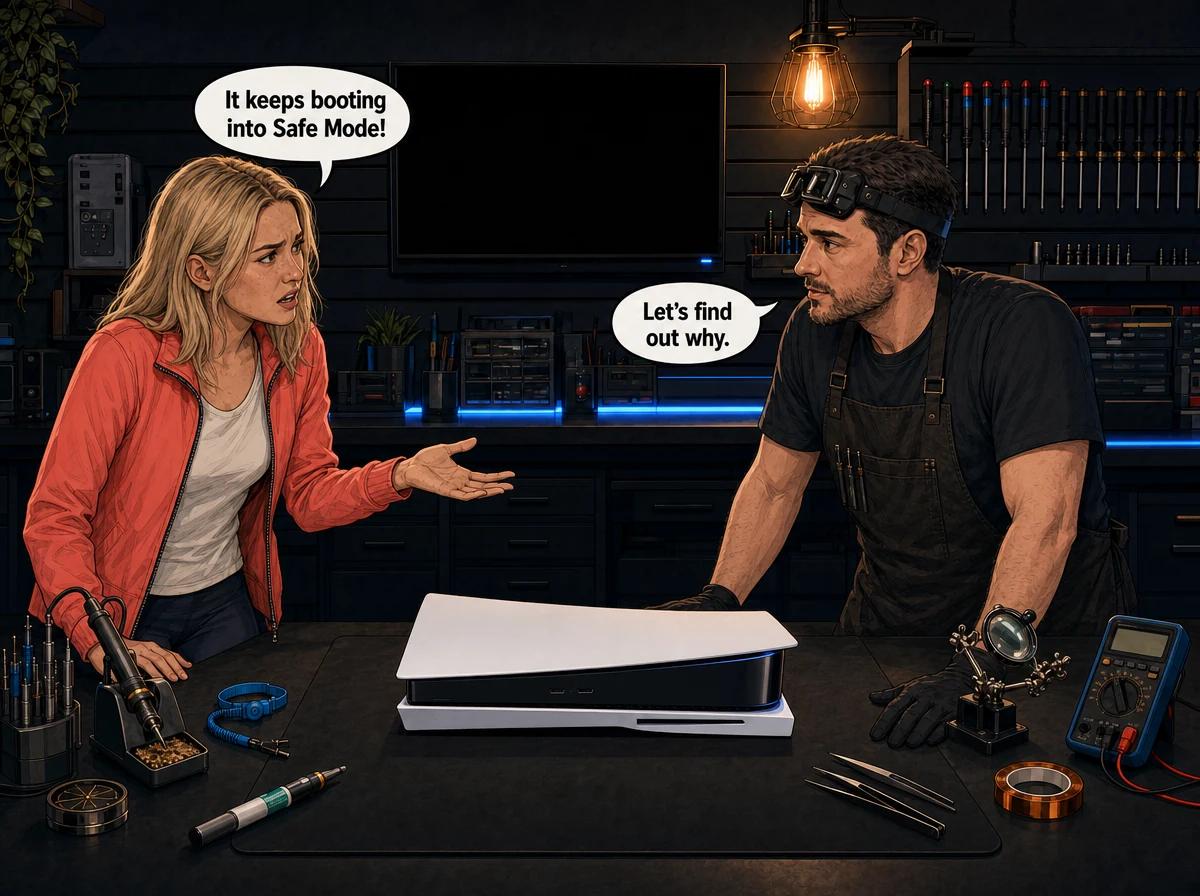
You switch your PS5 on and, instead of the home screen, you get the plain Safe Mode menu again. You pick Restart PS5. It reboots, thinks about it, and lands right back in Safe Mode. You try a few more times and the result never changes. This is one of the most common PS5 complaints online, and the advice out there is all over the place.
Here is the honest version. A PS5 stuck in a Safe Mode loop is sometimes a software problem you can clear at home in half an hour. Sometimes it is a hardware fault on the main board that no amount of menu options will touch. The trick is knowing which one you have before you wipe your console or spend money. This guide walks you through the right order of fixes and shows you how to read the results.
PS5 stuck in Safe Mode loop: the short answer
A PS5 stuck in a Safe Mode loop keeps starting in Safe Mode because its system software, its storage database or its start-up hardware cannot finish a normal boot. Start with Sony's own steps: switch the console off, unplug it for 20 minutes, then choose Clear Cache and Rebuild Database. If that fails, update or reinstall the system software from a USB drive. The way that reinstall behaves is your best clue. If it completes and the PS5 boots normally, it was software. If it freezes part-way, or finishes and the console still drops back into Safe Mode, the fault is almost always on the main board. Console Service Centre in Boksburg handles that board-level work.
Keep that last part in mind as you read. The USB reinstall is not just a fix. It is also a test.
What Safe Mode actually is
Safe Mode is a basic start-up mode that loads only the essentials. It sits underneath the normal PS5 system software, so it can still run when the main system cannot. Sony designed it as a repair menu: you use it to clear corrupted files, rebuild the content database or reinstall the system software completely.
You normally only see Safe Mode when you ask for it. To get there on purpose, you switch the PS5 off by holding the power button for about three seconds. Then you press and hold the power button again and let go after the second beep. The second beep comes about seven seconds after the first. Then you connect the controller with a USB cable and press the PS button, because wireless does not work in Safe Mode.
A Safe Mode loop is different. The console goes there on its own, every time you switch it on. Sometimes you see the full menu each time. Sometimes you get a progress bar that says it is processing, then a restart, then Safe Mode again. Either way, the PS5 is telling you it tried to start normally and something stopped it.
The three causes behind a PS5 Safe Mode loop
Almost every Safe Mode loop we see on the bench falls into one of three groups. They look the same on the TV, but they behave very differently once you start working through the fixes.
1. Corrupted system software or database
This is the software side. The files the PS5 needs to start, or the database that indexes your games and apps, have been damaged. Common triggers are the console losing power mid-update, the console being switched off at the wall instead of shut down properly, or a power cut while it was writing data. The hardware is fine. The PS5 just cannot make sense of what is stored on it.
This group usually responds to Safe Mode tools. A cache clear, a database rebuild or a system software reinstall puts clean files back, and the console starts normally again.
2. Internal storage or start-up firmware fault
This is the hardware side, and it is the one the forum threads tend to miss. The PS5's built-in storage is not a removable drive. iFixit's teardown shows it is soldered onto the main board, made up of memory chips and a storage controller. Alongside it sits a small flash memory chip, often called the BIOS chip, which holds low-level start-up firmware.
When one of those parts fails, the PS5 cannot read or write its own system files reliably. You can reinstall the software as many times as you like. The console either cannot finish the install, or it finishes and then cannot read the result on the next boot. That is when people end up in a loop that never ends, no matter what they choose in the menu.
3. Damage from a DIY attempt
The third group is consoles that started looping after someone opened them. That might have been a home clean, a fan job, an attempt to replace the liquid metal, or fitting an expansion drive in the M.2 slot. On the bench we sometimes find a connector that was not fully reseated, a damaged flex cable, or a board that got knocked or shorted during the work.
If your loop started straight after the console was opened, say so when you book it in. It changes where we look first, and it can save a lot of diagnostic time.
Fix a PS5 Safe Mode loop: work through these in order
Do these steps in this order. Each one is more drastic than the one before it, and the last one wipes your console. Stop as soon as the PS5 starts normally.
Before you start, if you can get onto the home screen at any point, back up what you can. If you have PlayStation Plus, make sure your saves are in cloud storage. If you cannot get past Safe Mode at all, skip that and carry on.
Step 1: Full power-off and a 20-minute unplug
This is Sony's first recommended step for a console that keeps starting in Safe Mode, and it costs nothing.
- Hold the power button until you hear a beep. Wait for the power light to flash white and then go off.
- Unplug the power cable from the back of the PS5.
- Wait 20 minutes.
- Plug the power cable back in and press the power button to switch the console on normally.
If the PS5 boots to the home screen, let it sit there for a few minutes before you play. If it goes back into Safe Mode, move on.
Step 2: Swap the cables you are using
It sounds too simple, but Sony's own troubleshooting asks you to try a different USB cable, HDMI cable and power cable, testing Safe Mode after each swap. A charge-only USB cable is a common trap. It can power things but cannot carry data, so the console never registers the button press. Use a USB cable you know carries data, and plug it straight into the console rather than through a hub.
Step 3: Clear the system software cache
- Start the PS5 in Safe Mode, or let it land there by itself.
- Choose Clear Cache and Rebuild Database.
- Choose Clear System Software Cache, then OK.
- When it finishes, choose Restart PS5.
Clearing the cache does not delete your games or saves. It removes temporary system files that can get corrupted.
Step 4: Rebuild the database
- Back in Safe Mode, choose Clear Cache and Rebuild Database again.
- This time choose Rebuild Database.
- Let it run without touching anything. On a full console it can take a while.
- Choose Restart PS5 when it is done.
Rebuilding the database scans the storage and creates a fresh index of everything on it. Your games and saves stay where they are. If the loop was caused by a damaged index, this is often the step that clears it.
Step 5: Repair Console Storage
On current PS5 system software, Safe Mode includes an option called Repair Console Storage. Sony says it attempts to fix start-up and storage problems and does not erase your data. If you see it in your menu, run it before you go anywhere near a reset.
If your console's menu does not show it, your system software is older. That is fine. Carry on to the next step.
Step 6: Update the system software from a USB drive
Updating the software in place replaces the system files without wiping your games. If the PS5 can reach the internet, Update System Software in Safe Mode can download it directly. If it cannot, use a USB drive.
- Format a USB drive as FAT32 or exFAT on a computer.
- Create a folder called PS5, and inside it a folder called UPDATE.
- Download the current update file from PlayStation's official system software page and save it in the UPDATE folder as PS5UPDATE.PUP.
- Plug the USB drive into the PS5.
- In Safe Mode, choose Update System Software, then Update from USB Storage Device.
Folder and file names must be in capitals. If the PS5 says it cannot find the update, the names or the format are usually the reason.
Step 7: Restore Default Settings
This resets the system settings to how they came from the factory. Sony says it does not delete games, apps, screenshots, video clips or saved data. It is worth one try if a settings change caused the trouble, but it rarely fixes a true loop on its own.
Step 8: Reset PS5 (Reinstall System Software) from USB
This is the last software step, and it deletes everything on the console. Games, saves stored only on the console, screenshots and user accounts are all wiped, and the system software is removed and put back from scratch.
- Prepare a USB drive exactly as in Step 6, but download the reinstallation file from PlayStation's system software page, not the normal update file. Save it as PS5UPDATE.PUP in the PS5 > UPDATE folder.
- Plug the drive in and start Safe Mode.
- Choose Reset PS5 (Reinstall System Software).
- Leave the console alone until it finishes. Do not switch it off at the wall.
Do this only when everything above has failed and you accept losing the data on the console. If you would rather not take that risk, this is a good point to stop and get the console looked at.
How to tell software from hardware: read the reinstall
This is where most online advice goes quiet. The full reinstall in Step 8 is the strongest software fix there is. So how it behaves tells you a lot about whether your problem is software at all.
The reinstall completes and the PS5 boots to the setup screen. Good news. That was a software problem, and it is fixed. Set the console up, sign in and redownload your games. If the loop comes back within days, though, take note. Software that keeps corrupting itself on healthy hardware is unusual.
The reinstall freezes part-way and never finishes. The bar stops moving and stays there, or the console restarts mid-install and you are back where you started. This points strongly to hardware. The console is failing to write its own system files to storage, so the problem is usually in the storage chips, the storage controller or the circuits around them on the main board. Repair technicians on the TronicsFix forum describe exactly this pattern, often stalling close to the end of the install.
The reinstall finishes, but the PS5 still boots back into Safe Mode. This also points to hardware. The files went on, but the console cannot read them back reliably on the next start, or the start-up firmware is not letting the boot complete. A second reinstall almost never changes the result.
The PS5 will not show Safe Mode at all. You get a power light, maybe a beep, but no menu, or the console restarts before the menu loads. Safe Mode runs below the normal system, so if it will not appear, the fault is below the software. Think power delivery, the start-up firmware, or the video side of the board.
The PS5 will not read the USB file. Before blaming hardware, check the basics: FAT32 or exFAT, folder names in capitals, the right file in the right folder. Try a different USB drive. If two known-good drives with the correct setup are still ignored, the USB circuitry on the board is worth checking.
Here is the same thing as a quick reference.
| What happens | Most likely cause | Next step |
|---|---|---|
| Rebuild Database or cache clear fixes it | Corrupted cache or database | Nothing more, back up your saves |
| Full reinstall completes and PS5 boots | Corrupted system software | Set up and redownload games |
| Reinstall freezes part-way | Storage or board-level fault | Professional diagnosis |
| Reinstall completes, still loops | Storage or start-up firmware fault | Professional diagnosis |
| No Safe Mode menu at all | Power, firmware or board fault | Professional diagnosis |
| Started right after the console was opened | DIY damage or loose connection | Professional diagnosis |
Not sure which row you are in? WhatsApp us at 087 550 2307. We respond immediately, 24/7, and if you tell us exactly what the reinstall did, we can usually tell you which side of the line you are on before you send the console in.
Why repeated reinstalls do not help a hardware fault
People often reinstall five or six times, hoping the next one will stick. On a console with a hardware fault, that is wasted effort, and it can make life harder later.
A reinstall writes a large amount of data to the console's storage. If a storage chip or the controller is already struggling, hammering it with repeated full writes does not help it recover. Each failed attempt also leaves the system in a more uncertain state.
There is a data point here too. A completed reinstall wipes the console. If the fault turns out to be hardware, the repair itself may have saved some of that data had you stopped earlier. We cannot promise anything for data stored only on the console, and we will be straight with you about it. But fewer wipes means fewer things lost for good.
If you have already done one full reinstall and the PS5 still loops, stop. You have your answer.
What we do on the bench
When a looping PS5 comes into our Boksburg workshop, we start by confirming the symptom ourselves. We note exactly what the console does: whether Safe Mode appears, whether a reinstall freezes, and where. Then we test from the outside in.
- Basics first. Power, cables and known-good USB media, so we are not chasing a fault that is not there.
- What the console reports. Board technicians read the console's own internal error logs, which point to the area that is failing instead of guessing.
- Storage and firmware. We check the built-in storage, its controller and the start-up flash chip, and the circuits that feed them.
- Physical inspection. For any console that has been opened before, we look for loose connectors, torn flex cables, liquid metal where it should not be and signs of a short.
Once we know what has failed, we tell you what it is and what it costs before we do the work. No surprises.
If the problem is the BIOS chip, which holds the start-up firmware, the PS5 BIOS chip replacement costs R1,749. That covers the replacement chip and the board work to fit and program it. Storage chip and controller faults are deeper board-level jobs. We price those after diagnosis because they depend on exactly what has failed. You can read more about this kind of work on our board-level repair page.
If you decline the repair, or the console turns out to be beyond repair, a R599 bench fee covers the diagnostic time. Otherwise you only pay for the repair.
Most repairs are done in 2-3 working days, depending on how busy our workshop queue is at the time. Board-level jobs can take a little longer.
Do not open the PS5 to fix a Safe Mode loop
You will find videos telling you to open the console, reseat things or reflow chips. Please do not. A Safe Mode loop is never fixed by a screwdriver at home, and opening the PS5 without the right equipment often turns a single fault into several.
We regularly see PS5s where a home attempt has broken the fan connector off the main board and ripped the traces with it. Rebuilding those traces is hours of extra work. We also see torn flex cables, stripped screws and, worst of all, liquid metal that has escaped its barrier. The PS5 uses liquid metal between the processor and the heatsink, not thermal paste, and liquid metal conducts electricity. A spill can short the board.
The power supply is the other reason. Console power supplies contain capacitors that store a dangerous charge even after unplugging. We will never advise anyone to open one.
Opening your console yourself risks causing additional damage, such as broken flex cables, stripped screws or damaged connectors, and that makes the repair more expensive. We strongly recommend leaving internal repairs to professionals.
A note on warranty, because people ask. Opening a console does not automatically void the manufacturer's warranty, but any damage you cause while it is open is not covered. In South Africa, blanket "void if the seal is broken" terms are largely unenforceable under the Consumer Protection Act, but that does not help if the damage came from the DIY work itself. Our own repairs carry a 6-month money-back warranty.
How to avoid another Safe Mode loop
You cannot prevent every hardware failure, but software corruption is often avoidable.
- Shut down properly. Use the power menu on screen, or hold the power button until it beeps. Do not switch the console off at the wall while it is on.
- Never interrupt an update. If the PS5 is downloading or installing system software, leave it alone until it is done.
- Protect it from power problems. Power cuts and surges in South Africa are part of life. A decent surge protector, or a UPS if your area loses power often, protects the console while it is writing data. Our load shedding protection guide covers what to look for.
- Be careful with Rest Mode if it has caused trouble before. Some PS5 owners see faults that only appear coming out of Rest Mode. We cover that separately in our PS5 Rest Mode problems guide, because it is a different symptom with different fixes.
- Keep saves in the cloud. If you have PlayStation Plus, turn on automatic cloud saving. A wipe is far less painful when your progress is safe elsewhere.
- Keep it flat and ventilated. Heat stresses the board over time. We recommend laying the PS5 horizontally, with space around the vents.
Related problems that look like a Safe Mode loop
Not every boot problem is a Safe Mode loop, and the fix can be very different.
- Error codes on screen during boot or in games. Our PS5 error codes guide explains what the common codes mean.
- Software or hardware, more generally. If your PS5 has crashes, freezes or game-specific errors rather than a loop, our broader PS5 software vs hardware guide covers the wider picture.
- The console was already opened and now has new faults. Our PS5 DIY repair recovery guide explains what we usually find and how we put it right.
For everything else we fix on Sony's current console, see our PS5 repair service page.
Frequently Asked Questions
Why does my PS5 keep booting into Safe Mode?
The PS5 starts in Safe Mode when it cannot complete a normal boot. Usually that is corrupted system software or a damaged database, often after a power cut or the console being switched off during an update. If Safe Mode fixes do not help, the cause is usually a hardware fault in the built-in storage or the start-up firmware on the main board.
How do I get my PS5 out of a Safe Mode loop?
Switch it off, unplug it for 20 minutes, and switch it on again. If it still lands in Safe Mode, choose Clear Cache and Rebuild Database, clear the system software cache, then rebuild the database. If that fails, try Repair Console Storage if your menu has it, then update the system software from a USB drive. A full reinstall is the last resort, because it wipes the console.
Does rebuilding the database delete my games?
No. Rebuild Database scans the console's storage and creates a fresh index of your content. Your games, apps and saves stay on the console. Clearing the system software cache and Restore Default Settings do not delete your games or saves either. Reset PS5 and Reset PS5 (Reinstall System Software) both delete everything.
My PS5 reinstall freezes part-way. What does that mean?
A reinstall that freezes and never completes usually means the console cannot write its system files to its own storage. That points to a hardware fault on the main board, typically in the storage chips, the storage controller or the circuits around them. Repeating the reinstall will not fix it. The console needs a board-level diagnosis.
Can a PS5 stuck in Safe Mode be fixed?
Yes, in many cases. Software loops are often cleared at home with the Safe Mode tools. Hardware loops need board-level repair. A faulty BIOS chip can be replaced, and storage faults can often be repaired too, depending on exactly what has failed. We diagnose the console first and tell you what it needs before any work starts.
How much does it cost to fix a PS5 Safe Mode loop in South Africa?
It depends on the cause. A software-only loop can cost you nothing if the Safe Mode steps work. If the BIOS chip has failed, the replacement price is shown in the bench section above, pulled live from our pricing system. Storage and other board-level faults are quoted after diagnosis. If you decline the repair or the console cannot be repaired, a R599 bench fee applies.
Will I lose my saves if my PS5 needs a board repair?
It depends on the fault. A full system software reinstall always wipes the console, so saves stored only on the console are lost that way. With a hardware repair, some data may survive, but we cannot promise it. If you have PlayStation Plus with cloud saves turned on, your progress is safe whatever happens.
Can you repair my PS5 if I am not in Gauteng?
Yes. We offer nationwide courier repairs through The Courier Guy. We collect your PS5, repair it at our Boksburg workshop and send it back. Most repairs are done in 2-3 working days, depending on our workshop queue, plus courier transit each way.
Get Your PS5 Out of the Loop
Here's why Console Service Centre is a safe choice:
- Console repair specialists since 2011
- Thousands of consoles repaired. We know these machines inside out.
- 1,353+ Google reviews at 4.9 stars — the world's most-reviewed dedicated gaming-console repair specialist on Google from real Google reviews
- PlayStation and Xbox specialists. We don't do phones or general electronics.
- 6-month money-back warranty. If the same issue returns, we fix it free.
Ready to Get Your PS5 Working Again?
WhatsApp us: 087 550 2307. We respond immediately, 24/7.
Visit us: 6 Bester Street, Witfield, Boksburg. Monday to Thursday 08:00 to 16:00, Friday and Saturday 08:00 to 13:00, closed on Sunday.
Can't get to us? We offer nationwide courier repairs. Ship your PS5 to us via The Courier Guy, we'll fix it and send it back.
Want to ask a question first? Head to our contact page or just send a WhatsApp.
Topics Covered
About the Author

Shaun Potgieter
Founder & Head Technician
Expert console technician with 15+ years of hands-on repair experience.