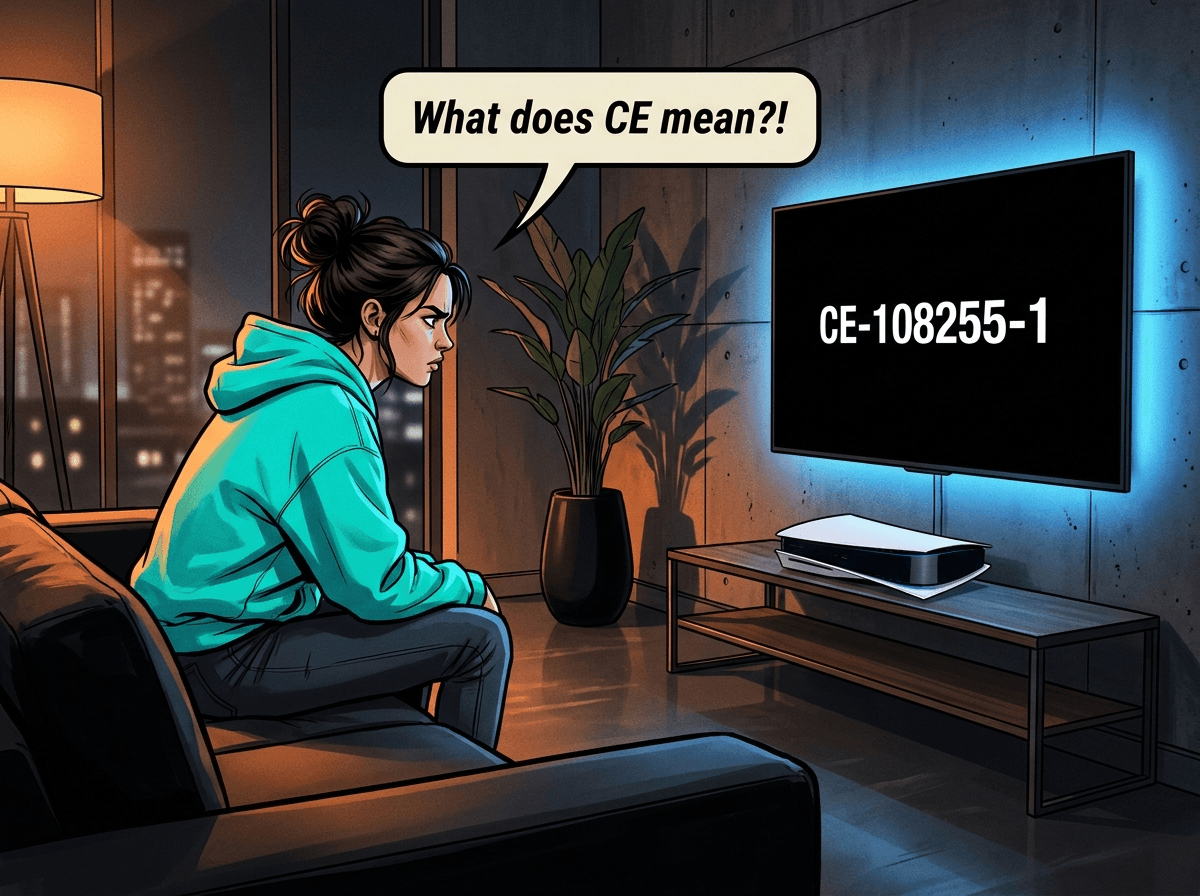
You're mid-game when your PS5 throws up a code like CE-108255-1 — or you turn it on and see CE-108262-9 with a warning about your console's software. What do these codes actually mean?
CE, WS and SU codes are the PS5's way of telling you what went wrong. CE codes (Console Errors) point to something on the console itself — application crashes, storage problems or read errors. WS codes (Web Service errors) cover network, account and service issues. SU codes (System Update errors) appear during firmware updates. At Console Service Centre in Boksburg, we diagnose PS5 hardware faults every week and see every one of these codes regularly. This is a breakdown of the most common PS5 error codes — each one verified against Sony's official PlayStation support — what they mean, and exactly what to do about them.
What Should I Try First for Any PS5 Error Code?
Before looking up the specific code, work through these five steps. They resolve a large portion of PS5 errors without anything more complicated.
1. Full Power Cycle (Not Just Rest Mode)
- Hold the PS5 power button until it shuts down completely — about 3 seconds produces a full shutdown, not rest mode
- Unplug the power cable from the back of the PS5
- Wait a full 60 seconds — capacitors need time to fully discharge
- Plug back in and power on
Load-shedding shutdowns corrupt temporary files and trigger false error codes. A full power cycle clears most of these.
2. Check PSN Status Before Anything Else
Many PS5 error codes point at PlayStation Network, not your console:
- Go to status.playstation.com on your phone or laptop
- If any service shows as limited or offline, the error is on Sony's side — wait it out
3. Check Your Network Connection
For WS codes specifically:
- Test your Wi-Fi on another device
- Restart your router by unplugging it for 30 seconds
- If possible, connect the PS5 with an ethernet cable — many WS errors are caused by Wi-Fi instability rather than a genuine PSN outage
- Check whether other devices on your network can reach the internet
4. Free Up Storage Space
Several PS5 error codes are caused by insufficient storage. From Settings > Storage:
- Check how much free space you have on console storage
- Delete screenshots, video captures and finished games
- When installing data, Sony recommends you may need roughly twice the install size as free space available
5. Check for System Software Updates
An outdated PS5 firmware causes compatibility errors with newer games and patches:
- Go to Settings > System > System Software > System Software Update and Settings
- Select Update System Software
- If you can't access Settings because of the error, see the Safe Mode steps below
Understanding PS5 Error Code Prefixes
PS5 errors follow a consistent prefix system. The prefix tells you the category; the number after it identifies the specific fault:
| Prefix | Category | What It Covers |
|---|---|---|
| CE | Console Error | Application crashes, storage faults, disc read errors, system data errors |
| WS | Web Service | Account suspension, PSN sign-in, service maintenance, system software update failures |
| SU | Software Update | System firmware update and hardware detection issues |
| NP | Network Platform | PSN sign-in and account-related errors |
| NW | Network | Connectivity and server connection errors |
You can't decode the number portion mathematically — the numbers are identifiers, not a formula. Use this guide to look up the specific codes you encounter.
CE Codes: Console and Application Errors
CE codes are the most common category. They range from a temporary game crash to a system data read failure. Here are the CE codes we see most often.
CE-108255-1 — An Error Occurred With the Game/Application
This is one of the most common PS5 error codes. Sony's official description is short and to the point: an error occurred with the game or application.
How to Fix CE-108255-1 (Sony's official fix):
- Try updating your game — highlight the game tile on the home screen, press Options > Check for Update
- Fully close the game and restart it — if this was a one-off crash, this is often enough
- If the error persists, delete and reinstall the game — this clears any corrupted install data
- Confirm you have enough free storage in Settings > Storage
Citable fact: CE-108255-1 is Sony's generic application error code. According to PlayStation's official support article, the recommended fix is to update the affected game. The error itself is a software-level issue with the game or app, not a sign of console hardware failure.
CE-108262-9 — Error Reading System Software or Application Data
Sony's description: an error occurred while reading the system software or application data. This is more serious than a generic crash because it points at the console's own data, not just a single game.
How to Fix CE-108262-9 (Sony's official fix):
- Update your PS5 console system software to the latest version
- If the error occurs after starting a game or app, go to Settings > Storage, delete that game/app, then reinstall it
- Start your PS5 in Safe Mode and select Clear Cache and Rebuild Database > Rebuild Database
- If the problem continues, reset your console via Settings > System > System Software > Reset Options > Reset Your Console — back up your saved data to a USB drive or PS Plus cloud first, as a reset erases everything on console storage
- After resetting, try installing the game/app again
Important: CE-108262-9 that persists after a full reset has only been seen by us at Console Service Centre in cases where the underlying hardware is at fault. If the official Sony steps above don't resolve it, the next step is a professional diagnosis. WhatsApp us at 087 550 2307 or visit our PS5 service page. For more on telling software faults from hardware faults, see our PS5 software vs hardware guide.
CE-100028-1 — Not Enough Free Space on the SSD
Sony's description: there is not enough free space on the SSD. Despite the code looking serious, this one is purely a storage issue — your internal SSD is full.
How to Fix CE-100028-1 (Sony's official fix):
- Go to Settings > Storage > System Storage to check how much space you have
- From System Storage, highlight content you want to delete and press the select button — then choose Delete
- You can also delete from the home screen: highlight content, press the Options button, and select Delete
For long-term storage relief, consider adding USB extended storage or installing a compatible M.2 SSD in the PS5's expansion slot — both let you store PS5 games without giving up the internal SSD's speed for actively played titles.
CE-107872-5 — Not Enough Free Space on Console Storage
A close relative of CE-100028-1. Sony's description: there is not enough free space on the console storage. You see this when trying to download or copy data.
How to Fix CE-107872-5 (Sony's official fix):
- Check free space at Settings > Storage
- Sony notes that when installing data, you may need to reserve approximately twice the free space that the install itself requires — the PS5 needs headroom during installation
- If you have a USB extended storage drive connected, try changing the save destination — internal storage or extended storage
- If you have another extended storage drive available, try that one to see if it helps
CE-107938-8 — Failed to Update the Application
Sony's description: failed to update the application. Sony specifically flags that turning off the PS5 during an update can cause this error — so if it appeared after a power loss or load-shedding mid-update, that's likely the cause.
How to Fix CE-107938-8 (Sony's official fix):
- Restart your PS5 console
- Make sure system software is up to date: Settings > System > System Software > System Software Updates and Settings
- Highlight the affected application, press the Options button, and select Check for update
- If the issue continues, delete the application from the home screen (Options > Delete) and reinstall it from your library or disc
CE-110551-3 — Failed to Read the Disc
Sony's description: failed to read the disc. Applies only to the PS5 Disc Edition.
How to Fix CE-110551-3 (Sony's official fix):
- Restart your PS5 console
- Inspect the disc for fingerprints, smudges or scratches — clean it with a soft, clean cloth, wiping from the centre outward (never in a circular motion)
- Check the disc is playable on PS5 (some discs are region-locked or wrong-format)
- Try a different supported disc — if other discs work, the original disc is the problem; if no discs work, the disc drive itself may be at fault
See our dedicated guide on PS5 disc drive not working for a full breakdown of disc drive faults — including the symptoms that point at laser ribbon, drive motor or controller board issues.
WS Codes: Network, Account and Service Errors
WS codes are network, account or service-related — they rarely indicate anything wrong with your PS5 hardware. Always check status.playstation.com first.
WS-116367-4 — Access to PlayStation Has Been Suspended
This one's specific and serious: Sony's official description is "Access to PlayStation has been suspended" — meaning the PSN account itself is suspended, not that the console can't reach PSN.
How to Fix WS-116367-4 (Sony's official fix):
- Try signing in from another device (a PC or phone) at playstation.com — this tells you whether the suspension is account-wide or device-specific
- If you can't sign in from any device, your account is suspended due to a violation of the Terms of Service
- Review the PlayStation Terms of Service and PlayStation's Suspensions page to understand the cause
- Contact PlayStation Support directly if you believe the suspension is an error
Citable fact: WS-116367-4 is an account-level suspension, not a console hardware fault. No amount of restarting, resetting or repairing the PS5 will resolve this code — it is resolved through your PSN account with Sony.
WS-116522-7 — System Software Update Failed
Sony's description: the system software update failed. This appears specifically when the firmware update process can't complete.
How to Fix WS-116522-7 (Sony's official fix):
If updating over the internet:
- Restart your PS5 and use a wired ethernet connection for the update if possible
- If using Wi-Fi, move the PS5 closer to the router or remove obstructions
- Turn off your router and modem, wait at least 5 minutes, then restart them and try again
If updating via USB:
- Re-download the latest PS5 system software from PlayStation's official website
- Make sure the file name and folder location on the USB are correct (the PS5 is strict about this — the PUP file must be at
PS5/UPDATE/PS5UPDATE.PUP)
If updating from a game disc:
- Check the disc for fingerprints or scratches and clean it from the centre outward
- Try a different update method if cleaning doesn't help
WS-116449-5 — Service Currently Under Maintenance
Sony's description: this service is currently under maintenance. The PS5 console is fine — Sony is doing scheduled work on PSN.
How to Fix WS-116449-5:
- Check status.playstation.com to confirm what's offline and look for an announced maintenance window
- Wait it out — these errors clear automatically once Sony's maintenance finishes
- PlayStation often announces maintenance windows in advance on the PlayStation X (Twitter) account
SU Codes: System Update Errors
SU codes appear during firmware updates or system startup. They can sometimes leave the console in a partially updated state, so they should be resolved promptly.
SU-101312-8 — Can't Detect the Blu-ray Disc Drive
Sony's description: can't detect the Blu-ray Disc drive. This appears when the PS5 console can't recognise its own disc drive — most commonly during a system update.
How to Fix SU-101312-8 (Sony's official fix):
- Turn off and unplug your PS5 console
- Turn off your router, wait at least 5 minutes, then restart it
- Plug your PS5 back in and restart it
- Go to the Control Center, select Notifications, highlight the update file, press the Options button, and select Delete
- Re-attempt the update at Settings > System > System Software > System Software Updates and Settings
- If it still fails, try a Safe Mode update or, as a last resort, reset the console via Settings > System > System Software > Reset Options > Reset Your Console (back up your data first)
- If the issue persists even after these steps, Sony itself directs you to PlayStation Repairs — that's where we come in
When to Seek Professional Help
Most of the codes above resolve with software steps. These specific situations mean your PS5 likely has a hardware fault that will not improve with restarts, reinstalls or resets:
- CE-108262-9 persists after a full console reset — likely a hardware fault (motherboard, SSD or controller-related)
- Safe Mode is inaccessible — the PS5 won't produce the two beeps on the startup hold, or Safe Mode itself crashes. This often points to BIOS chip damage or PSU failure. See our PS5 not turning on guide
- Disc drive errors on every disc, after a thorough cleaning — laser, ribbon or drive controller fault
- SU-101312-8 doesn't clear after the full Sony fix — your console isn't seeing its own Blu-ray drive, which usually means the disc drive board or its ribbon connection has failed
- Any error code accompanied by a burning smell, an unusually loud fan, or the console feeling extremely hot — thermal system failure requiring professional service
Opening your PS5 yourself risks creating additional damage. The PS5 uses liquid metal thermal compound — not thermal paste — on its processor. Liquid metal is electrically conductive; a spill onto the motherboard will likely destroy it. Power supplies contain capacitors storing several hundred volts. We strongly recommend leaving internal repairs to professionals.
Not sure what your error code means? WhatsApp us at 087 550 2307 — we respond immediately, 24/7, and can usually give you a reliable diagnosis based on the error code and symptoms before you bring the console in.
Preventing PS5 Error Codes
Most CE and SU codes — especially storage and update-related ones — are preventable with a few habits.
Keep Storage Headroom
The PS5 needs free space not just to install games but to update them and write temporary cache during gameplay. Sony itself notes that installations can require twice the install size as free headroom. Check regularly at Settings > Storage and delete screenshots, video clips and finished games. If you keep a large library, look at adding USB extended storage or an M.2 SSD in the internal expansion slot.
Protect Against Load-Shedding Mid-Session
Load shedding cuts power mid-game at the worst possible moment. Sony specifically warns that turning off the PS5 during an update can cause CE-107938-8. If the PS5 is writing a save file or applying a patch when power cuts, you get corrupted data and a CE or SU code. Consider an entry-level UPS (uninterruptible power supply) — the PS5 draws around 200W under load, so a small UPS gives you 10–15 minutes to close games cleanly before shutdown. Our PS5 rest mode problems guide covers the interaction between rest mode, load shedding and corruption in more detail.
Keep System Firmware Updated
PlayStation updates frequently include crash fixes that address common CE errors. Enable automatic downloads in Settings > System > System Software > System Software Update and Settings > Download Update Files Automatically — the PS5 downloads updates during rest mode so you're always on the latest firmware.
Use Wired Internet When Updating
Sony's own fix for WS-116522-7 explicitly recommends a wired ethernet connection for system updates. Wi-Fi instability mid-update is one of the most common causes of a failed firmware install. If you only update once every few weeks, plug in an ethernet cable for that one operation — it's the most reliable path.
Maintain Good Ventilation
A PS5 running hot generates more CE-108255-1 crashes and can trigger thermal protection shutdowns. Keep at least 10–15cm clearance around the console, especially at the rear exhaust. Horizontal placement is recommended — storing the PS5 vertically for extended periods can cause liquid metal migration inside, leading to localised overheating spots that take months to become obvious but create persistent crash patterns.
Use a Stable Power Outlet
Brownouts and voltage fluctuations from overloaded circuits cause silent storage corruption. Use a dedicated circuit if possible, and protect the PS5 with a surge protector rated for sensitive electronics.
PS5 Repair Pricing
If your PS5 error code points to a hardware fault, here are our current repair costs at Console Service Centre:
| Repair | Price |
|---|---|
| Drive Repair | R1,249 - R1,299 |
| Full Service | R1,249 |
| HDMI Port Replacement | R1,299 |
| Internal 17 Blade Fan (Fat) | R1,449 |
| HDMI Port Trace Repair | R1,499 |
| BLOD | R1,599 |
| Internal 19 Blade Fan | R1,599 |
| Internal 23 Blade Fan | R1,699 |
| Internal 23 Blade Fan (Original) | R1,699 |
| ADP-400DR Power Supply | R1,749 |
| BIOS IC - Winbond W25Q16JVN1M | R1,749 |
| ADP-400FR Power Supply | R1,799 |
| HDMI IC MN864739 | R1,799 |
| ADP-400ER Power Supply | R1,849 |
| South Bridge Chip 61GG Replacement | R1,849 |
| South Bridge Chip 69GG Replacement | R1,849 |
| 497A Laser | R1,999 - R2,049 |
| ADP-400GR Power Supply | R2,049 |
| Disc Drive Only | R2,199 - R2,299 |
| Complete Drive with Laser | R2,699 - R2,749 |
| South Bridge Chip 62GG Replacement | R3,199 |
| Pro ADP-420DR Power Supply | R4,199 |
*Prices shown are the total amount payable.
Get an exact quote on WhatsApp →Every repair includes a 6-month money-back warranty — if the same fault returns within 6 months, we fix it free.
Frequently Asked Questions
What does CE mean on a PS5 error code?
CE stands for Console Error. CE codes indicate a problem on the PS5 itself — most commonly an application crash, a storage shortage or a system data read issue. The specific number after CE identifies the type of fault. CE codes are generally more involved than WS codes but most still resolve with software steps like updates, reinstalls or a database rebuild.
What does WS mean on a PS5 error code?
WS stands for Web Service. WS codes indicate a problem connecting to PlayStation Network, an account-level issue, or a service that's under maintenance — not a fault with your PS5 hardware. Check status.playstation.com first. If PSN is showing any degraded services, the WS error is expected and will resolve when Sony's servers recover. WS-116367-4 is the one exception: it specifically means your PSN account has been suspended.
Why does my PS5 keep showing CE-108255-1?
CE-108255-1 is Sony's generic application error. The official fix is to update the affected game. If updating doesn't help, delete the game and reinstall it. If you see CE-108255-1 on multiple different games, the PS5 may be overheating or have a deeper system issue — try a database rebuild from Safe Mode as the next step.
How do I rebuild the PS5 database to fix error codes?
Turn off the PS5 completely — not rest mode. Hold the power button until you hear two beeps (about 7 seconds from the second press). Connect your DualSense via USB cable, press the PS button, and select option 5: Clear Cache and Rebuild Database. The process can take anywhere from a few minutes to over an hour, depending on how much data is on the drive. Do not interrupt it once it starts; the screen will go dark during the rebuild — this is normal.
Is CE-108262-9 a serious error?
It's more serious than a simple game crash because the console is reporting a read error on its own system software or application data. Sony's official fix runs through update, reinstall, database rebuild and finally a full reset. If CE-108262-9 still appears after all those steps, the underlying issue is likely hardware — at that point a professional diagnosis is the right move.
Can PS5 error codes damage the console?
No — error codes are diagnostic messages, not causes of damage. The code tells you something went wrong; it doesn't worsen the situation by appearing. What can cause additional damage is attempting to fix underlying hardware issues without proper tools or knowledge — particularly liquid metal reapplication or any work involving the power supply.
What does WS-116367-4 mean — is my PS5 broken?
No. WS-116367-4 is an account-level suspension. Sony's official message reads "Access to PlayStation has been suspended." The PS5 console is working fine — the problem is with your PSN account. Try signing in to playstation.com from a PC or phone; if that also fails, your account has been suspended. The path to resolving it is through PlayStation Support, not a console repair.
Get Your PS5 Fixed
Console Service Centre has been repairing PlayStations since 2011. With 1,353+ Google reviews at 4.9 stars and over 25,000 repairs completed, we've seen every error code in the book — including the rare ones that don't appear in this list.
Here's why we're your best option:
- PS5 and Xbox specialists — we don't do phones or general electronics
- 15+ years of experience — established 2011, we've repaired through every PS5 revision
- 6-month money-back warranty — same fault returns within 6 months, we fix it free
- 1,353+ Google reviews at 4.9 stars — the world's most-reviewed dedicated gaming-console repair specialist on Google — our track record is public and verifiable
- Nationwide service — send your PS5 via The Courier Guy if you can't get to Boksburg
Ready to Get Your PS5 Working?
WhatsApp us: 087 550 2307 — we respond immediately, 24/7. Tell us the error code you're seeing and what the console was doing when it appeared — we can usually give you a useful diagnosis before you bring the console in.
Visit us: 6 Bester Street, Witfield, Boksburg
Can't get to us? We offer nationwide courier repairs. Ship your PS5 to us via The Courier Guy — we fix it, we ship it back.
Topics Covered
About the Author

Shaun Potgieter
Founder & Head Technician
Expert console technician with 15+ years of hands-on repair experience.