
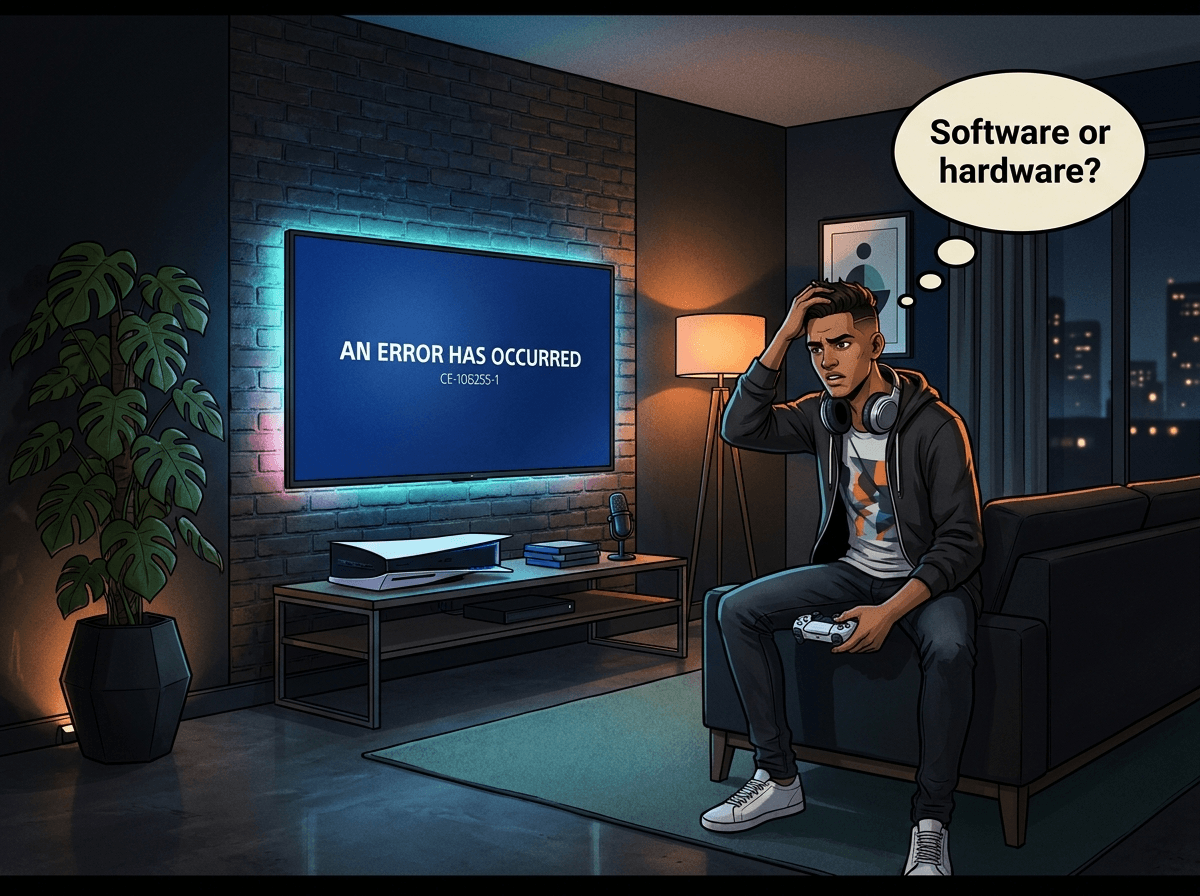
Your PS5 is stuck in a boot loop, showing a CE error code, or refusing to launch games. Maybe it worked fine yesterday. Before you panic — or hand it over to someone who doesn't know what they're looking at — you need to know one thing: is this a software problem or a hardware fault? The answer determines everything. At Console Service Centre in Boksburg, we book in PS5s under "software problem" every week. Many turn out to be genuine software issues that respond to Safe Mode procedures. The rest are hardware faults presenting with software symptoms: BIOS chip corruption, SSD damage, or power delivery failure. This guide helps you tell the difference, work through the right steps in the right order, and know when to stop and get professional help.
Quick Fixes to Try First
These steps take 15 minutes and resolve the majority of PS5 software problems. Work through them before going anywhere near Safe Mode.
1. Power Cycle Completely
Not rest mode — a full power-off and drain:
- Hold the PS5 power button until it shuts down completely
- Unplug the power cable from the back of the console
- Wait 60 seconds (not 30 — a full minute matters)
- While unplugged, press and hold the power button on the console for 10 seconds to drain residual charge from the capacitors
- Plug back in and power on
This clears the PS5's temporary memory and resolves transient software errors in many cases.
2. Delete and Reinstall the Problem Game
If the error appears when launching a specific game (CE-108255-1 is common here):
- On the home screen, highlight the game
- Press the Options button on your DualSense
- Select Delete
- Redownload from your Library or the PlayStation Store
Game data corrupts after download interruptions, sudden power cuts from load shedding, or failed updates. A clean reinstall fixes this. Your cloud saves are not affected — they're stored separately on PSN servers.
3. Check for a Pending System Update
An outdated firmware version causes stability problems. Go to Settings → System → System Software → System Software Update and Settings and install any pending update. If the PS5 can't get far enough to reach Settings, move to Safe Mode below.
4. Disable Rest Mode
The PS5 rest mode bug is real and persistent across multiple firmware versions. The console enters rest mode and fails to resume — black screen on wake, stuck loading spinner, or a complete boot failure. Fix:
- Settings → System → Power Saving
- Set Time Until PS5 Enters Rest Mode to Don't Put in Rest Mode
- Restart
This resolves a significant number of "boot failure" complaints we see, especially on older PS5 units.
How to Use PS5 Safe Mode
Safe Mode bypasses the PS5's normal boot sequence and loads repair tools directly. It's the most powerful DIY tool available for PS5 software problems.
Accessing Safe Mode
- Fully shut down your PS5 — power light off completely, not amber rest mode glow
- Press and hold the power button — keep holding after the first beep
- Release after the second beep, which comes approximately 7 seconds later
- Connect your DualSense via USB cable — wireless does not work in Safe Mode
- Press the PS button on the controller
The Safe Mode menu loads with 7 options.
Safe Mode Options: What Each One Does
| Option | What It Does | When to Use It |
|---|---|---|
| 1. Restart PS5 | Standard reboot | First thing — clears minor glitches |
| 2. Change Video Output | Resets to 1080p | If you have a black screen |
| 3. Update System Software | Downloads update or installs from USB | Stuck update errors |
| 4. Restore Default Settings | Resets all settings, keeps games and saves | Settings-related instability |
| 5. Clear Cache and Rebuild Database | Clears temp files, rebuilds the game index | Slow loading, database corruption |
| 6. Reset PS5 | Factory reset, keeps game licences | Persistent software problems |
| 7. Reset PS5 (Reinstall System Software) | Full wipe and OS reinstall | Last resort before professional repair |
Clear Cache and Rebuild Database
Start here for most software problems. This clears all cached data — temp files, shader caches, broken index entries — and rebuilds the database that tracks all your installed games and apps.
The rebuild takes 5–15 minutes depending on how much content you have installed. The PS5 restarts automatically when done. Your games, saves, and downloaded content are not deleted. Database corruption, slow loading, and game-launch hangs almost always clear after this step.
Reset PS5
A factory reset that deletes all locally stored data — games (licences remain on your account), saves not backed up to the cloud, and downloaded content. Before doing this:
- Upload saves to PS Plus cloud storage or copy them to a USB drive via Settings → Saved Data and Game/App Settings → Saved Data (PS5) → USB Drive → Copy to USB Drive
After the reset, log in to your PSN account and redownload everything from your Library. This takes time but costs nothing extra — you own the licences.
Reset PS5 (Reinstall System Software)
This reinstalls the PS5 operating system from scratch — either downloaded fresh from PlayStation's servers or installed from a USB drive you prepare on a PC.
Preparing a USB reinstall:
- Format a USB drive as FAT32 or exFAT (at least 2GB free)
- Create a folder on it called
PS5, then inside that a folder calledUPDATE - Download the full reinstall file from Sony's support site and place it in the
UPDATEfolder - With the PS5 off, insert the USB into the console
- Boot into Safe Mode and select Reset PS5 (Reinstall System Software)
This option resolves the most severe firmware corruption. If even this fails, the problem is hardware — not software.
Decoding PS5 Error Codes
CE- prefix codes are the PS5's way of flagging a specific category of failure. Here's what the most common ones mean:
| Error Code | What It Means | Likely Fix |
|---|---|---|
| CE-108255-1 | Application/game crash | Delete and reinstall the game |
| CE-100095-5 | Issue starting an application | Clean disc; reinstall; try another title |
| CE-107876-9 | Network/connectivity error during update | Check internet; Safe Mode → Update System Software |
| CE-100028-1 | Not enough free space on the SSD | Uninstall games, clear capture data, or add expansion storage |
| CE-100096-6 | Content cannot be used | Sign out and back into PSN; check licence |
Key pattern: Error codes that appear on only one or two games = software corruption in that game's data. Error codes that appear on every game, at boot, or in Safe Mode = hardware problem or deep system corruption.
Citable Fact Block: Software vs Hardware in Our Repair Data
Of the 27 PS5 tickets logged at Console Service Centre under "Software Problem" over the past 12 months:
- 16 (59%) resolved through Safe Mode alone — database rebuild, factory reset, or firmware reinstall
- 7 (26%) had a hardware root cause presenting as software symptoms — BIOS chip failure (3 cases), SSD sector damage (2 cases), APU-related instability (2 cases)
- 4 (15%) had mixed issues — software corruption triggered by an underlying hardware fault, most commonly a failing SSD causing write errors that cascaded into database corruption
The practical takeaway: software fixes work more often than not, but when they don't, something physical is usually at fault.
When Software Fixes Stop Working
If you've worked through all Safe Mode options — Rebuild Database, Reset PS5, and Reinstall System Software — and the PS5 still isn't right, you're in hardware territory.
Signs That Point to Hardware
Safe Mode won't load
If the PS5 power LED comes on but the Safe Mode menu never appears — no video, immediate restart, or the console reboots before the menu loads — this is not a software problem. Safe Mode loads from a low-level boot sequence that sits below the operating system. If that fails, the fault is in the BIOS chip, SSD, or power delivery circuitry.
Identical crash every single time
Software problems are inconsistent — crashes in some games but not others, intermittent freezes, errors that clear after a restart. Hardware problems are mechanically consistent: the console fails the same way, on the same step, every time.
Multiple games failing simultaneously after a power event
If everything was fine, load shedding hit while the console was on, and now multiple games crash on launch — the SSD may have suffered write corruption across multiple sectors. Database rebuild fixes index corruption; actual sector damage is a hardware repair.
Storage errors that survive a full reset
A factory reset + system software reinstall is the most complete software fix available. If storage errors persist after that — slow writes, repeated CE-100028-1 even after freeing space, or installs that fail mid-flight — the SSD itself is damaged.
Console completely unresponsive
No LED, no fan spin, no sound — this is power delivery or hardware, not software. Safe Mode requires working power circuitry to load.
BIOS Chip Corruption: A Hardware Fix That Looks Like Software
This is the most misunderstood PS5 fault we see — and it accounts for roughly 3 in every 10 "software problem" tickets that turn out to be hardware.
The PS5 contains a BIOS chip — a Winbond W25Q16JVN1M flash memory IC — that stores the console's low-level boot firmware. If this chip becomes corrupted (from a power surge, a firmware update interrupted mid-write, or simply time and wear), the PS5 cannot complete its boot sequence.
The symptoms look exactly like software problems:
- Console starts to boot then stops at a logo screen
- Error screens appear early in the boot process, before games load
- Safe Mode fails to load properly
- USB firmware reinstall seems to begin but fails midway through
Why software fixes don't work:
The BIOS chip is the first thing the PS5 reads when it powers on — before the operating system, before Safe Mode, before anything. If the BIOS is corrupted, the console cannot execute any of the commands that software repairs rely on. No Safe Mode option, no USB reinstall, no factory reset will fix a corrupted BIOS chip because all of those procedures require a working BIOS to run.
The fix requires a technician to physically remove the BIOS chip and reprogram it using a chip programmer, or replace it with a known-good chip. This is a board-level micro-soldering procedure.
Opening your PS5 yourself to attempt anything internal risks breaking the fan connector off the mainboard — a 3–4 hour trace rebuild — tearing flex cables, or short-circuiting components with the liquid metal thermal compound. Leave any internal PS5 repair to a professional.
BIOS chip replacement at Console Service Centre: R1,749 with a 6-month warranty.
What a PS5 Software Diagnostic Covers
Not sure if yours is a software or hardware fault? Start with a diagnosis.
The R599 bench fee covers a full assessment:
- Complete boot sequence analysis
- Safe Mode tests (if not already attempted)
- Error code logging and categorisation
- Database integrity check
- SSD read/write speed test
- BIOS chip integrity test
- Power delivery voltage check
At the end, we tell you exactly what's wrong — software fix included at no additional cost, or a firm quote for hardware repair before you commit to anything.
If you proceed with a hardware repair, there is no bench fee — the diagnostic is included.
PS5 Software and Hardware Repair Pricing
| Repair | Price |
|---|---|
| Full Service | R1,249 |
| BIOS IC - Winbond W25Q16JVN1M | R1,749 |
| South Bridge Chip 61GG Replacement | R1,849 |
| South Bridge Chip 69GG Replacement | R1,849 |
| South Bridge Chip 62GG Replacement | R3,199 |
*Prices shown are the total amount payable.
Get an exact quote on WhatsApp →6-month money-back warranty on all repairs. Turnaround is typically 5-7 working days, depending on how many repairs are in our queue and the fault — sooner when we're quiet and longer for board-level work or busy spells.
Not sure what's wrong? WhatsApp us at 087 550 2307 — we respond immediately, 24/7, and can often narrow down the fault from your symptoms before you even bring the console in.
Load Shedding and PS5 Software Corruption
Load shedding is one of the most common causes of PS5 software problems in South Africa — and it's one that barely gets mentioned in international guides.
When power cuts while the PS5 is:
- Downloading a system update
- Installing a game
- Writing to the SSD mid-session (which happens continuously during play)
...the write operation stops mid-stream. This leaves partial, corrupted data on the storage that manifests as error codes, failed game launches, or database corruption that cascades into boot problems.
What to do about it:
-
Use a UPS (uninterruptible power supply) — not a surge protector, which does nothing against a full power cut. A UPS keeps the console running for 5–10 minutes during a cut, long enough to save and shut down properly. A basic home UPS costs R800–R1,500 and protects a R12,500+ console.
-
Don't leave large downloads running during load shedding windows — check the Eskom schedule and either pause downloads beforehand or use a UPS to protect them.
-
Enable automatic cloud saves — if your SSD corrupts, you want save data recoverable. Settings → Saved Data and Game/App Settings → Saved Data (PS5) → Auto-Upload.
-
Don't use rest mode during load shedding hours — the PS5 in rest mode is still actively writing (downloads, cloud sync). A power cut during this is more disruptive than if the console had been fully off.
Read our full guide on protecting your console from load shedding damage for more detail on power protection options.
When to Bring Your PS5 to Us
Bring it in if:
- Safe Mode won't load — power LED comes on but no menu appears
- "Reinstall System Software" fails — even with a freshly prepared USB drive
- The console passes Safe Mode but crashes within minutes — intermittent hardware instability that software tools can't reach
- Storage errors persist after a full rebuild and factory reset (repeated CE-100028-1 even with free space, or failed system reinstalls)
- The PS5 is completely unresponsive — no light, no fan, nothing
- Multiple games failed simultaneously after a load shedding event
We're at 6 Bester Street, Witfield, Boksburg. Open Monday–Thursday 08:00–16:00 and Friday–Saturday 08:00–13:00.
Can't get to us? Our nationwide courier repair service covers all nine provinces — ship via The Courier Guy, we fix the console, we send it back. Most Gauteng deliveries arrive next morning.
Prevention: Keeping Your PS5's Software Healthy
Software problems are more preventable than hardware faults. Here's what actually makes a difference:
Keep the firmware updated. Sony's updates regularly patch stability issues — including known database corruption and boot failure bugs. Enable automatic updates under Settings → System → System Software → System Software Update and Settings.
Shut down properly. Always use the PS5 power menu, not a hard shutdown by holding the button. Never yank the power cable from a running console. Improper shutdown mid-write is the single biggest cause of database corruption.
Don't use rest mode during load shedding windows. If power is unstable, fully shut down the console rather than letting it enter rest mode where it continues to write data.
Service the console every 2–3 years. Dust buildup causes thermal throttling, which causes unstable operation, which causes data write errors during instability. A routine PS5 full service replaces the liquid metal, clears the dust, and keeps the thermals stable — which keeps the software stable.
Enable cloud saves. This doesn't prevent software corruption, but it means a factory reset doesn't cost you game progress. Settings → Saved Data and Game/App Settings → Saved Data (PS5) → Auto-Upload. Turn it on now, before you need it.
Frequently Asked Questions
Why is my PS5 showing a CE error code?
CE error codes are the PS5's internal diagnostics flagging a specific failure category. Most relate to game data corruption (CE-108255-1), application start-up issues (CE-100095-5), update/network failures (CE-107876-9), or insufficient SSD space (CE-100028-1). Start with a full power cycle and, if that fails, Safe Mode → Clear Cache and Rebuild Database. If the error persists across multiple games or appears during boot, it may indicate SSD damage or a hardware fault requiring professional diagnosis.
Can I fix a PS5 software problem without losing my games?
Often yes. Safe Mode the Rebuild Database option doesn't delete anything. A factory reset (Reset PS5) deletes local game data but not your licences — you redownload from your Library. Only saves not backed up to PS Plus cloud are at risk. Back up saves before any reset: Settings → Saved Data and Game/App Settings → Saved Data (PS5) → USB Drive → Copy to USB Drive.
How long does a PS5 software repair take?
If Safe Mode procedures work, 30–90 minutes including reinstall time. A full system software reinstall via USB takes around 60 minutes. If the issue is hardware — BIOS chip, SSD, or APU — most are sorted in 5-7 working days at Console Service Centre, depending on how many repairs are in our queue and parts; simple jobs are quicker, and complex APU work or busy periods run longer. We keep common PS5 components in stock.
How much does PS5 software or BIOS repair cost in South Africa?
If Safe Mode fixes it, nothing beyond your time. A professional diagnosis carries a R599 bench fee, waived if you proceed with any repair. BIOS chip replacement is R1,749. SSD repair is quoted after diagnosis. All prices come with a 6-month money-back warranty.
Can load shedding cause PS5 software problems?
Yes — frequently. Power cuts during active downloads, game installs, or mid-session SSD writes leave corrupted data that produces error codes, launch failures, or boot problems. A UPS prevents most of this. We also recommend enabling automatic cloud saves so save data survives even if the SSD corruption is severe enough to require a factory reset.
My PS5 won't go into Safe Mode — what does that mean?
If the power LED comes on but the Safe Mode menu never loads, the problem is almost certainly hardware. Safe Mode loads from a low-level boot process below the operating system. If that process fails, the BIOS chip, power delivery circuitry, or SSD is likely at fault. No home fix will resolve this — bring it in for diagnosis.
Is it worth repairing a PS5 with software or BIOS problems?
Almost always yes. Software faults, BIOS corruption, and even SSD replacement rarely involve the PS5's APU (the custom AMD chip that is the heart of the console). BIOS repair is a small fraction of what a new PS5 costs. Even SSD replacement costs less than a new console. We give you an honest assessment of repair value before you commit to anything.
Get Your PS5 Fixed
Here's why Console Service Centre is the right choice for PS5 repair in South Africa:
- 15+ years of console repair experience — we've been repairing PS5s since day one
- 25,000+ consoles repaired — PS5, PS4, Xbox One, Xbox Series X and S
- 1,329+ Google reviews at 4.9 stars — the world's most-reviewed dedicated gaming-console repair specialist on Google — our reputation is public record
- PlayStation specialists — we don't do phones, laptops, or general electronics
- 6-month money-back warranty — same fault returns, we fix it free
- Nationwide courier repairs — send from anywhere in South Africa
Ready to Get Your PS5 Working Again?
WhatsApp us: 087 550 2307 — we respond immediately, 24/7
Visit us: 6 Bester Street, Witfield, Boksburg
Can't get to us? Nationwide courier repairs via The Courier Guy — we fix it and send it back. Most Gauteng deliveries arrive the next business morning.
Topics Covered
About the Author

Shaun Potgieter
Founder & Head Technician
Expert console technician with 15+ years of hands-on repair experience.