
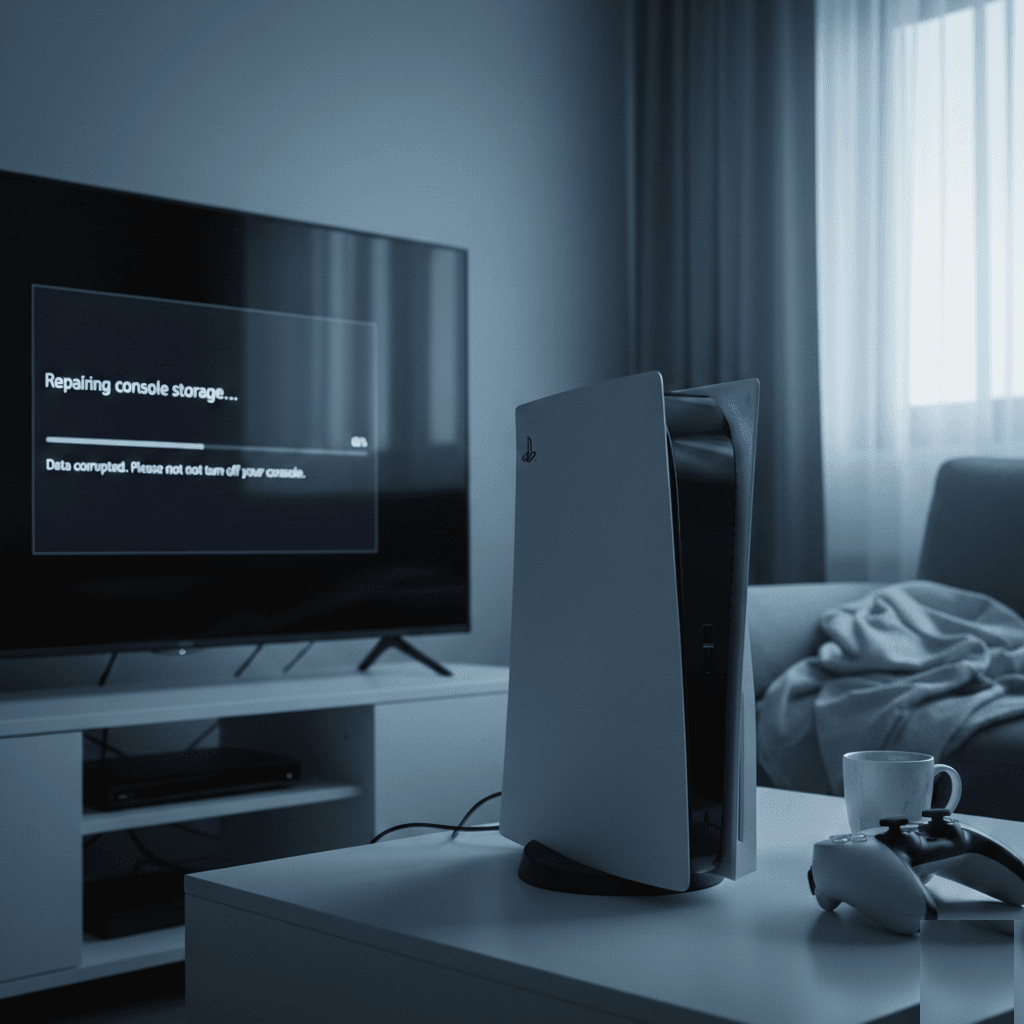
You put your PS5 into rest mode before bed, expecting it to download that update overnight. The next morning, you press the power button and... nothing. Or maybe the screen stays black. Or the console beeps, shows "Repairing console storage," and takes twenty minutes to rebuild its database before finally loading - minus your last hour of unsaved progress.
If this sounds familiar, you are far from alone. PS5 rest mode problems have been one of the most common complaints since the console launched, and while Sony has improved things with firmware updates over the years, the issue still catches people out in 2026. At Console Service Centre, we have repaired over 25,000 consoles since 2011, and rest mode issues remain one of the top reasons PS5 owners contact us - sometimes for a simple settings tweak, and sometimes because rest mode has masked a deeper hardware problem.
This guide covers everything: quick fixes you can try right now, what actually causes rest mode problems, step-by-step solutions for every scenario, and how to know when your PS5 needs professional attention.
What Quick Fixes Can I Try for PS5 Rest Mode Problems?
Before we dig into the technical causes, let us start with the fixes that resolve the most common PS5 rest mode problems. These take less than five minutes and solve a good number of cases.
1. Force Restart Your PS5
If your PS5 is frozen or will not wake from rest mode:
- Press and hold the power button on the console (not the controller) for about 15 seconds
- Wait until you hear two beeps - the second beep means the console is fully shutting down
- If you hear no beeps at all, keep holding until the light goes off completely
- Wait 30 seconds, then press the power button normally to turn it back on
This forces the PS5 out of its stuck rest mode state and performs a clean boot.
2. Full Power Cycle (Drain Residual Charge)
If the force restart did not work, try a complete power cycle:
- Unplug the power cable from the back of your PS5 (not just the wall)
- Wait at least 60 seconds - this allows the internal capacitors to fully discharge
- While unplugged, press and hold the power button for 15 seconds to drain any remaining charge
- Wait another 30 seconds after releasing the button
- Plug the cable back in and power on normally
This clears any electrical glitches that may have caused the rest mode freeze.
3. Disconnect All USB Devices
External drives, controllers, and USB accessories are a major cause of rest mode problems:
- Unplug everything - external hard drives, USB hubs, charging cables for controllers, headset adapters
- Try waking your PS5 with nothing connected except the power cable and HDMI
- If it wakes up, reconnect devices one at a time to identify the culprit
External storage devices are the most frequent offender. The PS5 can struggle to properly suspend and resume USB storage, leading to data corruption and failed wake-ups.
4. Try a Different HDMI Cable or Port
Sometimes a rest mode "failure" is actually a display handshake problem:
- Your PS5 might have woken up successfully but your TV is not recognising the signal
- Unplug the HDMI cable and plug it back in firmly at both ends
- Try a different HDMI port on your TV
- Switch your TV input away and back to the PS5's port
- Turn your TV off and on - some TVs lose the HDMI handshake when the PS5 enters rest mode
If you are getting a black screen after rest mode, this is often a display handshake issue rather than a true rest mode failure.
5. Check for System Updates
Sony regularly releases firmware updates that address rest mode stability:
- If your PS5 does boot up, go to Settings > System > System Software > System Software Update
- Select Update Using Internet
- Install any available updates and restart
- Some rest mode fixes have been included in firmware updates without being mentioned in patch notes
If these quick fixes get your PS5 working again, brilliant. But read on - you will want to understand what caused the problem and how to prevent it from happening again.
Understanding PS5 Rest Mode: How It Works
To fix rest mode problems effectively, it helps to understand what rest mode actually does and why it can go wrong.
What Happens When Your PS5 Enters Rest Mode
When you put your PS5 into rest mode, it does not simply "sleep" like a phone. The console goes through a complex shutdown sequence:
- Active processes are suspended - Games and apps are frozen in their current state
- RAM contents are preserved - The system keeps power to the memory to retain your session
- Most hardware powers down - The APU (processor/GPU), disc drive, and fan turn off
- USB ports remain partially powered - To charge controllers and accessories
- Network stays active - For background downloads, game updates, and cloud saves
- The power indicator turns orange - Confirming the console is in rest mode
Why Rest Mode Causes Problems
The trouble is that rest mode puts the PS5 in a half-awake state where several things can go wrong:
- HDMI CEC conflicts - The TV and PS5 can confuse each other with wake/sleep signals
- USB device interference - External drives that lose connection during rest can corrupt data
- Power fluctuations - Any interruption to the reduced power supply can crash the system
- Software bugs - Certain games and apps do not suspend cleanly, leaving the system in an unstable state
- Firmware glitches - Rest mode has been buggy since the PS5 launched, and while Sony has improved it, issues persist
The PS5's custom 825GB NVMe SSD means that database corruption from improper rest mode exits can require lengthy rebuild processes - something you would not see on older consoles with simpler storage systems.
Common PS5 Rest Mode Problems and Their Symptoms
Here are the specific rest mode problems we see most frequently, along with what each one looks like so you can identify your exact situation.
1. PS5 Will Not Wake From Rest Mode
Symptoms: You press the power button or the PS button on the controller, and nothing happens. The orange rest mode light stays on, or it blinks briefly and then goes back to orange.
What is happening: The console is stuck in a frozen rest state. It received the wake signal but cannot complete the resume process.
2. PS5 Shows Black Screen After Rest Mode
Symptoms: Your PS5 powers on (the light turns white, the fan spins up), but your TV shows nothing - either a black screen or a "No Signal" message.
What is happening: The PS5 woke up but the HDMI handshake with your TV failed. The console is running, but the display connection was not re-established properly. This is closely related to PS5 black screen issues in general.
3. PS5 Crashes or Freezes Coming Out of Rest Mode
Symptoms: The PS5 starts to wake up, you see the home screen briefly, then the console freezes, crashes, or shows an error screen before rebooting.
What is happening: The system state that was saved to memory became corrupted, or a background process (often related to an external USB drive) failed during the wake sequence.
4. "Repairing Console Storage" After Rest Mode
Symptoms: When your PS5 wakes up, it shows a message saying "Repairing console storage..." or "Rebuilding database..." before eventually loading the home screen.
What is happening: The PS5 detected that its storage was not properly closed before the last shutdown. This usually means rest mode crashed or lost power, and the system is repairing the SSD's file structure. Your game saves should be safe, but any unsaved progress is likely gone.
5. PS5 Randomly Enters Rest Mode During Gameplay
Symptoms: You are mid-game and the PS5 suddenly enters rest mode by itself, with no warning or input from you.
What is happening: This is often caused by HDMI CEC (Device Link) - your TV sending an incorrect "power off" signal to the PS5, or an automatic rest mode timer you may have forgotten about.
6. PS5 Turns On By Itself From Rest Mode
Symptoms: You put the PS5 in rest mode and leave the room, only to come back and find it fully powered on.
What is happening: HDMI CEC is almost always responsible. When another device (TV, soundbar, streaming stick) on the same HDMI chain powers on or changes input, it sends a signal that wakes the PS5.
What Causes PS5 Rest Mode Problems?
Understanding the root cause helps you pick the right fix. Here are the main culprits, ordered from most to least common based on what we see in our workshop.
1. HDMI CEC (Device Link) Conflicts
This is the single biggest cause of PS5 rest mode issues and the one most people overlook.
What is HDMI CEC? CEC (Consumer Electronics Control) allows devices connected via HDMI to control each other. On the PS5, Sony calls this "HDMI Device Link." When enabled, your TV can turn on the PS5 and vice versa.
How it causes problems:
- Your TV sends a "wake up" signal when you turn it on, even if you do not want the PS5 on
- Your TV sends a "power off" CEC signal that puts the PS5 into rest mode mid-game
- Other HDMI devices (soundbars, streaming sticks, AV receivers) send CEC commands that confuse the PS5
- The PS5 wakes from rest mode but the TV does not switch to the right input, resulting in a black screen
2. External USB Storage Devices
USB hard drives and SSDs connected to the PS5 are a notorious cause of rest mode failures:
- The PS5 cannot always properly suspend USB drives during rest mode
- If the drive loses connection while the PS5 is in rest mode, data corruption can occur
- When the PS5 wakes, it detects the corruption and forces a database rebuild
- Some drives draw too much power from the USB port during rest, causing instability
3. Power Instability and Surges
Rest mode is particularly vulnerable to power problems because the console maintains a reduced power state:
- Load shedding - This is a massive issue here in South Africa. If your PS5 is in rest mode when the power cuts, it loses power without a proper shutdown. When power returns, a voltage spike can damage components. See our load shedding console protection guide for detailed prevention advice
- Power surges from storms, grid fluctuations, or appliances cycling on/off
- Faulty power strips or multi-plugs that do not provide stable current
- Unstable wall outlets with loose connections
A PS5 that loses power in rest mode will almost always need to rebuild its database on the next startup, and repeated power losses can eventually damage the internal power supply or the SSD.
4. Software and Firmware Bugs
Sony has acknowledged rest mode issues since the PS5's launch and has released multiple firmware patches:
- Certain games cause crashes when the PS5 enters rest mode while the game is running
- Background downloads can interfere with the suspend process
- System software updates can occasionally introduce new rest mode bugs
- Apps like streaming services sometimes do not release system resources properly before rest
5. Overheating During Rest Mode
While the PS5 generates much less heat in rest mode than during active use, it can still overheat if:
- The console is placed in a completely enclosed space with zero airflow
- Dust has blocked the vents extensively
- Background downloads or charging are creating more heat than the passive cooling can handle
- The console's internal thermal management (the PS5 uses liquid metal, not thermal paste) has degraded
6. Hardware Faults
In some cases, rest mode problems are a symptom of a deeper hardware issue:
- Failing power supply - The PSU may work fine at full power but cannot maintain the precise lower voltage needed for rest mode
- SSD degradation - A failing SSD may not handle the suspend/resume writes properly
- Motherboard issues - Capacitor or voltage regulator problems can cause erratic behaviour
- APU issues - The PS5's custom AMD processor may have issues with low-power sleep states
If your PS5 consistently has rest mode problems despite trying all software fixes, a hardware fault is increasingly likely.
Step-by-Step Fixes for PS5 Rest Mode Issues
Now let us work through the solutions systematically, from simplest to most involved.
Fix 1: Disable HDMI Device Link (CEC)
This single fix resolves a surprising number of rest mode issues:
- Go to Settings on your PS5 home screen
- Select System
- Select HDMI
- Turn off "Enable HDMI Device Link"
You should also disable CEC on your TV's side (the setting name varies by brand):
- Samsung: Settings > General > External Device Manager > Anynet+ (HDMI-CEC)
- LG: Settings > General > SIMPLINK (HDMI-CEC)
- Hisense: Settings > System > HDMI-CEC / Anyview Cast
- Sony (Bravia): Settings > Watching TV > External Inputs > BRAVIA Sync
The downside is you will need to manually switch inputs and power on/off your devices separately, but the trade-off is worth it for stable rest mode operation.
Fix 2: Safely Eject External Storage Before Rest Mode
If you use an external USB drive for PS4 games or media storage:
- Go to Settings > Storage > USB Extended Storage
- Select Safely Stop Using This Extended Storage
- Wait for the confirmation message
- Then put your PS5 into rest mode
Alternatively, you can change your settings to prevent the PS5 from powering USB ports during rest:
- Go to Settings > System > Power Saving
- Select Features Available in Rest Mode
- Set "Supply Power to USB Ports" to "Off" or "3 Hours" (instead of "Always")
This prevents USB devices from maintaining an active connection during rest mode, which eliminates most USB-related rest mode corruption issues.
Fix 3: Adjust Rest Mode Power Settings
Fine-tune what your PS5 does during rest mode to reduce the chance of issues:
- Go to Settings > System > Power Saving
- Select Features Available in Rest Mode
- Consider these changes:
- Stay Connected to the Internet: Keep "On" if you want background downloads, or turn "Off" for maximum stability
- Enable Turning On PS5 from Network: Turn "Off" unless you use Remote Play
- Supply Power to USB Ports: Set to "3 Hours" or "Off"
Reducing the number of active features during rest mode makes the sleep state simpler and less prone to conflicts.
Fix 4: Rebuild the PS5 Database via Safe Mode
If rest mode has corrupted your PS5's storage, rebuilding the database can fix it:
- Turn off your PS5 completely (not rest mode - fully off)
- Press and hold the power button until you hear two beeps (about 7 seconds). Release after the second beep
- Your PS5 will boot into Safe Mode
- Connect your DualSense controller via USB cable (wireless does not work in Safe Mode)
- Press the PS button on the controller
- Select Clear Cache and Rebuild Database
- Choose Rebuild Database
- Wait for the process to complete - this can take anywhere from a few minutes to over an hour depending on how much data is on your SSD
Important: Rebuilding the database does not delete your games, saves, or settings. It reorganises the file structure on the SSD, which fixes corruption caused by improper shutdowns.
Fix 5: Update System Software via Safe Mode
If you suspect a firmware bug is causing your rest mode issues:
- Boot into Safe Mode (hold power button for 7 seconds until two beeps)
- Connect your controller via USB
- Select Update System Software
- Choose Update Using Internet (if your PS5 can connect) or Update from USB Drive
For the USB method:
- Download the PS5 update file from playstation.com
- Save it to a USB drive in this exact folder structure:
PS5/UPDATE/PS5UPDATE.PUP - Insert the USB drive and select the USB update option
Fix 6: Restore Default Settings
If rest mode issues started after you changed some settings:
- Boot into Safe Mode
- Select Restore Default Settings
- This resets all settings to factory defaults without deleting your games or saves
This is particularly useful if you have changed HDMI output settings, power saving configurations, or network settings that might be conflicting with rest mode.
Fix 7: Reinstall System Software (Last Resort)
If nothing else works, you can do a full system software reinstallation:
- Boot into Safe Mode
- Select Reset PS5 (Reinstall System Software)
- Warning: This deletes ALL data on the console - games, saves, settings, everything
- You will need the full reinstallation file (about 1GB) on a USB drive
Only use this option if you have exhausted all other fixes and backed up your saves to PlayStation Plus cloud storage or a USB drive.
When Should I Take My PS5 to a Repair Shop for Rest Mode Issues?
While most rest mode problems are software-related and fixable at home, some indicate hardware issues that need professional attention.
Signs Your PS5 Has a Hardware Problem
Your PS5 likely needs professional repair if:
- Rest mode problems persist after trying every fix above, including a full system reinstallation
- The console will not turn on at all after a rest mode freeze - no lights, no beep, not even after a full power cycle. See our guide on PS5 not turning on for more on this
- You hear clicking or buzzing from inside the console when it tries to wake from rest mode
- The console smells like burning - turn it off immediately and unplug it
- Repeated "Repairing console storage" messages, even after database rebuilds, which can indicate SSD failure
- Random shutdowns that are getting more frequent, whether in rest mode or during active use
- The console overheats rapidly after waking from rest mode, with the fan at full speed
What Professional PS5 Rest Mode Repair Involves
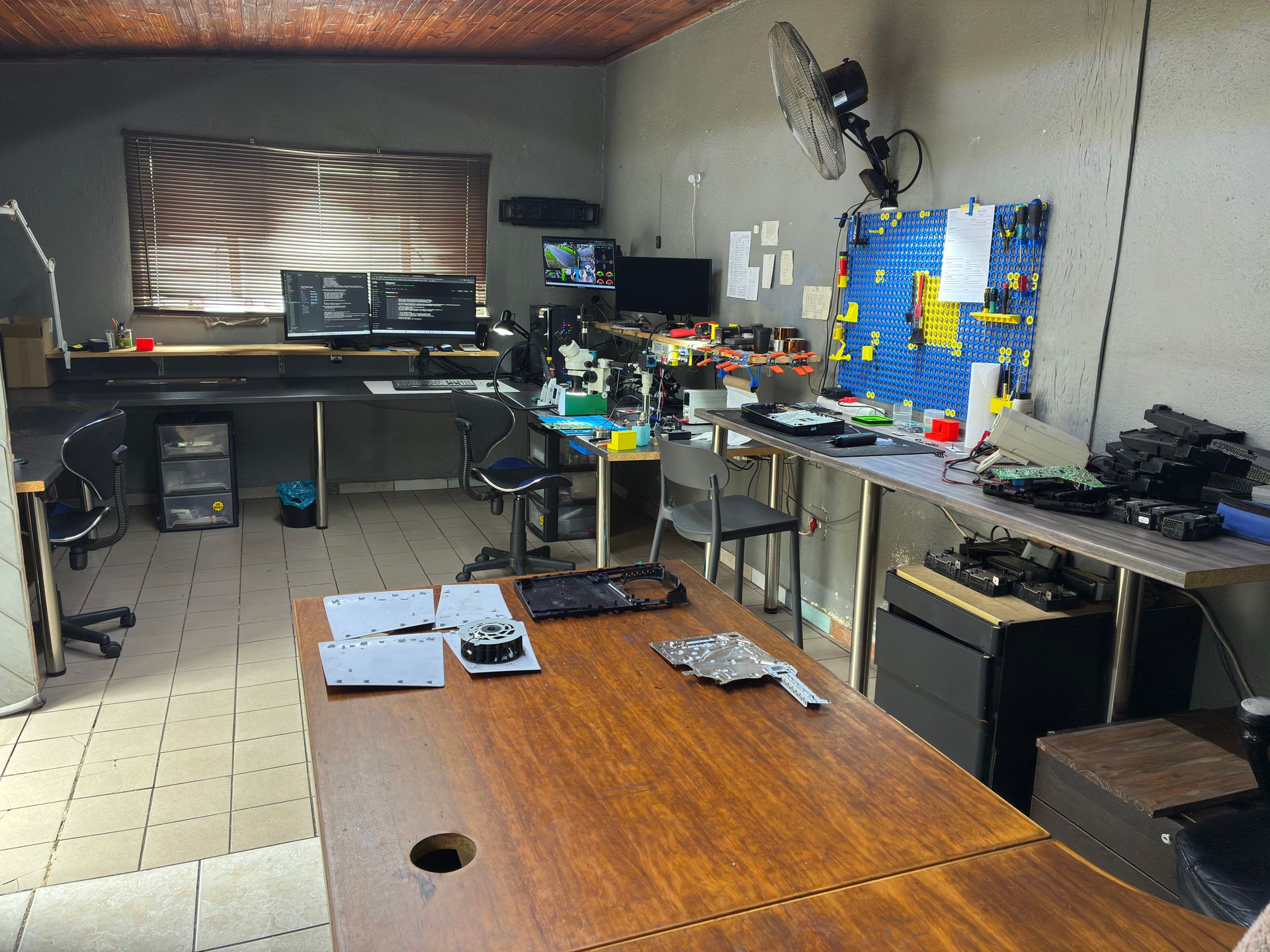
At Console Service Centre, here is how we approach PS5 repairs for persistent rest mode issues:
Step 1: Full Diagnostic
We test the console under multiple conditions - cold boot, rest mode cycles, extended gameplay - to identify whether the problem is software, firmware, or hardware-based.
Step 2: Targeted Repair
Depending on the diagnosis:
- Power supply repair - If the PSU cannot maintain stable voltage during rest mode's low-power state
- SSD diagnostics - Testing the internal storage for bad sectors or controller failure
- Motherboard inspection - Checking for failed capacitors, voltage regulator issues, or cold solder joints
- Liquid metal reapplication - If overheating is contributing to the instability, we carefully clean and reapply the liquid metal thermal interface (remember, the PS5 uses liquid metal, not thermal paste)
- Full service - Cleaning, thermal management, firmware reset, and comprehensive testing
Step 3: Testing and Verification
We do not just fix the immediate issue. We run extended rest mode cycle tests - putting the console in and out of rest mode repeatedly - to confirm the problem is fully resolved before returning it to you.
Get Your PS5 Diagnosed
Not sure if your rest mode issue is software or hardware? WhatsApp us at 087 550 2307 - we respond immediately, 24/7, and can often give you a good idea of what is wrong based on your symptoms before you send your console in.
PS5 Repair Pricing for Rest Mode-Related Issues
If your rest mode problems turn out to be hardware-related, here are our current repair prices:
PS5:
| Repair | Price |
|---|---|
| HDMI Port Replacement | R1,299 |
| HDMI Port Trace Repair | R1,499 |
| ADP-400DR Power Supply | R1,749 |
| ADP-400FR Power Supply | R1,799 |
| HDMI IC MN864739 | R1,799 |
| ADP-400ER Power Supply | R1,849 |
| South Bridge Chip 61GG Replacement | R1,849 |
| South Bridge Chip 69GG Replacement | R1,849 |
| ADP-400GR Power Supply | R2,049 |
| South Bridge Chip 62GG Replacement | R3,199 |
| Pro ADP-420DR Power Supply | R4,199 |
*Prices shown are the total amount payable.
Get an exact quote on WhatsApp →PS5 Slim:
| Repair | Price |
|---|---|
| HDMI Port Replacement | R1,299 |
| HDMI Port Trace Repair | R1,499 |
| HDMI IC MN864739 | R1,799 |
| South Bridge Chip 61GG Replacement | R1,849 |
| South Bridge Chip 69GG Replacement | R1,849 |
| ADP-400GR Power Supply | R2,049 |
| South Bridge Chip 62GG Replacement | R3,199 |
*Prices shown are the total amount payable.
Get an exact quote on WhatsApp →How Do I Prevent PS5 Rest Mode Problems?
Once you have got your PS5 working properly, here is how to keep it that way.
1. Consider Disabling Rest Mode Entirely
If rest mode has caused you repeated grief, the simplest prevention is to stop using it:
- Go to Settings > System > Power Saving
- Set "Time Until PS5 Enters Rest Mode" to "Don't Put in Rest Mode" for both "During Media Playback" and "While Playing Games"
- Instead of rest mode, fully shut down your PS5 when you are done playing
Yes, you lose the convenience of instant resume and background downloads. But the PS5's fast SSD means boot times are quick anyway, and you can schedule downloads to run while the console is on.
2. Use a Quality Surge Protector
This is essential in South Africa:
- Invest in a surge protector rated at 1000 joules or higher
- Never leave your PS5 in rest mode during scheduled load shedding times
- If you know load shedding is coming, shut your PS5 down fully at least 15 minutes before
- Consider a UPS (uninterruptible power supply) - this gives your PS5 clean power and enough time to shut down properly if the power drops unexpectedly
3. Keep Your PS5 Well-Ventilated
Overheating can exacerbate rest mode problems, especially during background downloads:
- Keep at least 10cm of clearance around all sides of the console
- Never place your PS5 inside an enclosed TV cabinet while it is on or in rest mode
- Clean dust from the vents every 2-3 months with a low-powered vacuum (Sony's own guidance)
- Avoid placing the console on carpet, blankets, or soft surfaces that block airflow
4. Eject External Drives Before Rest Mode
If you use USB storage, make this a habit:
- Always safely eject your external drive before putting the PS5 into rest mode
- Or set USB power to "Off" in rest mode settings so the drive disconnects automatically
- Consider keeping external drives unplugged when not actively playing PS4 games stored on them
5. Keep Firmware Updated
Sony continues to release updates that improve rest mode stability:
- Enable automatic updates in Settings > System > System Software
- Check for updates manually every week or two
- Do not interrupt firmware updates once they have started
6. Close Games Before Rest Mode
Rather than leaving games running when entering rest mode:
- Press the PS button to go to the home screen
- Highlight the running game and press the Options button
- Select Close Game
- Then enter rest mode
This gives the system a cleaner state to suspend from, reducing the chance of rest mode crashes.
Frequently Asked Questions
Why does my PS5 keep crashing in rest mode?
The most common causes are HDMI CEC (Device Link) conflicts, external USB storage devices, and power instability. Start by disabling HDMI Device Link in Settings > System > HDMI, then safely eject any USB drives before entering rest mode. If the crashes continue after these steps, update your system software and rebuild the database through Safe Mode. Persistent crashes despite all software fixes may indicate a hardware issue such as a failing power supply or SSD.
Can PS5 rest mode damage my console?
Rest mode itself does not damage the console, but problems that occur during rest mode can cause harm. Specifically, power loss during rest mode (from load shedding, power surges, or tripped breakers) can corrupt the SSD's file system and, over time, stress the internal power supply. Repeated forced shutdowns from frozen rest mode can also accelerate wear on the SSD. Using a surge protector and shutting down properly helps prevent this type of damage.
Will rebuilding the PS5 database delete my games and saves?
No. Rebuilding the database (Safe Mode) reorganises the file structure on your PS5's internal SSD without deleting any content. Your games, save data, screenshots, and settings all remain intact. The process can take anywhere from a few minutes to over an hour depending on how much data is on your drive. It is a safe first step for fixing rest mode corruption issues.
Why does my PS5 turn itself on from rest mode?
This is almost always caused by HDMI CEC (Device Link). When you turn on your TV, switch inputs, or power on another device connected to the same HDMI chain (soundbar, streaming stick, AV receiver), a CEC signal is sent that wakes the PS5. The fix is to disable HDMI Device Link on both the PS5 (Settings > System > HDMI) and the CEC setting on your TV. You can also check Settings > System > Power Saving > Features Available in Rest Mode and turn off "Enable Turning On PS5 from Network."
How much does it cost to fix PS5 rest mode problems in South Africa?
Most PS5 rest mode issues are software-related and can be fixed for free using the troubleshooting steps in this guide. If the problem turns out to be hardware-related (failing power supply, SSD issues, or motherboard faults), repairs range from R1,749 – R4,199 depending on the specific component that needs repair. For an accurate quote based on your symptoms, WhatsApp us at 087 550 2307 - we respond immediately, 24/7, and can often diagnose the likely issue from your description alone.
Should I use rest mode or turn off my PS5 completely?
If you have experienced rest mode problems, we recommend turning your PS5 off completely rather than using rest mode. The PS5's fast NVMe SSD means cold boot times are around 20-30 seconds, so you are not losing much convenience. Fully shutting down also protects your console from power surges during load shedding, reduces electricity consumption, and eliminates the risk of rest mode corruption. The main things you lose are instant game resume and background downloads, which you can schedule during active use instead.
Does PS5 rest mode use a lot of electricity?
The PS5 uses approximately 1-3 watts in rest mode depending on your settings (USB charging, network activity, etc.), compared to roughly 100-200 watts during active gameplay. While this is minimal, it does mean the console remains energised and vulnerable to power surges. In South Africa, where load shedding is a reality, even this small power draw means your PS5 can be damaged if the power cuts and returns with a surge while in rest mode. Turning off completely eliminates this risk.
Where Can I Get My PS5 Repaired in South Africa?
PS5 rest mode problems range from annoying (having to rebuild the database) to genuinely concerning (a console that will not wake up at all). The good news is that most rest mode issues are fixable - either through the software solutions in this guide, or with professional help for the hardware cases.
Here's why Console Service Centre is your best choice for PS5 repairs:
- Console repair specialists since 2011 — we have handled every PS5 issue imaginable
- 25,000+ consoles repaired - We know what we are doing
- 1,346+ Google reviews with a 4.9-star rating - Real customers, real results
- PlayStation and Xbox specialists - We do not do phones or general electronics, just gaming consoles
- 6-month money-back warranty - If the same issue returns, we fix it free
- Component-level repair - We fix the actual fault, not just swap expensive parts
Ready to Get Your PS5 Working Again?
WhatsApp us: 087 550 2307 - We respond immediately, 24/7
Visit us: 6 Bester Street, Witfield, Boksburg
Can't get to us? We offer nationwide courier repairs. Ship your console to us via The Courier Guy, we'll fix it and send it back. Simple.
Not sure where to get your PS5 fixed? Read our guide on where to fix your PS5 in South Africa — it covers what to look for in a repair shop and why location doesn't matter with courier service.
Do not let rest mode frustrations keep you from gaming. Whether it is a quick settings change or a proper hardware repair, we will get you sorted.
Console Service Centre specialises exclusively in PlayStation and Xbox repairs. We don't do phones, TVs, or general electronics - just consoles, done properly. View our full range of PS5 repair services.
Topics Covered
About the Author

Shaun Potgieter
Founder & Head Technician
Expert console technician with 15+ years of hands-on repair experience.