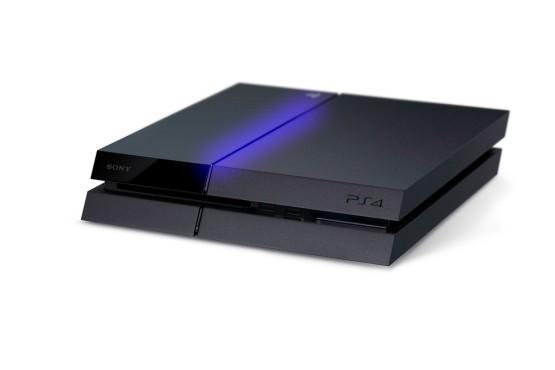
You press the power button on your PS4, hear the beep, and the blue light starts pulsing. You wait. And wait. The light just keeps pulsing blue -- it never switches to the solid white light that means everything is fine. Your TV shows nothing. No Sony logo, no home screen, no signal at all.
This is the PS4 Blue Light of Death (BLOD), and it is one of the most frustrating problems a PlayStation 4 owner can face. The good news? Not every pulsing blue light means your console is finished. Some cases have simple fixes you can try right now at home. Others need professional attention -- but even those are usually repairable.
At Console Service Centre, we have been repairing PS4 consoles since 2013 -- the year the PS4 launched in South Africa. Since 2011 and more than 25,000 console repairs later, BLOD remains one of our most common PS4 repair jobs. This guide shares everything we have learned about diagnosing and fixing the Blue Light of Death, from quick home fixes to understanding when your console needs a professional technician.
What Is the PS4 Blue Light of Death?
Before diving into fixes, it helps to understand what the blue light actually means during normal operation.
When your PS4 is working correctly, the startup sequence goes like this:
- You press the power button
- The console beeps once
- The blue light pulses briefly (this is normal -- the console is booting)
- The light changes to solid white (boot complete, video output active)
With BLOD, the process stalls at step 3. The blue light keeps pulsing indefinitely, or the console shuts itself off after several seconds of pulsing. Either way, you never reach that solid white light, and your TV receives no video signal.
The key thing to understand: the pulsing blue light itself is not the problem. It is a symptom. The PS4 is trying to boot but something is preventing it from completing the startup process. The real question is what is stopping it -- and that determines whether you can fix it at home or need professional help.
BLOD vs Other PS4 Light Patterns
It is easy to confuse BLOD with other PS4 issues, so here is a quick reference:
| Light Pattern | What It Means |
|---|---|
| Pulsing blue (never turns white) | BLOD -- boot failure |
| Solid blue (no pulsing) | Console frozen during boot |
| Solid white | Normal operation |
| Pulsing white | Powering on or entering rest mode |
| Solid orange | Rest mode (standby) |
| No light at all | No power -- different issue entirely |
| Blue then immediately off | Power supply or short circuit issue |
If your PS4 shows no light at all when you press the power button, you are dealing with a no power issue rather than BLOD. The troubleshooting steps are different.
What Quick Fixes Can I Try for My PS4 Blue Light of Death?
Before assuming the worst, try these quick fixes. They resolve a surprising number of BLOD cases -- roughly 20-30% based on what we see at our workshop.
1. Hard Power Reset
This is the simplest fix and clears temporary software glitches that can cause BLOD.
- Press and hold the power button until the PS4 beeps twice (about 7-10 seconds)
- The console will force shut down
- Unplug the power cable from the back of the console
- Wait 60 seconds (this drains residual power from the capacitors)
- Plug the power cable back in firmly
- Press the power button once
If the PS4 boots normally with a solid white light, the problem was a temporary glitch. Keep an eye on it -- if BLOD returns frequently, there may be an underlying issue developing.
2. Check Your HDMI Connection
A faulty HDMI connection can sometimes cause the PS4 to stall during boot because it cannot establish a video handshake with your TV.
- Unplug the HDMI cable from both the PS4 and your TV
- Inspect the PS4's HDMI port -- look for bent or broken pins using a torch (flashlight)
- Try a different HDMI cable -- cables do fail, and a damaged cable can prevent the video handshake
- Try a different HDMI port on your TV
- Try a different TV entirely if possible
Important note: if you can see bent or damaged pins inside the PS4's HDMI port, stop here. That is physical damage that requires professional PS4 HDMI port repair -- no amount of cable swapping will fix a damaged port.
3. Disconnect All Peripherals
External devices can occasionally interfere with the boot process.
- Unplug everything except the power cable -- HDMI cable, controllers, USB devices, external hard drives, VR headset, camera
- Try powering on with just the power cable connected
- If the console boots successfully (you will hear the system sounds even without HDMI), reconnect devices one at a time to identify the culprit
4. Boot Into Safe Mode
Safe Mode is your best friend when dealing with BLOD. It loads a minimal version of the PS4 operating system that bypasses many of the issues that cause boot failures.
How to enter PS4 Safe Mode:
- Turn off your PS4 completely (hold power button until it shuts down)
- Press and hold the power button -- keep holding past the first beep
- Wait for the second beep (about 7 seconds after the first)
- Release the power button after the second beep
- Connect a controller with a USB cable (wireless will not work in Safe Mode)
- Press the PS button on the controller
If you reach the Safe Mode menu, try these options in order:
- Option 1: Restart System -- sometimes this is enough
- Option 2: Change Resolution -- if the issue is display-related, this can help
- Option 4: Restore Default Settings -- resets settings without deleting data
- Option 5: Rebuild Database -- reorganises the hard drive data (safe, does not delete games)
- Option 6: Initialise PS4 -- factory reset (last resort, deletes everything)
- Option 7: Initialise PS4 (Reinstall System Software) -- complete system reinstall using USB
Cannot enter Safe Mode? If the console will not enter Safe Mode at all, the issue is almost certainly hardware-related. Skip ahead to the professional repair section. If it enters Safe Mode but then gets stuck there or loops back, our PS4 stuck in Safe Mode fix guide walks through each menu option in order.
What Causes the PS4 Blue Light of Death?
Understanding the cause helps you decide whether to keep troubleshooting or seek professional help. Here are the most common causes, ranked from most to least common based on our repair data.
1. APU Solder Joint Failure (Most Common Hardware Cause)
The PS4's brain is its APU (Accelerated Processing Unit) -- a custom AMD chip that combines both the CPU and GPU on a single die. This chip is soldered to the motherboard using a technique called BGA (Ball Grid Array), where thousands of tiny solder balls create the connections between the chip and the board.
Over time, repeated heating and cooling cycles cause the motherboard to flex microscopically. This thermal cycling gradually weakens the solder joints. Eventually, one or more connections crack or fail, and the console can no longer complete its boot process.
Why this happens:
- Lead-free solder (required by environmental regulations) is less durable than traditional leaded solder
- Years of thermal cycling -- the PS4 heats up during gaming and cools down when off, thousands of times over its lifespan
- Physical impact -- dropping the console or placing heavy objects on top can flex the board and crack weakened solder joints
- Poor ventilation -- consoles in enclosed cabinets run hotter, accelerating solder fatigue
- Lack of regular servicing -- this is one of the biggest contributors we see. When customers do not service their PS4 regularly, dust builds up inside the console, the thermal paste dries out, and the cooling system stops working effectively. The APU runs hotter and hotter over time until the solder joints finally give way. Many of the BLOD consoles we receive have never been cleaned or serviced in their entire lifespan -- and the internal state of these consoles tells the story clearly
This is the cause that most people associate with BLOD, and it is the one that definitely requires professional repair. There is no home fix for failed BGA solder joints.
Important: the risks of APU repair. We want to be upfront about this. If the diagnosis confirms the APU is the problem, we can attempt to rework the solder connections using a hot air rework station. However, there is roughly a 50/50 chance of success with this repair. Here is why:
The APU contains thousands of microscopic wires and solder connections internally. If the chip is already on its way out -- meaning some of those tiny internal connections have already degraded -- applying the heat needed to rework the solder can push those weakened connections past breaking point. In some cases, the heat can pop the APU completely, and the console will never power on again after the repair attempt.
The honest reality: if the APU is the confirmed cause of your BLOD, your console is not working anyway. If we attempt the repair and it succeeds, you get your console back. If the APU was already too far gone and the repair does not hold, you are in the same position you started in -- with a console that does not work. At least we tried. We always explain this risk to customers before proceeding, so you can make an informed decision about whether to go ahead with the repair.
2. HDMI Encoder IC Failure
The PS4 uses an HDMI encoder chip (Panasonic MN86471A on the original PS4, MN864729 on Slim and Pro models) that converts the video signal for output through the HDMI port. If this chip fails, the console may boot normally internally but cannot output video -- which can present as BLOD because the console appears to stall during boot.
Signs it might be the HDMI IC:
- Console beeps and sounds like it is booting (you might hear the home screen sounds)
- Blue light eventually turns white, but still no video
- HDMI port looks physically fine (no bent pins)
- Different HDMI cables and TVs make no difference
HDMI IC replacement requires micro-soldering with a hot air rework station -- this is not a DIY repair.
3. Power Supply Issues
The PS4's internal power supply unit (PSU) converts mains electricity into the voltages the motherboard needs. If the PSU is failing or providing inconsistent power, the console may start booting but fail partway through.
Signs of PSU issues:
- BLOD that comes and goes (works sometimes, fails other times)
- Console shuts off shortly after the blue light appears
- Clicking or buzzing sounds from inside the console
- BLOD started after a power surge or load shedding event
All PS4 models (Original, Slim, and Pro) have internal power supplies -- there is no external power brick like the original Xbox One had.
South African context: Power surges from load shedding are a significant cause of PSU damage in SA. If your PS4 developed BLOD after a power outage or surge, the PSU is a prime suspect. This is why we always recommend using a quality surge protector with your console -- read our load shedding console protection guide for detailed advice.
4. Hard Drive Failure
The PS4 uses a standard 2.5-inch SATA hard drive for game storage and the operating system. If the hard drive fails or becomes corrupted, the console cannot load the system software needed to complete the boot process.
Signs of hard drive issues:
- BLOD accompanied by unusual clicking or grinding sounds from the console
- BLOD that started after a system crash or forced shutdown
- Console occasionally boots but is extremely slow or freezes
- Safe Mode works, but rebuilding the database fails or takes an unusually long time
The good news: the PS4's hard drive is user-replaceable. Sony designed the HDD bay to be easily accessible, so this is one of the few BLOD causes you might be able to fix yourself. We cover this in the detailed fixes section below.
5. Software Corruption
Corrupted system software can prevent the PS4 from completing its boot sequence. This is often caused by:
- Power loss during a system update
- Forced shutdown during a game or download
- Hard drive errors corrupting system files
Software corruption is usually fixable through Safe Mode -- either by rebuilding the database, restoring default settings, or in worst cases, reinstalling the system software from scratch using a USB drive.
6. Overheating and Thermal Issues (Often Caused by Lack of Maintenance)
While overheating more commonly causes the PS4 to shut down during gameplay, severe thermal paste degradation can also cause boot failures. If the APU overheats too quickly during the boot process, the console may shut itself down as a protective measure.
This is directly linked to the APU issue above. The number one reason PS4 consoles overheat is because customers do not service them regularly. Over time, dust clogs the heatsink and vents, the thermal paste between the APU and heatsink dries out and loses its effectiveness, and the cooling fan has to work harder and harder to keep up. Eventually, the cooling system simply cannot keep the APU at a safe temperature anymore. The APU runs hot constantly, which accelerates solder joint fatigue and ultimately leads to BLOD.
Signs of thermal issues:
- Console fan spins loudly the moment you power on
- Console feels very hot shortly after power on
- BLOD combined with the console shutting off after 30-60 seconds
- Console previously had overheating issues during gaming
- Console has never been professionally serviced or cleaned
PS4 consoles use standard thermal paste (not liquid metal like the PS5), and this paste degrades over time -- typically after 3-5 years. A PS4 full service including thermal paste replacement can resolve overheating and help prevent BLOD from developing in the first place. We recommend servicing your PS4 at least every 2-3 years to keep the cooling system in good shape.
What If the Basic PS4 BLOD Fixes Didn't Work?
If the quick fixes did not work, here are more thorough troubleshooting steps you can try before seeking professional help.
Reinstalling the PS4 System Software
If you can get into Safe Mode, a full system software reinstall is the most thorough software fix available. Warning: this deletes everything on the console -- all games, saves, settings, and accounts.
What you need:
- A USB flash drive (at least 2GB, formatted as FAT32 or exFAT)
- A computer with internet access
- The full PS4 system software file (approximately 1GB -- not the update file)
Steps:
- On your computer, go to the official PlayStation support site and download the full installation file (not the update file -- the full file is roughly 1GB)
- On your USB drive, create a folder called PS4, and inside it, create a folder called UPDATE
- Save the downloaded file inside the UPDATE folder -- the file must be named PS4UPDATE.PUP
- The path should be:
USB > PS4 > UPDATE > PS4UPDATE.PUP - Boot your PS4 into Safe Mode (power off, then hold power button through two beeps)
- Connect your USB drive to the PS4
- Select Option 7: Initialise PS4 (Reinstall System Software)
- Follow the on-screen instructions
If the reinstall completes successfully and BLOD does not return, the issue was software corruption. If BLOD returns after reinstalling, or you cannot even reach Safe Mode, the problem is hardware.
Replacing the Hard Drive
If you suspect the hard drive is the issue, the PS4 makes this relatively straightforward.
What you need:
- A new 2.5-inch SATA hard drive or SSD (any capacity from 160GB to 2TB)
- A small Phillips-head screwdriver
- A USB drive with the full PS4 system software (as described above)
For PS4 Original:
- Slide the glossy HDD bay cover to the left to remove it
- Remove the single Phillips screw holding the HDD caddy
- Slide the caddy out
- Remove the four screws on the sides of the caddy
- Swap in the new drive and reverse the process
For PS4 Slim:
- The HDD bay is on the left side (when facing the front)
- Slide the HDD bay cover off in the direction of the arrow — there is no screw holding it
- Slide the bay cover off
- Remove the caddy screw and slide out the caddy
- Swap drives and reassemble
For PS4 Pro:
- The HDD bay is on the back, covered by a plastic cap
- Remove the cap, then the single caddy screw
- Slide out the caddy and swap drives
After installing the new drive, boot into Safe Mode and use Option 7 to install the system software from your USB drive. The PS4 will format the new drive and install a fresh system.
Pro tip: consider upgrading to an SSD while you are at it. An SSD will not fix a BLOD caused by APU failure, but if the hard drive was the culprit, an SSD offers significantly faster load times and better reliability than a traditional spinning hard drive.
Checking for Overheating
If you suspect thermal issues, you can perform a basic clean without fully disassembling the console:
- Unplug the console and let it cool completely
- Use a low-powered vacuum along the vents -- Sony's own guidance for PlayStation consoles, as it lifts dust out rather than driving it deeper
- Clean any visible dust from the intake and exhaust vents
- Ensure the console has at least 10cm of clearance on all sides
- Do not place the console in an enclosed cabinet or on carpet
For a thorough clean including thermal paste replacement, the console needs to be professionally serviced -- this involves a full strip-down that risks damaging internal components if not done correctly. A professional PS4 full service includes thermal paste replacement, deep cleaning, and full reassembly with testing. We see many PS4 consoles come in with completely dried-out thermal paste after years of use -- replacing it often makes a dramatic difference.
When Should I Take My PS4 to a Repair Shop for BLOD?
If you have tried all the troubleshooting steps above and your PS4 still has BLOD, the issue is almost certainly hardware-related. Here are the signs that confirm professional repair is needed:
- Cannot enter Safe Mode at all -- the console never gets past the pulsing blue light
- BLOD returns after system software reinstall -- hardware fault confirmed
- Visible damage to the HDMI port -- bent or broken pins need micro-soldering
- Console powers on briefly then shuts off -- possible APU, PSU, or short circuit
- Burning smell or unusual sounds -- component failure, do not continue powering on
- BLOD started after a physical drop -- likely cracked BGA solder joints
What Professional BLOD Repair Involves
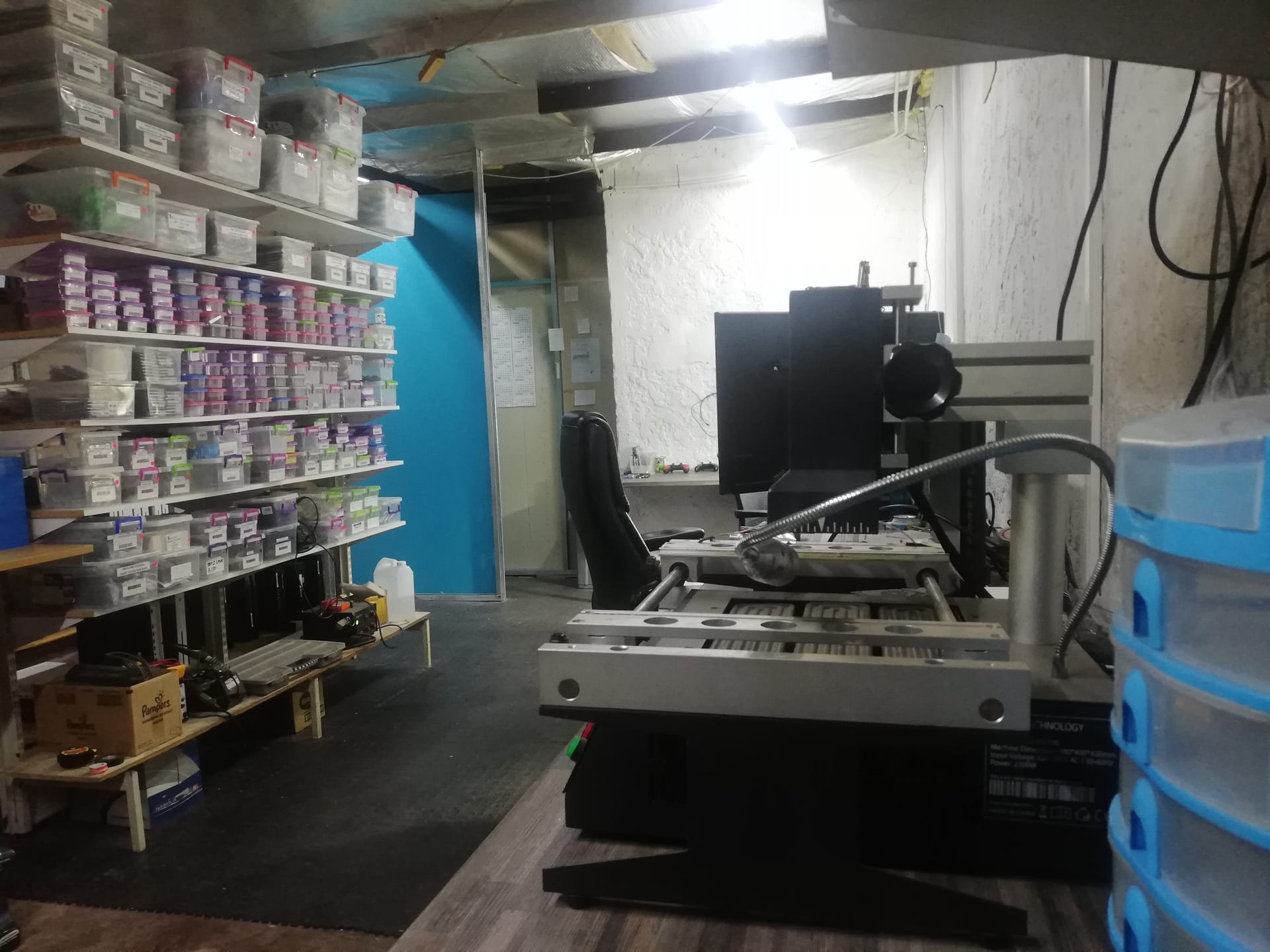
At Console Service Centre, our BLOD diagnostic and repair process includes:
- Full diagnostic assessment -- we test the PSU, HDMI IC, hard drive, and APU to identify the exact cause
- Component-level testing -- using multimeters and oscilloscopes to check voltages and signals
- Targeted repair -- we fix the specific component that has failed, not a blanket "reball" that may not address the real issue
- Thermal management -- fresh thermal paste application during any board-level repair
- Full testing -- extended run testing to confirm the repair holds under load
A note on "reballing": You may see repair shops advertising APU "reballing" as a BLOD fix. This involves removing the APU chip, replacing all the solder balls, and resoldering it to the board. While this can work, it is often a temporary fix because the underlying issue (lead-free solder fatigue) will recur. We always diagnose the specific cause first because BLOD is not always the APU -- and an unnecessary reball is a waste of your money.
Not sure what is wrong? WhatsApp us at 087 550 2307 -- we respond immediately, 24/7, and can often give you a good idea of what is wrong based on your symptoms before you send your console in.
PS4 BLOD Repair Pricing
Here are our current prices for PS4 repairs related to Blue Light of Death:
PS4 Original:
| Repair | Price |
|---|---|
| HDMI Port Replacement | R1,249 |
| South Bridge Chip 25G Replacement | R1,349 |
| HDMI Port Trace Repair | R1,499 |
| HDMI IC MN86471A Replacement (WLOD) | R1,549 |
| HDMI IC MN864729 Replacement (WLOD) | R1,649 |
*Prices shown are the total amount payable.
Get an exact quote on WhatsApp →PS4 Slim:
| Repair | Price |
|---|---|
| HDMI Port Replacement | R1,249 |
| South Bridge Chip 36G Replacement | R1,399 |
| HDMI Port Trace Repair | R1,499 |
| HDMI IC MN864729 Replacement (WLOD) | R1,649 |
| South Bridge Chip 42GG Replacement | R2,199 |
*Prices shown are the total amount payable.
Get an exact quote on WhatsApp →PS4 Pro:
| Repair | Price |
|---|---|
| HDMI Port Replacement | R1,249 |
| South Bridge Chip 46GG Replacement | R1,449 |
| HDMI Port Trace Repair | R1,499 |
| HDMI IC MN864729 Replacement (WLOD) | R1,649 |
*Prices shown are the total amount payable.
Get an exact quote on WhatsApp →How Do I Prevent the PS4 Blue Light of Death?
While you cannot prevent all hardware failures, you can significantly reduce the risk of BLOD with proper care.
Keep Your PS4 Cool
Overheating is the number one accelerator of solder joint fatigue, which is the primary cause of BLOD.
- Give your console space -- at least 10cm clearance on all sides, never in an enclosed TV cabinet
- Keep vents clear -- do not place anything on top of the console or block the intake/exhaust
- Clean regularly -- run a low-powered vacuum along the vents every 2-3 months
- Consider a full service every 2-3 years to replace thermal paste and remove internal dust buildup
Protect Against Power Surges
In South Africa, power surges from load shedding are a real threat to console electronics.
- Use a quality surge protector -- not a cheap multi-plug, but a dedicated surge protection strip with a joule rating of at least 1,000J
- Unplug during extended load shedding -- if you know power will be going on and off repeatedly, unplug the console entirely
- Consider a UPS (Uninterruptible Power Supply) -- this provides clean, consistent power and protects against both surges and sudden outages
- Never plug your console directly into a wall socket without surge protection
Handle With Care
Physical impacts can crack weakened solder joints and cause BLOD.
- Do not move the console while it is running -- vibration and movement stress the internal connections
- Place it on a stable, flat surface -- not on the edge of a shelf where it could fall
- Be gentle with HDMI cables -- forcing a cable in at an angle damages the port over time
- Do not stack other devices on top -- the weight can flex the casing and stress the motherboard
Let Your PS4 Shut Down Properly
Forced shutdowns (from power cuts or holding the power button) can corrupt the hard drive and system software.
- Always shut down through the menu when possible
- Do not unplug while the orange light is on -- rest mode is still active
- Let system updates complete -- never power off during an update
PS4 Blue Light of Death: Common Questions
Why is my PS4 flashing blue and not turning on?
The pulsing blue light means your PS4 is attempting to boot but cannot complete the startup process. The most common causes are APU solder joint failure (especially on older consoles), HDMI encoder IC failure, power supply problems, hard drive corruption, or software issues. Try a hard power reset first -- unplug the power cable for 60 seconds, then try again. If the blue light persists, work through the troubleshooting steps in this guide.
Can the PS4 Blue Light of Death be fixed?
Yes, in most cases BLOD can be fixed. Software-related BLOD can often be resolved at home through Safe Mode or a system software reinstall. Hardware-related BLOD caused by HDMI IC or power supply failure requires professional repair with specialised equipment, and these repairs have good success rates. APU-related BLOD is trickier -- reworking the APU is not always successful, because the chip may already be too far degraded internally. We always explain the risks upfront so you can make an informed decision. At Console Service Centre, we have repaired hundreds of BLOD consoles over the years.
Does BLOD mean my PS4 is dead?
Not necessarily. While BLOD can indicate serious hardware failure, many BLOD cases are caused by fixable issues like software corruption, hard drive failure, or power supply problems. Even APU-related BLOD can often be repaired. The key is proper diagnosis -- understanding which component is causing the BLOD determines whether the repair is viable and cost-effective.
How long does PS4 BLOD repair take?
At Console Service Centre, most BLOD repairs are completed in 3-5 working days after we receive your console, depending on how many repairs are in our queue and the cause. Simple causes like hard drive or power supply issues can be quicker, while a busy workshop can push it longer. Board-level repairs involving micro-soldering typically take 4-5 days because we allow time for extended testing to make sure the repair holds. We send WhatsApp updates throughout so you always know the status.
Is it worth repairing a PS4 with BLOD?
That depends on the specific cause and your situation. If the issue is a power supply or hard drive, repair is almost always worth it -- the cost is reasonable relative to the console's value. Prices for BLOD-related repairs range from R1,249 – R2,199 depending on your PS4 model and the specific fault. For APU-related BLOD, consider factors like the console's age, whether it is a Pro model (worth more), and whether you have a digital game library tied to your PSN account. WhatsApp us at 087 550 2307 to discuss your specific situation -- we will give you an honest assessment before you commit to anything.
Can I fix PS4 BLOD myself?
You can fix some causes of BLOD yourself -- specifically software corruption (through Safe Mode or system reinstall) and hard drive failure (the PS4's HDD bay is user-accessible). However, APU solder joint failure and HDMI encoder IC failure require a hot air rework station and micro-soldering skills. Attempting board-level repairs without the right equipment will almost certainly cause further damage. We recommend trying the software and hard drive fixes first, and seeking professional help if those do not resolve the issue.
Does rebuilding the PS4 database fix BLOD?
Rebuilding the database (Safe Mode Option 5) can fix BLOD if the cause is hard drive data corruption. This process reorganises the data on your hard drive without deleting your games or saves -- it is safe to try and often resolves boot issues. However, if BLOD is caused by hardware failure (APU, HDMI IC, or power supply), rebuilding the database will not help. It is still worth trying as one of your first troubleshooting steps because it is quick and risk-free.
Where Can I Get My PS4 BLOD Repaired in South Africa?
Here is why Console Service Centre is your best choice for PS4 BLOD repair:
- Console repair specialists since 2011 — we have been repairing PS4 consoles since launch day in 2013
- 25,000+ consoles repaired -- we have seen every possible variation of BLOD
- 1,329+ Google reviews with a 4.9-star rating
- PlayStation and Xbox specialists -- we do not do phones or general electronics, just consoles
- 6-month money-back warranty -- if the same issue returns, we fix it free
- Honest diagnosis -- we will tell you upfront if a repair is not cost-effective
Ready to Get Your PS4 Working Again?
WhatsApp us: 087 550 2307 -- We respond immediately, 24/7
Visit us: 6 Bester Street, Witfield, Boksburg
Can't get to us? We offer nationwide courier repairs. Ship your console to us via The Courier Guy, we will fix it and send it back. Simple.
Topics Covered
About the Author

Shaun Potgieter
Founder & Head Technician
Expert console technician with 15+ years of hands-on repair experience.