
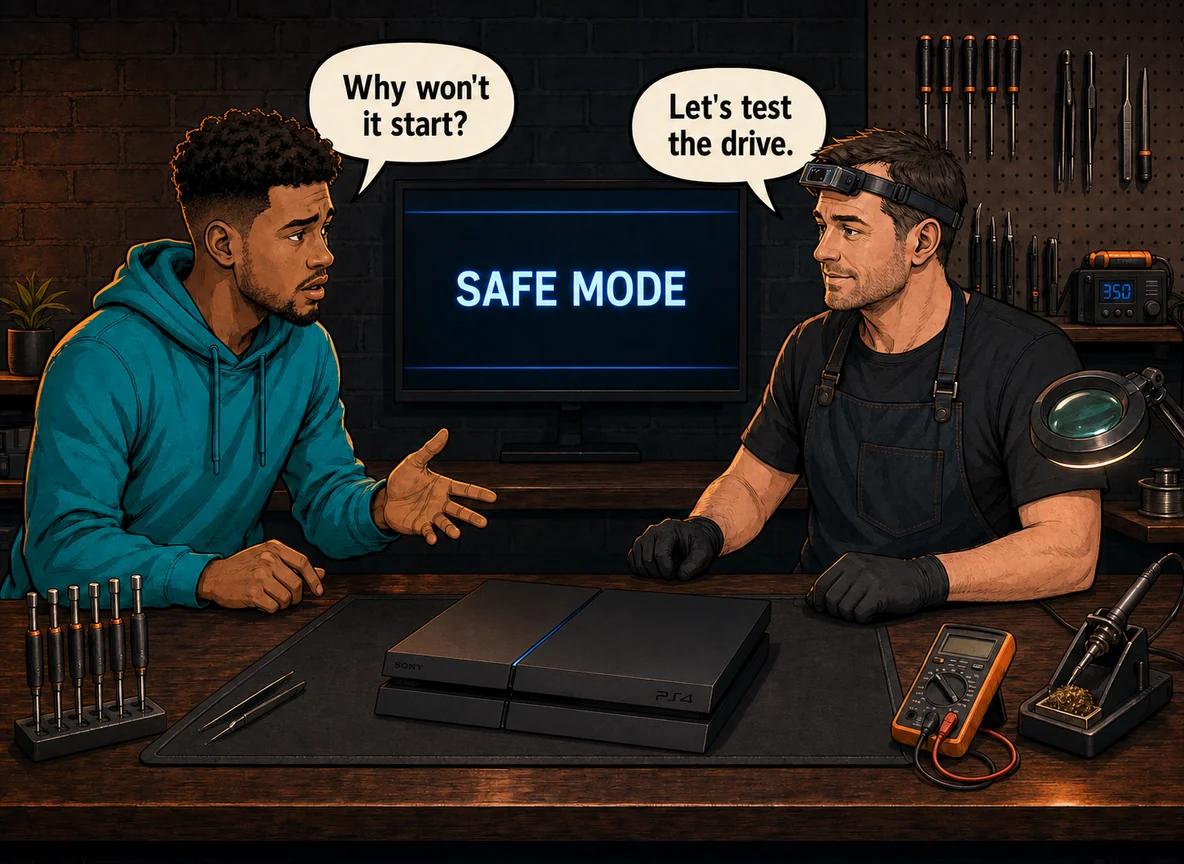
Seeing the PS4 Safe Mode screen once is not automatically bad news. Safe Mode is a recovery menu Sony built into the console so you can repair software problems without opening the machine. The concern starts when the PS4 returns to that screen after every restart, refuses an update, or completes a database rebuild and immediately loops back again.
A PS4 stuck in Safe Mode is usually dealing with interrupted system software, a damaged file database, or an ageing hard drive that can no longer read reliably. Start with the options that do not erase the console: restart it, update the system software, restore default settings, and rebuild the database. Leave Initialise PS4 and Reinstall System Software until last because Sony confirms that those options delete user data. If the safer steps fail repeatedly, Console Service Centre in Boksburg can test the drive, reload the software and check for a deeper board fault.
This guide explains the recovery order, what each result means, and when to stop before a recoverable software problem turns into permanent data loss.
Why a PS4 Gets Stuck in Safe Mode
Safe Mode starts the PS4 with only the basic functions needed for diagnosis. You normally enter it deliberately by holding the power button until the second beep. The console can also enter it after detecting a startup problem.
Common triggers include:
- A power cut during an update or game save. An interrupted write can leave the system database or firmware incomplete.
- The console being unplugged without shutting down. This can damage the file system, especially if the hard drive was busy.
- An update that downloaded incorrectly. The PS4 may keep returning to Safe Mode because it cannot complete the update.
- A hard drive developing unreadable areas. The system may load some recovery files but fail when it reaches damaged parts of the drive.
- A loose or damaged internal storage connection. The drive bay is service-accessible, but damaged connectors or faults deeper inside the console need professional inspection.
- A deeper motherboard or power problem. Less common, but possible when the console freezes, powers off, or cannot keep the hard drive running steadily.
South African homes also face abrupt cuts, tripped plugs and unstable power. If your loop began immediately after a power interruption, start by treating it as file-system corruption. That does not prove the hard drive is healthy, but it gives you a sensible first path.
Citable fact: Sony's PS4 Safe Mode separates recovery tools from factory-reset tools. Restart System, Update System Software, Restore Default Settings and Rebuild Database are intended for troubleshooting. Initialise PS4 deletes user data, while Initialise PS4 (Reinstall System Software) deletes user data and removes the installed firmware before a clean reinstall.
Before You Choose a Safe Mode Option
Do not work down the menu at random. Some options are mild; others wipe the console.
Before proceeding:
- Read the full option name. “Update System Software” and “Reinstall System Software” are not the same operation.
- Use a working USB data cable. A charge-only cable may provide power without carrying the data needed to operate the Safe Mode menu.
- Connect the console directly to stable power. Avoid a loose multiplug while recovery is running.
- Do not interrupt an update or database rebuild. Let the process finish even if it takes longer than expected.
- Preserve backups if you have them. Check PlayStation Plus cloud saves or any USB backups before choosing an initialise option.
If the hard drive is clicking, repeatedly disconnecting, or making the console freeze for long periods, stop. Repeated recovery attempts can place more load on a failing drive. A technician should test it before you erase or overwrite anything that may still be recoverable.
How to Fix a PS4 Safe Mode Loop Safely
Use this order. It moves from the least disruptive option to the most destructive.
- Try Restart System.
- Power the console down fully.
- Update the PS4 system software.
- Restore default settings.
- Rebuild the database.
1. Try Restart System
Select Restart System first. This simply asks the PS4 to leave Safe Mode and boot normally.
If it works once and the console stays stable, the original fault may have been a one-off interrupted shutdown. Watch for slow menus, game-install errors, repeated database warnings or another Safe Mode screen over the next few days. Those signs suggest the storage problem is not finished.
If Restart System sends you straight back to Safe Mode, continue to the next step.
2. Power the Console Down Fully
A full power cycle clears a stuck temporary state.
- Turn the PS4 off completely.
- Disconnect the power cable from the console.
- Leave it disconnected for a few minutes.
- Reconnect the power cable firmly.
- Start the console normally before entering Safe Mode again.
This does not repair a damaged hard drive or corrupted firmware. It is simply a clean reset before you make larger changes.
3. Update the PS4 System Software
Choose Update System Software. If the PS4 has a working internet connection, try the online update first.
If online updating fails, Sony provides a USB update method. Use Sony's official PS4 update file and follow the folder names exactly. The USB drive must contain a PS4 folder, with an UPDATE folder inside it, and the update file saved with Sony's specified filename.
Do not download firmware from forums or file-sharing sites. An incorrect or modified file can create a new problem and makes diagnosis harder.
If the PS4 recognises the update and completes it but returns to Safe Mode, the firmware package was probably not the only problem. Continue to Restore Default Settings and Rebuild Database.
4. Restore Default Settings
Restore Default Settings returns system settings to their defaults. Sony states that it does not delete games, applications, screenshots, video clips or saved data from console storage.
This can help when a display, network or system setting prevents a normal startup. You may need to configure settings again afterwards, but it is not the same as initialising the console.
5. Rebuild the Database
Choose Rebuild Database to make the PS4 scan the hard drive and create a fresh database of the content it can read.
This is useful when:
- game icons are missing or incorrect;
- menus are very slow;
- deleted content still appears;
- the console reports database corruption;
- the PS4 started looping after an improper shutdown.
The rebuild can take time on a full or ageing drive. Do not cut the power during the process.
If Rebuild Database completes and the PS4 boots, check whether games launch normally and whether the dashboard remains responsive. If the same corruption warning returns, the hard drive may be failing even though the rebuild succeeded once.
Citable fact: A database rebuild reorganises the PS4's index of installed content; it is not a replacement for a damaged hard drive. A console that repeatedly corrupts its database, freezes at the same point, or returns to Safe Mode after successful rebuilds needs storage testing rather than endless software resets.
When Reinstalling PS4 Software Becomes Necessary
If the safer recovery steps fail, Sony's clean reinstall procedure may be the next option. This is the point where you must slow down.
Initialise PS4 (Reinstall System Software) deletes all user data and removes the existing PS4 firmware. You then install a fresh copy using Sony's reinstall file on a correctly prepared USB drive.
Only use this option when:
- you understand that local user data will be erased;
- your important saves are backed up elsewhere;
- the PS4 can keep running reliably throughout the reinstall;
- you have downloaded the reinstall file from Sony's official support site;
- the non-destructive options have already failed.
The reinstall file is not necessarily the same size as the ordinary update file. Follow the current instructions on Sony's official PS4 system-software page rather than relying on an old video.
What If Reinstall System Software Fails?
The way it fails gives useful diagnostic information.
- USB file not recognised: Check the USB format, folder names and filename against Sony's current instructions. Try a known-good USB drive.
- Installation freezes at the same percentage: The PS4 may be unable to write to or read from part of the hard drive.
- Installation completes but Safe Mode returns: The hard drive may be unstable, or the fault may sit deeper in the storage or motherboard path.
- Console powers off during installation: Stop retrying. Power or thermal faults can corrupt the installation repeatedly.
- Error returns with more than one correctly prepared USB drive: The problem is unlikely to be the USB stick alone.
At this stage, guessing becomes expensive. A drive test and proper diagnosis will tell you whether the existing drive can be repaired and reloaded or needs replacement.
Signs the PS4 Hard Drive Is Failing
PS4 Original, PS4 Slim and PS4 Pro consoles were factory-fitted with 2.5-inch mechanical hard drives. Some consoles may since have been upgraded with a replacement hard drive or SSD. Mechanical drives wear with age, heat and repeated power interruptions.
Warning signs include:
- Safe Mode returning after a successful database rebuild;
- repeated “database corrupted” messages;
- games taking much longer to load than before;
- installations failing at the same point;
- the dashboard freezing while the rest of the console remains powered;
- clicking, repeated spin-up sounds or unusual drive noise;
- update files failing on more than one correctly prepared USB drive;
- games or saved data becoming unreadable.
One symptom alone does not prove the hard drive has failed. The useful pattern is repetition. If different software-recovery steps keep failing in the same way, testing the physical drive is more sensible than repeating resets.
Sony provides model-specific instructions for accessing the PS4 hard-drive bay. If you are unsure, your data matters, or testing points to a fault beyond the drive bay, use a professional. Never open the power-supply unit: it contains high-voltage capacitors that can remain dangerous after the console is unplugged.
PS4 Safe Mode Repair Pricing
The correct repair depends on whether the existing hard drive is still healthy.
- Software and hard-drive repair: from R1,249
- Hard-drive replacement and software reload: from R1,899
| Repair | Price |
|---|---|
| Hard Drive Repair & Software Reload | R1,249 |
| Hard Drive Replacement & Software Reload 1TB (Normal) | R1,899 |
| Hard Drive Replacement & Software Reload 2TB (Normal) | R2,299 |
| Hard Drive Replacement & Software Reload 1TB (SSD) | R2,749 |
*Prices shown are the total amount payable.
Get an exact quote on WhatsApp →These prices are pulled from the live Console Service Centre pricing table, so the page stays current when pricing changes. We diagnose the cause before doing the work and confirm the repair with you first.
Our PS4 repair service covers PS4 Original, Slim and Pro models. If the storage tests healthy but the console still cannot complete recovery, we can investigate the motherboard through our board-level repair service.
Not sure whether the drive or software is at fault? WhatsApp 087 550 2307. We respond immediately, 24/7, and can often narrow the fault from the exact message and the point where recovery stops.
How to Reduce the Chance of Another Safe Mode Loop
You cannot prevent every hard-drive failure, but you can reduce avoidable corruption.
Shut the PS4 Down Properly
Use the PS4 power menu and wait until the console has finished shutting down. Do not switch the wall plug off while the light is still flashing.
Protect It From Abrupt Power Loss
A quality surge protector helps with voltage spikes, but it cannot keep a console running through an outage. If unstable electricity is common in your area, avoid starting updates when an interruption is likely. Our guide to console damage after load shedding explains how power events affect software and hardware differently.
Keep Enough Free Storage
A nearly full drive leaves less working space for updates, temporary files and database maintenance. Remove games you no longer use and keep your important saves backed up.
Keep the Console Cool
Heat shortens hard-drive life and can cause other faults that look like storage problems. Keep the PS4 in an open space and clear dust from the exterior vents. If it runs loudly or shuts down under load, read our PS4 Pro overheating guide or book a professional service.
Back Up Important Saves
Cloud saves or USB backups matter most before a fault happens. Once a drive becomes unreadable, software recovery may not be able to recover local saves.
When to Book a Professional PS4 Diagnosis
Book the console in when:
- the loop returns after Update System Software and Rebuild Database;
- the reinstall freezes or fails repeatedly;
- you hear clicking or repeated drive spin-up sounds;
- the PS4 powers off during recovery;
- local saves are important and you do not want to risk an initialise step;
- the console has already been opened or a drive replacement attempt went wrong;
- the PS4 shows other symptoms such as no display or unstable power.
Console Service Centre has specialised in PlayStation and Xbox repairs since 2011. We have repaired more than 25,000 consoles, and our work carries a six-month money-back warranty. You can bring the console to our Boksburg workshop or use our nationwide courier collection service.
Frequently Asked Questions
Why does my PS4 keep starting in Safe Mode?
The PS4 starts in Safe Mode when it cannot complete a normal startup or detects a software or storage problem. A single occurrence can follow an interrupted shutdown. A repeating loop usually points to corrupted system data, a failed update or an ageing hard drive.
Does Rebuild Database delete my PS4 games or saves?
Rebuild Database is designed to scan the drive and create a new index of its content; it is not the factory-reset option. Even so, important saves should be backed up whenever possible because a failing drive can lose data independently of the rebuild process.
Which PS4 Safe Mode options delete everything?
Sony states that Initialise PS4 deletes all user data and restores the console to its original state. Initialise PS4 (Reinstall System Software) also deletes all user data and removes the installed firmware before the clean reinstall.
Why will my PS4 not recognise the USB update file?
The usual causes are an incorrectly formatted USB drive, incorrect folder names, a wrong filename, or using the ordinary update file when the reinstall file is required. Follow Sony's current instructions exactly and use uppercase folder and filenames where specified.
How much does PS4 Safe Mode repair cost?
Software and hard-drive repair starts from R1,249. If the drive has failed, hard-drive replacement with a software reload starts from R1,899. The exact diagnosis determines which repair is needed.
Can I replace the PS4 hard drive myself?
Sony provides model-specific instructions for replacing the PS4 hard drive through its service-accessible drive bay. If you are unsure, your saved data matters, or you have not confirmed that the drive is faulty, professional testing is the safer choice before spending money on parts. Never open the power-supply unit, which contains dangerous high-voltage capacitors.
Can my saved games be recovered from a failed PS4 drive?
That depends on the condition of the drive and whether the saves were backed up to PlayStation Plus or USB. If the drive is still partly readable, stop repeatedly initialising it and arrange a diagnosis. A completely failed or overwritten drive may not be recoverable.
Is a PS4 worth repairing when it is stuck in Safe Mode?
Often, yes. A software reload or hard-drive repair is usually more economical than replacing a working console. We will tell you honestly if the fault has progressed into a larger motherboard problem that no longer makes financial sense.
Get Your PS4 Working Again
- 15+ years of console repair experience — established in 2011
- 25,000+ consoles repaired
- 1,346+ Google reviews at 4.9 stars — the world's most-reviewed dedicated gaming-console repair specialist on Google
- PlayStation and Xbox specialists
- Six-month money-back warranty
WhatsApp: 087 550 2307 — we respond immediately, 24/7
Visit: 6 Bester Street, Witfield, Boksburg
Outside Gauteng? Use our nationwide courier repair service. We will assess the PS4, explain the fault and confirm the repair before starting.
Topics Covered
About the Author

Shaun Potgieter
Founder & Head Technician
Expert console technician with 15+ years of hands-on repair experience.