Your PS5's internal SSD is 825GB. Call of Duty Modern Warfare III alone takes up 211GB. God of War Ragnarök is 90GB. GTA VI pre-download data is over 100GB on day one. Modern games don't politely squeeze themselves into the available space — they expand to fill it. If you're constantly deleting titles you haven't finished or hiding from software update notifications because there's nowhere to install them, you're not alone. The PS5's M.2 expansion slot is Sony's built-in answer: a second storage bay that accepts off-the-shelf NVMe drives up to 4TB, turning a storage crisis into a solved problem. This guide covers everything South African PS5 owners need to know before buying — what SSDs work, what don't, what "PCIe 4.0" actually means for your gaming, and what to do if something goes wrong. Console Service Centre in Boksburg installs M.2 SSDs professionally if you'd rather not do it yourself.
Why 825GB Isn't Enough Anymore
Sony shipped the original PS5 with an 825GB SSD. In 2020, that felt generous. In 2026, a single season pass install plus mandatory game updates can eat a third of it overnight.
The numbers are honest: after the PS5's operating system and reserve space, you have roughly 667GB usable. Spread across 6-8 modern AAA titles — with no room for screenshots, video captures, or system updates — and the "storage full" warning becomes a weekly visitor.
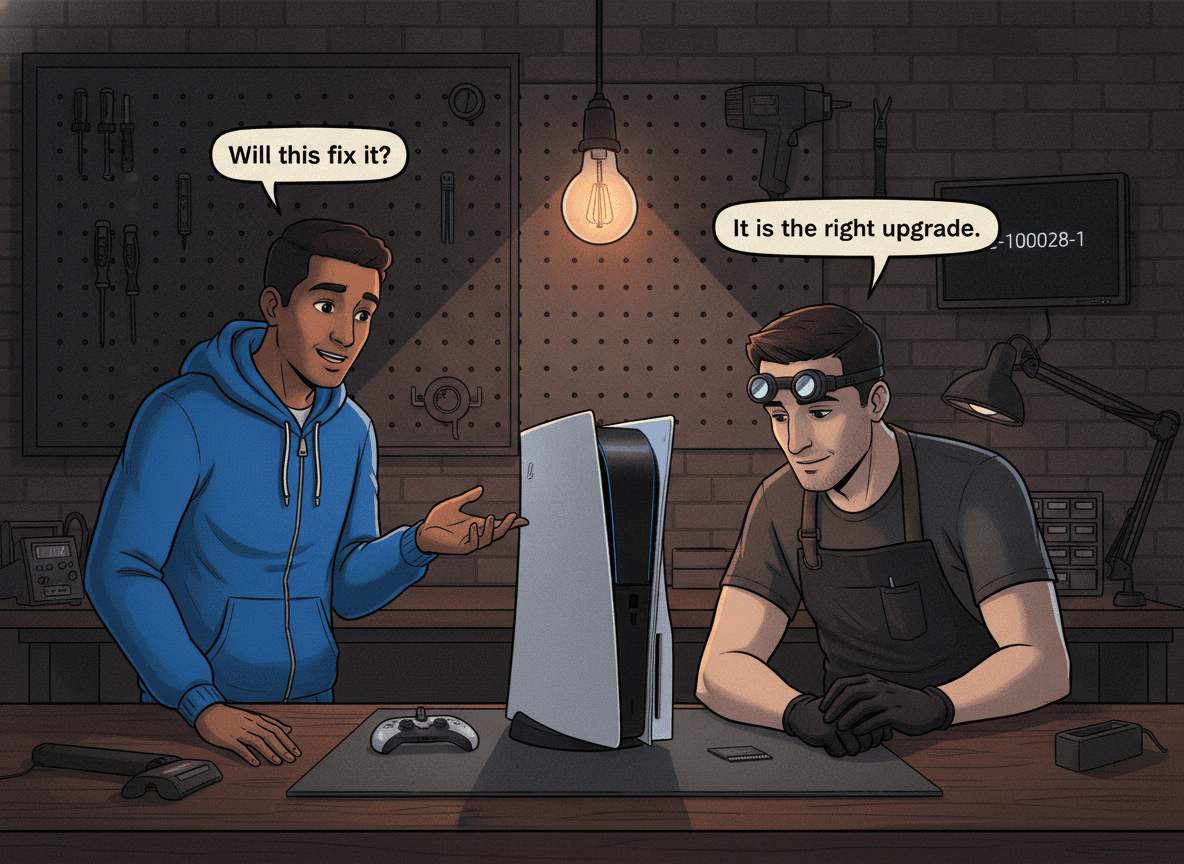
The CE-100028-1 error code is the PS5's way of telling you the SSD is full. We see it constantly in our workshop — customers who've never touched the internal hardware, convinced there's a hardware fault, when actually they just need more space. Before buying any upgrade, clear your game library of titles you've finished. PS5 games take up SSD space even when "closed". You can re-download anything you've paid for at any time.
Citable fact block: The PS5 internal SSD delivers ~5,500 MB/s sequential read and ~4,500 MB/s sequential write. The M.2 expansion slot is a full PCIe 4.0 x4 lane — identical performance tier to the internal drive. Games installed on the expansion SSD load at the same speed as games on the internal storage, provided you buy a fast enough drive. Cheap PCIe 3.0 drives top out at ~3,500 MB/s — measurably slower, but still faster than any console from the previous generation.
Quick Storage Wins Before You Buy
Before spending money on hardware, these software steps recover space immediately:
- Delete old game captures — Screenshots and video clips add up fast. Go to Settings → Storage → Media Gallery and delete anything you've already uploaded or don't need.
- Remove games you've completed — Highlight the game tile on the home screen, press Options, and select Delete. Your save data stays in the cloud (if PS Plus is active) or locally in a separate save folder.
- Move PS4 games to USB storage — PS4 titles play directly from a USB 3.0 external hard drive. Shift your entire PS4 library off the SSD with Settings → Storage → Console Storage → Games and selecting the PS4 titles.
- Check for duplicate installs — Some games install both a PS4 version and a PS5 version. You only need one. Delete the version you're not using.
- Disable automatic screenshots — Turning off auto-screenshots stops the library filling silently in the background (Settings → Captures and Broadcasts).
If you try all five and you're still above 90% capacity most weeks, it's time for the M.2 upgrade.
How the PS5 M.2 Slot Works
Sony built a dedicated M.2 expansion bay into every PS5 — Disc Edition, Digital Edition, PS5 Slim (Disc and Digital), and PS5 Pro. It's not an afterthought or a hardware mod. It's a Sony-designed expansion feature, covered in the official PS5 user manual.
The slot sits beneath the PS5's left side cover — the removable panel you can take off without any tools on most PS5 models. Inside is a shielded M.2 socket connected directly to the PS5's main PCIe 4.0 bus.
Once you install a compatible drive and format it via the PS5's Settings menu, the drive appears as a second storage location. You can install PS5 games, PS4 games, and media directly onto it. The PS5 treats it identically to the internal SSD for game access.
Important: The internal 825GB SSD is soldered directly onto the PS5 motherboard. It cannot be removed, upgraded, or replaced without board-level surgery. The M.2 slot is an addition, not a replacement. If your internal SSD physically fails — rare, but we do see it — that's a motherboard repair, not an upgrade.
What M.2 SSD You Need for PS5
Not every M.2 SSD works. Before buying anything, verify these specs:
Interface: PCIe NVMe Only
The PS5 M.2 slot is NVMe only. SATA-based M.2 drives (common in budget laptops) will not work and will not be recognised by the console, even if they physically fit the slot.
If you buy a drive marketed as "M.2 SSD" without an NVMe specification, check the drive's spec sheet. Look for "NVMe" or "PCIe" — not "SATA".
Generation: PCIe 4.0 for Best Performance
PCIe Gen 4 (PCIe 4.0) NVMe drives are the right choice for PS5. They match or exceed the internal SSD's performance, meaning games load at the same speed whether they're on the internal or expansion drive.
PCIe Gen 3 drives work — they fit, format correctly, and play games without errors — but their sequential read speeds (typically 3,000-3,500 MB/s) are noticeably slower than the internal SSD's 5,500 MB/s. PS5 games use Sony's custom I/O stack to pre-load game data, and a slower drive can result in longer loading screens and occasional texture pop-in on graphically demanding titles.
PCIe Gen 5 drives also work in the slot, though their extra speed isn't utilised — the slot is Gen 4, so a Gen 5 drive runs at Gen 4 speeds. Gen 5 drives cost more for no benefit on PS5.
Speed: 5,500 MB/s Sequential Read or Faster
Sony's recommendation: 5,500 MB/s sequential read or faster. This is achievable with any good-quality PCIe Gen 4 drive.
Drives rated below 5,500 MB/s work fine for PS4 games and media storage. For PS5 titles — especially those using the PS5's fast-load and streaming features — buy a drive that meets or beats 5,500 MB/s.
Size: M.2 2280 Is Your Default
M.2 drives come in different lengths, expressed as four or five digits: 2230, 2242, 2260, 2280, 22110. The first two digits (22) are width in millimetres. The remaining digits are length.
The PS5 M.2 slot supports all five sizes. The most common and widely stocked in South Africa is M.2 2280 (22mm wide, 80mm long). Unless you're sourcing internationally, buy 2280.
Heatsink: Mandatory
This is the most frequently missed requirement.
The PS5's M.2 bay runs hot. Sony generates significant heat from the APU and associated components, and the M.2 area is inside that thermal envelope. Without a heatsink, M.2 drives overheat within minutes of heavy gaming, triggering thermal throttling and potential long-term drive degradation.
The PS5 requires a heatsink with a combined drive + heatsink thickness of no more than 11.25mm on the top side and 2.45mm on the bottom side (for double-sided drives). Single-sided drives with a standard 1.5-3mm heatspreader fit easily. Thick dual-sided heatsinks — popular for PC builds — will not fit.
Many M.2 SSDs marketed for PS5 include a pre-fitted heatspreader. Verify before buying. If your drive doesn't include one, a single-sided copper or aluminium heatsink is a cheap separate purchase at most electronics stores.
M.2 SSDs That Work Well in South Africa
Stock availability varies at SA retailers, but these drives have strong compatibility and are regularly found at Takealot and dedicated tech stores:
- WD Black SN850X — Widely regarded as the benchmark PS5 upgrade. Sequential read up to 7,300 MB/s. Available with heatsink. Two-year common find at Takealot.
- Samsung 990 Pro — Excellent thermal management, strong sustained performance. Available with heatsink version.
- Seagate FireCuda 530 — Consistently near-identical performance to the SN850X. Popular choice when stock is available.
- Kingston Fury Renegade — Good price-to-performance ratio for the SA market. PCIe Gen 4.
For casual PS4 storage expansion — if you're mostly storing PS4 titles on the drive — the WD Black SN770 or similar PCIe Gen 4 drives at lower price points are a sensible choice. Their sequential reads (4,900-5,000 MB/s) are slightly below Sony's recommendation but perform well for PS4 games and system storage.
Avoid: No-brand or unknown-manufacturer M.2 drives. Price is not the issue — reliability is. An M.2 drive failure mid-session doesn't just corrupt save files. If the PS5 can't read the expansion drive on boot, it may request a database rebuild, which takes 45-90 minutes and can fail on a corrupted drive.
Citable fact block: Capacity planning for South Africa: 1TB is the practical minimum if you play both PS4 and PS5 games. A 2TB drive gives you room to grow without micromanaging storage. 4TB is the maximum the PS5 expansion slot officially supports, though availability at SA retailers is limited. The PS5 will not recognise drives marketed as "M.2 HDD" — only solid-state NVMe is compatible.
The Installation Process: What to Expect
Sony designed the M.2 slot for user access. The installation does not require disassembling the console's internals, accessing the power supply, or removing the motherboard. It involves removing the side panel — a snap-off cover that Sony documented in the PS5 user manual.
Before you start:
- Update your PS5 to the latest system software. Older firmware has bugs in the M.2 format routine.
- Back up your save data via PS Plus cloud storage or a USB drive. The installation itself doesn't touch your existing save files, but it's good practice.
- Ensure the PS5 is fully powered off, not in Rest Mode.
- Ground yourself or use an anti-static wrist strap if you have one. Static discharge can damage the drive.
High-level process:
- Place the PS5 on a flat surface with the disc side (or front logo, for Digital) facing down.
- Remove the side cover by sliding and lifting — no tools required on PS5 Disc, PS5 Digital, and PS5 Slim models.
- Remove the M.2 expansion cover (small screw, Phillips head).
- Install the standoff screw in the correct position for your drive length (2280 for most drives).
- Slide the M.2 drive in at a 30-degree angle, press flat, secure with the screw.
- Fit the heatsink if your drive doesn't already have one.
- Reinstall the expansion cover and side panel.
- Boot the PS5 — it will prompt you to format the new drive.
Opening your console beyond the side panel removal risks causing additional damage, especially to the fan connector and flex cables near the main board. If the process requires anything beyond side panel removal, stop. Bring the PS5 to us.
When to Use Our Professional Installation Service
Not everyone wants to open their PS5 themselves, even partially. That's completely reasonable. The M.2 expansion involves small screws, a sensitive connector, and a tight workspace inside the bay.
We install M.2 SSDs as part of our PS5 servicing. While your PS5 is with us, we typically also check:
- Thermal performance (liquid metal condition on the APU)
- Fan health and dust level
- Any other symptoms you've noticed
If you're buying a new drive and want it installed cleanly — and want a free once-over on the rest of the console — WhatsApp us on 087 550 2307 before you buy. We can advise on which specific drive is in stock and worth the money at current exchange rates.
Not sure what's wrong? If your PS5 is showing the CE-100028-1 error, crashing on game loads, or behaving strangely after an SSD install, WhatsApp us at 087 550 2307 — we respond immediately, 24/7, and can often diagnose from a description before you bring anything in.
| Repair | Price |
|---|---|
| Full Service | R1,249 |
*Prices shown are the total amount payable.
Get an exact quote on WhatsApp →After Installation: First Steps
Once the PS5 formats the new drive, there are a few settings worth configuring:
Set the default install location
Go to Settings → Storage and under "Default Installation Location", choose either the internal SSD or the M.2 expansion. New game downloads will go to whichever location you select. Most users set the M.2 as default so the internal SSD holds the OS and frequently-played titles.
Move existing games
From Settings → Storage → Console Storage → Games, you can move installed games to the expansion drive without reinstalling them. The process copies the game data in the background. Don't turn the PS5 off mid-transfer.
Check Rest Mode storage
If you use Rest Mode to download games overnight, verify that the PS5's Rest Mode is enabled for network features under Settings → System → Power Saving. Downloads and installs continue in Rest Mode without issue.
Common Issues After M.2 Installation
PS5 Doesn't Recognise the Drive
This usually means one of three things:
- The drive isn't NVMe (SATA M.2 drives don't work in the PS5)
- The drive wasn't seated fully — the connector requires firm pressure and a 30-degree insertion angle
- The drive is faulty from the factory (uncommon but happens)
If the PS5 doesn't prompt you to format the drive after boot, go to Settings → Storage and check if the M.2 expansion appears. If it shows no drive at all, power off completely and reseat.
Slow Loading After Installation
If your new drive is slower than the internal SSD, check the drive's actual sequential read speed in the product specifications. Drives rated under 5,000 MB/s will show measurably longer loading times on PS5-native titles.
CE-100028-1 Still Appearing
This error means your internal SSD is full. The M.2 expansion doesn't automatically relieve pressure on the internal drive. You need to move games from the internal storage to the expansion drive, or set the M.2 as your default install location going forward.
Overheating / Thermal Throttling Warning
The PS5 will show a temperature warning if the M.2 drive gets too hot. This almost always means the heatsink wasn't installed, wasn't seated correctly, or a chunky dual-sided heatsink doesn't fit the bay properly. Check heatsink contact and thickness.
PS5 Storage and Load Shedding
South Africa's load shedding adds one consideration that PC builds don't face: unclean power cut.
During an active game installation or format operation, a power cut mid-write can corrupt the M.2 drive's partition table. The PS5 stores game data in units that are atomic enough that most sudden power cuts don't cause data loss, but a cut during a drive format or initial database build can require a complete reformat.
A quality surge-protected power strip with battery backup (UPS) is worth the investment if you're doing a large SSD install during rolling blackouts. Check our load shedding and console damage protection guide for UPS recommendations suited to South African conditions.
For read/write operations during normal gaming, a standard surge protector is adequate — SSDs have no moving parts and handle power cuts better than mechanical hard drives. But we'd still recommend a UPS for install operations specifically.
Prevention: Getting the Most from Your M.2 SSD
Once installed, M.2 SSDs are low-maintenance. A few habits extend their life:
- Don't fill either drive past 90%. SSD performance degrades when the NAND is near capacity. Keep 10% free on both the internal and expansion drives.
- Keep the PS5 horizontal. The PS5 runs significantly cooler in horizontal orientation, which benefits the M.2 drive as well as the APU's liquid metal. See our PS5 overheating guide for details on thermal management.
- Check drive health after any crash. If the PS5 crashes or force-powers off, run a database rebuild from Safe Mode as a precaution (Safe Mode → Rebuild Database). It re-indexes the drive contents without deleting data.
- Don't buy the cheapest M.2 available. Drives from reputable manufacturers (WD, Samsung, Seagate, Kingston) have better firmware, better thermal management, and actual warranty support in South Africa.
Frequently Asked Questions
Can I upgrade the PS5's internal 825GB SSD?
No. The internal 825GB SSD is soldered directly onto the PS5 motherboard and cannot be replaced. The M.2 expansion slot is your only upgrade path for additional storage. If the internal SSD physically fails, that's a motherboard-level repair — contact us via WhatsApp on 087 550 2307.
Will a PCIe Gen 3 M.2 SSD work in my PS5?
Yes, it will work. PCIe Gen 3 NVMe drives fit the slot, format correctly, and play both PS4 and PS5 games. Performance is reduced — typically 3,000-3,500 MB/s versus the internal drive's 5,500 MB/s. For PS5-native titles that use the console's streaming I/O, this means longer loading screens. For PS4 games, the difference is minimal.
Does the M.2 SSD need a heatsink?
Yes. Sony requires a heatsink. Without one, the drive will overheat in the PS5's enclosed bay, triggering thermal throttling and shortening the drive's lifespan. Many drives come with a heatsink pre-installed. If yours doesn't, buy a single-sided heatsink separately. Do not use a thick dual-sided PC heatsink — it won't fit.
How much M.2 storage should I buy for PS5 in South Africa?
1TB is the practical minimum. Modern PS5 games average 60-90GB each; 1TB fits roughly 10-15 titles with room for captures. 2TB is the better long-term buy if your library includes large PS4 titles as well. 4TB drives work in the PS5 but are harder to find in South Africa at reasonable prices.
What's the difference between M.2 SSD and a USB external hard drive for PS5?
USB external storage is much cheaper and works for PS4 games. However, PS5 games cannot run from USB external storage — they must be installed on the internal SSD or the M.2 expansion. If most of your gaming is PS5 titles, a USB drive won't solve your problem.
Why is my PS5 showing CE-100028-1?
CE-100028-1 means your PS5's internal SSD is full — it's a storage error, not a disc, hardware, or system fault. Free up space by deleting finished games, clearing captures, or moving PS4 titles to USB external storage. If you're consistently hitting this error, that's the sign your PS5 needs the M.2 upgrade.
Is it worth paying for professional M.2 installation?
It depends on your comfort with small electronics. The PS5 side panel removal is straightforward, but the M.2 bay has a small screw and tight connector. If you've assembled a PC before or regularly replace smartphone screens, you'll be fine. If this is your first time doing anything hardware-related, having us install it costs little compared to accidentally damaging the connector or buying the wrong drive. WhatsApp us for a quote.
Can I have two M.2 SSDs in my PS5?
No. The PS5 has one M.2 expansion slot. If you need more than 4TB total (internal + expansion), USB external drives are the only option for PS4 titles.
What happens to my games if I remove the M.2 SSD?
Any games stored on the expansion drive become inaccessible until the drive is reinserted. Your saves and the games on the internal SSD are unaffected. The PS5 will ask you to format the drive again if it was removed and reinserted without proper shutdown.
Get Your PS5 SSD Upgrade Done Right
A properly installed M.2 SSD doubles or triples your available storage at a fraction of the cost of a second console — and properly done, it's reliable for years. The catch is buying the right drive and installing it correctly.
Here's why Console Service Centre is your best choice for professional installation:
- 15+ years of console repair experience — We've worked on every PS5 variant since launch
- 25,000+ consoles repaired — We know what goes wrong during M.2 installs and how to avoid it
- 1,329+ Google reviews with a 4.9-star rating
- PS5 specialists — We don't do phones or general electronics
- 6-month warranty on all work we do
Ready to Upgrade Your PS5 Storage?
WhatsApp us: 087 550 2307 — We respond immediately, 24/7. Tell us what PS5 model you have and we'll confirm which drives we have in stock.
Visit us: 6 Bester Street, Witfield, Boksburg
Can't get to us? We offer nationwide courier repairs. Ship your PS5 to us via The Courier Guy, we'll install the upgrade and send it back. Simple.
For more PS5 guides, see our PS5 repair services page, our guide to PS5 crashes and freezing, and our PS5 error codes explained guide.
Topics Covered
About the Author

Shaun Potgieter
Founder & Head Technician
Expert console technician with 15+ years of hands-on repair experience.