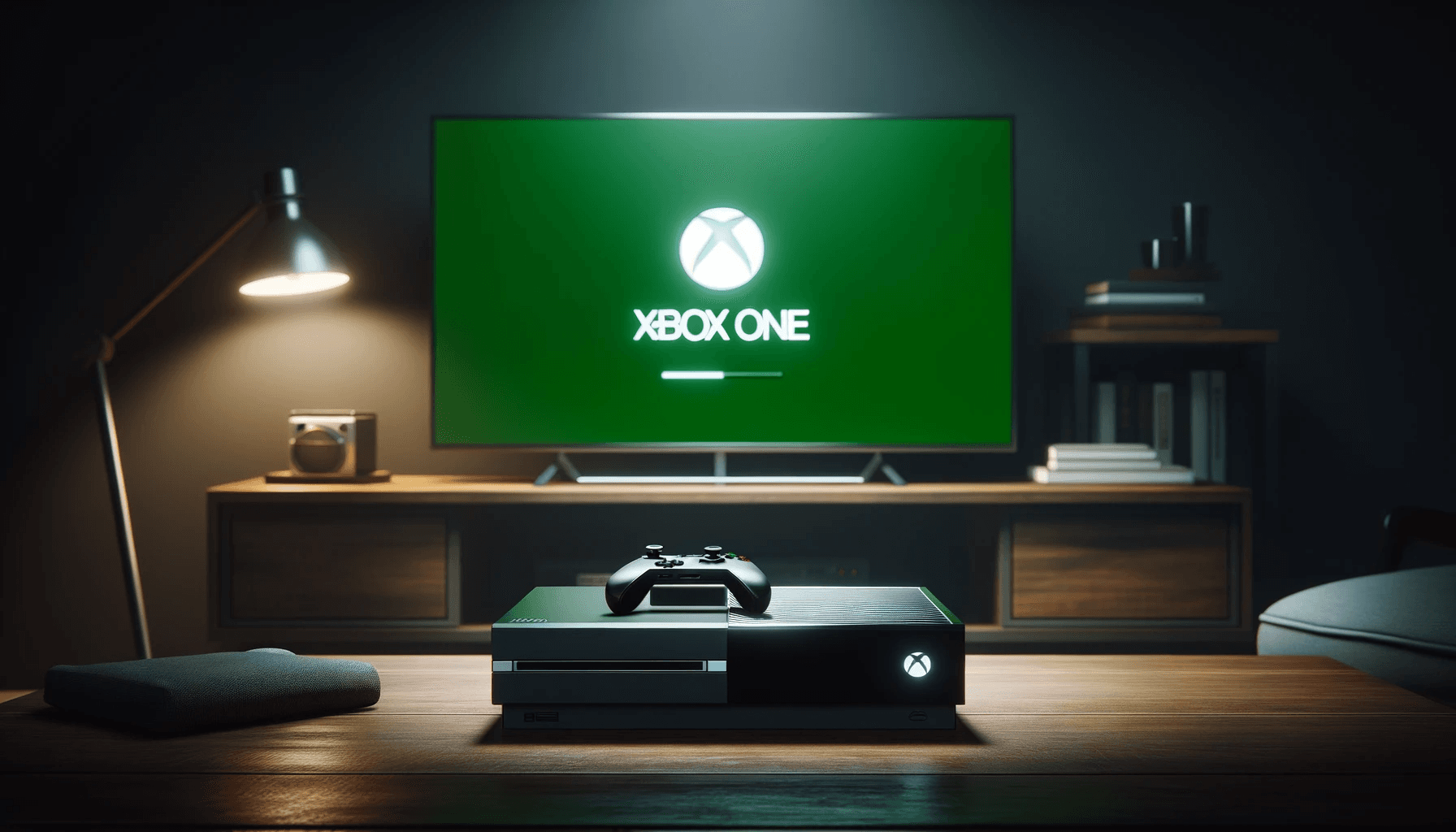
You turn on your Xbox One and the familiar green loading screen appears. The Xbox logo pulses. You wait. And wait. Ten minutes go by. Twenty. The green screen just sits there, mocking you.
Welcome to the Xbox One Green Screen of Death - one of the most common and frustrating problems on the Xbox One family of consoles. Whether you own an Xbox One, Xbox One S, or Xbox One X, this issue can strike without warning. The good news? After repairing over 25,000 consoles at Console Service Centre, we can tell you that the green screen of death is fixable in the vast majority of cases.
This guide walks you through everything - from 30-second fixes to advanced troubleshooting - so you can get back to gaming. And if it turns out to be a hardware problem, we will explain exactly what is going on and what professional repair looks like.
What Quick Fixes Can I Try for My Xbox One Green Screen?
Before diving into the more technical solutions, let us rule out the simple stuff first. These quick fixes resolve a good share of Xbox One green screen cases.
1. Hard Reset Your Xbox
This is the first thing to try every single time:
- Press and hold the Xbox button on the front of your console (not the controller) for a full 10 seconds
- The console will shut down completely
- Wait 30 seconds, then press the Xbox button again to restart
A hard reset clears the Xbox One's temporary cache and forces a clean boot. If a minor software glitch caused the green screen, this often resolves it immediately.
2. Full Power Cycle
If a hard reset did not work, take it a step further with a complete power cycle:
- Turn off your Xbox using the power button (hold for 10 seconds)
- Unplug the power cable from the back of the console
- Wait at least 60 seconds - a full minute is important to drain residual power from the capacitors
- Press and hold the Xbox button while unplugged for 10 seconds - this drains any remaining charge
- Plug the power cable back in and turn on the console
This is especially important for the Xbox One Original, which uses an external power brick. Unplug both ends of the power brick (from the wall and from the console) and let it sit for a full two minutes before reconnecting.
3. Remove External Devices
External accessories can interfere with the Xbox One boot process more often than you might expect:
- Unplug all USB devices - external hard drives, USB sticks, headsets, wired controllers, keyboard and mouse
- Remove any disc from the drive (if you can access the eject button)
- Disconnect the Ethernet cable if you are using a wired connection
- Try powering on with nothing connected except the power cable and HDMI
External hard drives are the most common culprit here. A corrupted or failing external drive can prevent the Xbox One from completing its startup sequence. If your Xbox One is also having trouble reading game discs, check out our Xbox One disc reading guide.
4. Let It Sit (Seriously)
This sounds odd, but sometimes the Xbox One just needs more time than you would expect:
- Some system updates run in the background during the green screen
- Wait at least 15-20 minutes before assuming it is truly stuck
- If the green loading bar (or animated dots) is still moving, the console is still working - do not interrupt it
- Only take further action if the screen has been completely frozen with no animation for 10+ minutes
If these quick fixes got your Xbox One past the green screen - brilliant. If not, let us dig into what is actually going on.
What Causes the Xbox One Green Screen of Death?
Understanding the cause helps you pick the right fix. Here are the main reasons your Xbox One gets stuck on the green screen, listed from most to least common.
1. Failed or Interrupted System Update
This is the number one cause of the green screen of death. When an Xbox One system update gets interrupted - whether from a power outage, network dropout, or the console being turned off mid-update - the system files can become corrupted. The OS-recovery flow we walk through below is the route we use on the bench to bring these consoles back.
Why this is so common in South Africa: Load shedding. If your Xbox One was updating during a power cut, the update was interrupted and the system files are now in a broken state. We see this constantly at our workshop in Boksburg. Read our load shedding console protection guide for tips on preventing this.
2. Corrupted System Files
Even without a failed update, system files can become corrupted over time due to:
- Forced shutdowns (pulling the power cable while the console is on)
- Hard drive read/write errors
- Software bugs in the operating system
- Power surges damaging data on the drive
3. Hard Drive Failure
The Xbox One, Xbox One S, and Xbox One X all use traditional mechanical hard drives (HDDs). These have moving parts that wear out over time, and a failing hard drive is one of the most common hardware causes of the green screen on Xbox One consoles.
Signs your hard drive is failing:
- Clicking or grinding sounds from the console during boot
- Green screen appears after every restart, not just occasionally
- The console previously showed slow loading times or dashboard lag
- Console worked after a reset but the green screen keeps coming back
This is the big one. Because all Xbox One models use mechanical hard drives with moving parts, hard drive failure is extremely common - especially on consoles that have been in use for several years.
4. Overheating Damage
If your Xbox One has been running hot for an extended period, heat can damage the internal hard drive and cause data corruption that manifests as a green screen on the next boot. The Xbox One is particularly prone to dust buildup, which makes overheating a common issue on older units.
5. Power Surge Damage
Particularly relevant here in South Africa - voltage spikes from load shedding can damage sensitive electronics including the hard drive controller and other motherboard components. If your Xbox is showing specific error codes instead of the green screen, see our Xbox Series error codes guide for model-specific troubleshooting.
How to Fix the Xbox One Green Screen of Death
Now for the fixes. We will start with the easiest software solutions and work our way up to more advanced methods.
Method 1: Xbox Startup Troubleshooter
The Xbox Startup Troubleshooter is a built-in recovery tool that can resolve most software-related green screen issues. Think of it as the Xbox One equivalent of Safe Mode.
How to access the Startup Troubleshooter:
The method differs slightly depending on your Xbox One model:
For Xbox One S and Xbox One X (with disc drive and Bind button):
- Turn off your Xbox One completely - hold the power button for 10 seconds
- Unplug the power cable for 30 seconds, then plug it back in
- Press and hold both the Bind button and the Eject button on the console
- While holding those two buttons, press the Xbox power button once
- Continue holding Bind and Eject for 10-15 seconds
- Listen for two power-up tones - the first comes immediately, the second comes about 10 seconds later
- Release Bind and Eject after the second tone
- The Startup Troubleshooter menu should appear on your screen
For Xbox One Original:
The original Xbox One has the Bind button on the left side of the console. The process is the same - hold Bind + Eject, then press the power button and wait for two beeps. If your original Xbox One does not have an accessible Bind button, you may need to use the Offline System Update method (Method 2 below) directly.
Startup Troubleshooter Options
Once you are in the troubleshooter, you will see several options:
Reset this Xbox (Keep My Games & Apps) - This is your best first option. It reinstalls the operating system while keeping your games, apps, and data intact. Think of it as refreshing Windows without losing your files. This resolves the vast majority of green screen issues caused by corrupted system software.
Reset this Xbox (Remove Everything) - The nuclear option. This completely wipes your Xbox back to factory settings. Only use this if "Keep My Games & Apps" did not work. You will need to re-download all your games, but your purchases and saves (if backed up to Xbox cloud) are safe.
Offline System Update - Use this if the green screen was caused by a failed update on your Xbox One. Requires a USB flash drive (see Method 2 below).
Cancel - Returns you to the startup process. Only useful if you got into the troubleshooter by mistake.
Method 2: Offline System Update (OSU1)
If the Xbox One green screen was caused by a failed or corrupted system update, the offline update method can fix it by installing a fresh copy of the system software from a USB drive.
What you need:
- A Windows PC with internet access
- A USB flash drive (at least 6GB, formatted as NTFS)
- A USB cable to connect the drive to your Xbox (or your Xbox's USB port)
Step-by-step instructions:
- On your PC, go to xbox.com/xboxone/osu1 and download the Offline System Update file (OSU1)
- Format your USB drive as NTFS:
- Right-click the drive in File Explorer
- Select "Format"
- Choose NTFS as the file system
- Click Start
- Create a folder on the USB drive called exactly
$SystemUpdate(the dollar sign is important) - Copy the downloaded file into the
$SystemUpdatefolder - Safely eject the USB drive from your PC
- Plug the USB drive into your Xbox One console
- Access the Startup Troubleshooter using the method described above
- Select "Offline System Update" from the troubleshooter menu
- Wait for the update to complete - this can take 15-30 minutes. Do not turn off the console during this process
Important notes:
- The USB drive must be formatted as NTFS, not FAT32
- The folder must be named exactly
$SystemUpdate(case-sensitive, with the dollar sign) - Only the update file should be in the folder - remove any other files
- Make sure your console has reliable power during the update (no load shedding scheduled!)
Method 3: Factory Reset (Last Resort)
If neither the Startup Troubleshooter reset nor the offline update resolves the green screen, a full factory reset is your last software option:
- Access the Startup Troubleshooter (as described above)
- Select "Reset this Xbox"
- Choose "Remove Everything"
- Wait for the process to complete
- Set up your Xbox from scratch
Before doing this:
- Your digital game purchases are tied to your Xbox account, not the console - you will not lose them permanently
- Game saves backed up to Xbox Live cloud storage are safe
- You will need to re-download all games and apps
- All local settings, accounts, and data will be erased
Xbox One Green Screen Fix by Model
All three Xbox One models are affected by the green screen of death, but there are some important differences between them.
Xbox One Original
- Uses a 500GB or 1TB mechanical hard drive (HDD)
- Uses an external power brick - the only Xbox One model that does
- A failing power supply can cause the console to hang on the green screen due to insufficient power
- The external power brick has an LED indicator - orange is normal standby (console off, brick fine) and white means the console is drawing power; no light at all is the sign of a failed brick
- Unplug the power brick from both ends and let it sit for several minutes before reconnecting
- These are the oldest Xbox One consoles and are most likely to have a worn-out hard drive
Xbox One S
- Uses a 500GB, 1TB, or 2TB mechanical hard drive (HDD)
- Slimmer design with an internal power supply - no external brick
- Has both Bind and Eject buttons easily accessible on the front
- Same hard drive failure risks as the original, but slightly newer drives
Xbox One X
- Uses a 1TB mechanical hard drive (HDD) - the most powerful Xbox One model
- Internal power supply, Bind and Eject buttons on the front
- Runs hotter than the One S due to more powerful hardware, which can accelerate hard drive wear
- Hard drive failure is common on heavily used units
Key Points for All Xbox One Models
- All three use mechanical hard drives - this is the single biggest reason the green screen is so common on Xbox One
- Hard drive replacement is a viable repair option and usually fixes recurring green screen issues
- The HDD is not simply swappable - Xbox One hard drives require specific formatting and firmware that cannot be done on a standard Windows PC
- Clicking or grinding sounds during boot are a strong indicator of hard drive failure
When Should I Take My Xbox One to a Repair Shop?
Software fixes resolve the majority of green screen cases. But when they do not, it usually means there is a hardware problem that needs professional attention. On Xbox One consoles, this almost always comes down to the mechanical hard drive.
Signs of a Hardware Problem
Your Xbox One almost certainly needs professional repair if:
- The Startup Troubleshooter will not load - you cannot get past the green screen to access any recovery options
- Factory reset does not fix it - the green screen returns even after a complete wipe
- Clicking or grinding sounds - mechanical hard drive failure
- The console shuts down during the reset or update process - possible power supply or overheating issue
- Green screen appears within seconds of turning on - before the console can even attempt to load the operating system
- Burning smell or unusual heat - stop using the console immediately and seek professional repair
- The problem keeps returning after successful software fixes - the underlying hardware is failing
What Professional Xbox One Repair Involves
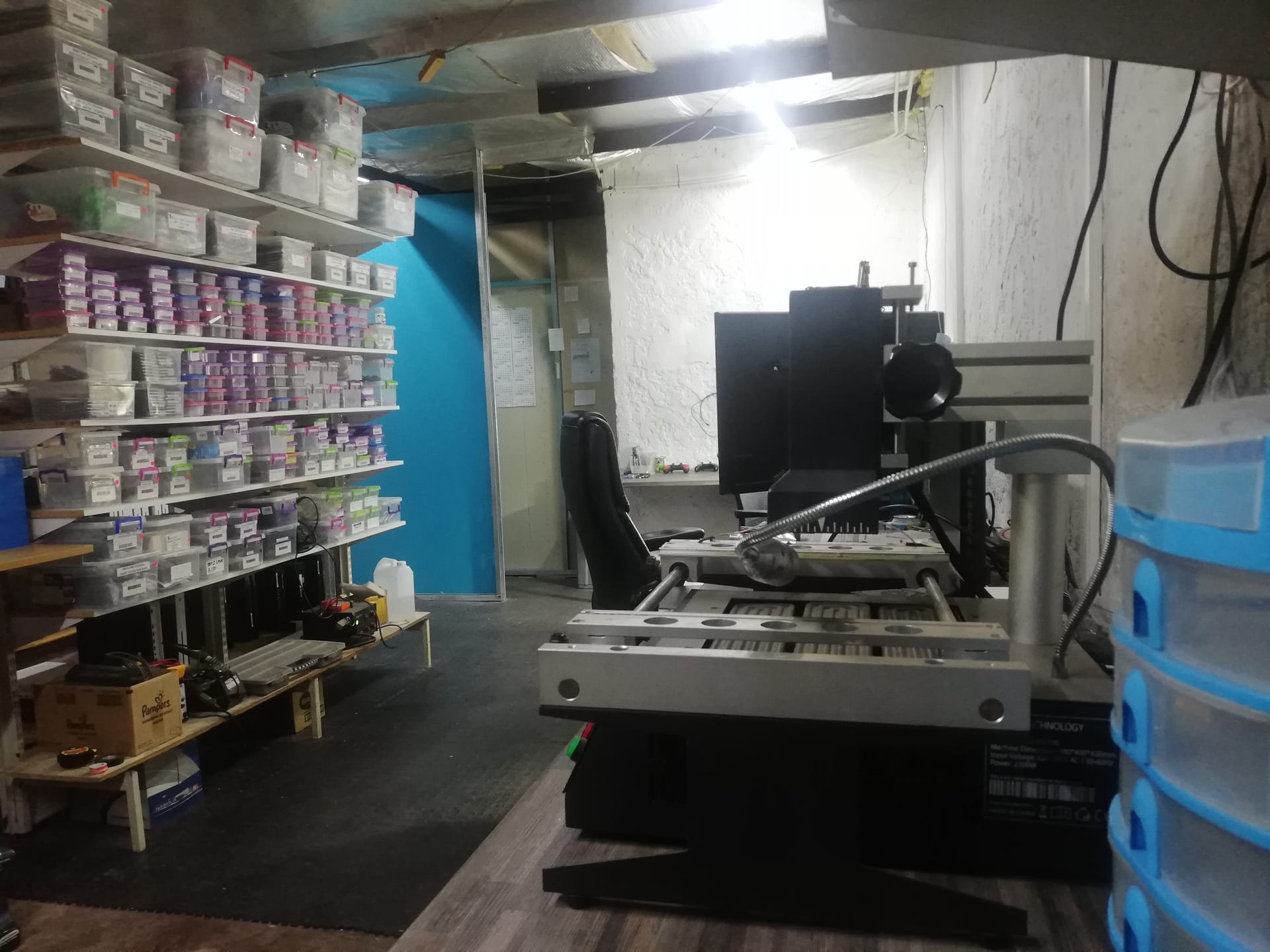
At Console Service Centre, here is how we approach Xbox One green screen and software fault repairs:
Step 1: Full Diagnostic Testing
We test the console systematically to identify the root cause. Is it the hard drive? A motherboard issue? A power supply problem? Accurate diagnosis saves time and money.
Step 2: Targeted Repair
Depending on the diagnosis:
- Hard drive replacement - The most common fix for recurring Xbox One green screen issues. We install a new HDD with the correct Xbox firmware and formatting. This is not something you can do at home because Xbox One drives require a specific setup process
- Power supply repair - If the console cannot maintain stable power during boot (particularly common on the original Xbox One with its external power brick)
- Motherboard repair - For more complex issues like damaged storage controllers or other component failures
- Full service - Clean, thermal paste replacement, and reassembly to address any overheating contributing to the problem
Step 3: Extended Testing
After repair, we run the console through multiple boot cycles, system updates, and gameplay testing to confirm the fix is solid.
Not sure what is wrong? WhatsApp us at 087 550 2307 - we respond immediately, 24/7, and can often give you a good idea of what is going on based on your symptoms before you send your console in.
How Do I Prevent the Xbox One Green Screen of Death?
Prevention is always cheaper than repair. Here is how to protect your Xbox One from the green screen in the future.
1. Never Interrupt System Updates
This is the single biggest cause of the green screen:
- Let updates finish completely - do not turn off your Xbox One during an update, no matter how long it takes
- Check your load shedding schedule before starting an update - do not start a system update if you know power is about to go off
- Use a UPS (Uninterruptible Power Supply) if you game during load shedding - this gives your Xbox One time to finish updates or shut down safely during a power cut
2. Use a Quality Surge Protector
This is essential in South Africa:
- Invest in a surge protector rated at 1,000 joules or higher
- Replace it after it absorbs a major surge (they do not last forever)
- Better yet, use a UPS that provides both surge protection and battery backup
- Never leave your Xbox One on during scheduled load shedding if you do not have a UPS
3. Shut Down Properly
- Always turn off your Xbox One through the menu or by pressing the Xbox button briefly (not by pulling the plug)
- Wait for the console to fully shut down before unplugging
- Avoid holding the power button for a hard reset unless necessary
- If you use Instant-On mode, be aware that the console is still partially running and vulnerable to power cuts
4. Keep Your Xbox Ventilated
Overheating accelerates hard drive wear and can cause data corruption:
- Keep at least 10cm clearance around all vents
- The Xbox One vents from the top and sides - keep all sides clear
- The Xbox One X generates more heat than the One S due to more powerful hardware - ensure good airflow
- Clean dust from the vents regularly with a low-powered vacuum (every 2-3 months) — the method we use on the bench, as it lifts dust out rather than driving it deeper
- Never place your Xbox One inside an enclosed TV cabinet while gaming
- Xbox One consoles are particularly prone to dust buildup after several years of use
5. Monitor Your External Storage
If you use external hard drives with your Xbox One:
- Use a quality drive from a reputable brand (Seagate, Western Digital, Samsung)
- Safely remove the drive before turning off the console when possible
- Do not install system-critical content on external drives
- If a drive starts making clicking sounds, replace it immediately before it causes boot issues
Frequently Asked Questions
Why is my Xbox One stuck on the green screen?
The Xbox One green screen of death most commonly occurs when a system update was interrupted (very common during load shedding in South Africa) or when system files have become corrupted. Because all Xbox One models use mechanical hard drives, a failing hard drive is another very frequent cause. The good news is that software-related green screen issues can usually be resolved using the Xbox Startup Troubleshooter or an offline system update. Hardware issues like hard drive failure require professional repair.
How do I fix the Xbox One green screen of death without losing my games?
Use the Startup Troubleshooter and select "Reset this Xbox - Keep My Games & Apps." This reinstalls the operating system while preserving your installed games, apps, and data. Access the troubleshooter by holding the Bind and Eject buttons, then pressing the power button and waiting for two beeps. If this does not work, try the offline system update method using a USB drive, which also preserves your data.
Can I fix the Xbox One green screen without a USB drive?
Yes, in many cases. Start with a hard reset (hold the power button for 10 seconds), then try a full power cycle (unplug for 60 seconds). If those do not work, access the Startup Troubleshooter and select "Reset this Xbox - Keep My Games & Apps." The USB drive is only needed if you want to perform an offline system update, which is required when the existing system update files are too corrupted for the Xbox One to repair itself.
How much does it cost to fix the Xbox One green screen of death in South Africa?
Pricing depends on whether the issue is software-related or requires hardware repair such as a hard drive replacement. We diagnose the exact issue first and provide a firm quote before starting any work. WhatsApp us on 087 550 2307 for a quote based on your specific situation.
Does the Xbox One green screen of death mean my hard drive is broken?
Not necessarily. The green screen is most often caused by software corruption (failed updates, corrupted system files) rather than hardware failure. However, if the green screen keeps returning after successful software fixes, or if you hear clicking or grinding sounds from your Xbox One, the hard drive is very likely failing and needs to be replaced. Because all Xbox One models use mechanical hard drives with moving parts, hard drive failure is one of the most common hardware issues we see on these consoles.
Will a factory reset fix the Xbox One green screen of death?
In most cases, yes. A factory reset through the Startup Troubleshooter resolves the green screen by reinstalling a clean copy of the operating system. Try "Keep My Games & Apps" first - if that does not work, use "Remove Everything" for a complete wipe. If a factory reset does not fix the green screen, or if you cannot even access the Startup Troubleshooter, the issue is almost certainly hardware-related and needs professional Xbox One repair.
Is load shedding causing my Xbox One green screen?
Load shedding is one of the most common triggers for the Xbox One green screen of death in South Africa. When power cuts during a system update, the update files become corrupted and the console cannot complete its boot process. Even if your Xbox One was not updating, repeated power surges from load shedding can damage the mechanical hard drive over time, leading to data corruption and eventual drive failure. Always use a surge protector (minimum 1,000 joules) and power your Xbox One down completely before scheduled load shedding.
How long does the Xbox One green screen fix take?
If it is a software issue that you can fix at home using the Startup Troubleshooter, the process takes about 15-30 minutes. An offline system update via USB also takes around 15-30 minutes. For professional repair at Console Service Centre, turnaround depends on the workshop queue and the fault — anywhere from 1 hour for quick jobs to 7 working days for complex board-level work. We confirm the timeframe on WhatsApp before you bring it in. We offer nationwide courier repairs for customers outside the Johannesburg area.
Where Can I Get My Xbox One Fixed in South Africa?
The Xbox One green screen of death is frustrating, but it is one of the most treatable console problems out there. Whether it is a quick reset you can do right now, an offline system update, or a hard drive replacement that needs professional hands - your Xbox One is almost certainly fixable.
Here is why Console Service Centre is your best choice for Xbox One repairs:
- Console repair specialists since 2011 — over 25,000 consoles repaired
- We know what we are doing -- every Xbox issue, every model
- 1,329+ Google reviews with a 4.9-star rating
- PlayStation and Xbox specialists - We do not do phones or general electronics
- 6-month money-back warranty - If the same issue returns, we fix it free
Ready to Get Your Xbox One Working Again?
WhatsApp us: 087 550 2307 - We respond immediately, 24/7
Visit us: 6 Bester Street, Witfield, Boksburg
Can't get to us? We offer nationwide courier repairs. Ship your console to us via The Courier Guy, we fix it and send it back. Simple.
Do not let a green screen keep you from your games. Whether it is a corrupted update, a failing hard drive, or something else entirely - we will diagnose it properly and get you sorted.
Console Service Centre specialises exclusively in PlayStation and Xbox repairs. We do not do phones, TVs, or general electronics - just consoles, done properly. View our full range of Xbox One repair services.
Topics Covered
About the Author

Shaun Potgieter
Founder & Head Technician
Expert console technician with 15+ years of hands-on repair experience.