
There's nothing quite as frustrating as settling in for a gaming session, pressing the power button on your PS5, hearing it boot up - and then staring at a completely black screen. No Sony logo, no home screen, just darkness. Your console sounds like it's working, maybe the light is on, but your TV shows absolutely nothing.
Take a deep breath. You're not alone, and in most cases, this problem is fixable. The PS5 black screen issue (also known as the PlayStation 5 black screen problem) is actually one of the most common problems we see at Console Service Centre. Since 2011, after repairing gaming consoles and diagnosing thousands of display issues, we've put together this comprehensive guide to help you understand what's happening and how to fix it.
Whether your PS5 shows no picture at all, displays a black screen after rest mode, or gives you the dreaded "black screen of death," this guide covers every scenario and solution - from 30-second fixes to when you need professional help.
What Quick PS5 Black Screen Fixes Can I Try in 5 Minutes?
Before we dive into the technical stuff, let's start with the basics. These simple checks solve a good number of PS5 black screen cases, and they take less than five minutes.
1. Check Your HDMI Cable Connections
This might seem obvious, but we see it constantly - HDMI cables that look connected but aren't seated properly.
- Unplug the HDMI cable from both your PS5 and your TV
- Inspect both ends for bent pins, dust, or debris
- Reconnect firmly - push it in until you feel a solid click
- Check the cable isn't kinked or bent at a sharp angle
2. Try a Different HDMI Port on Your TV
TV HDMI ports can fail or have different capabilities. Most modern TVs have 3-4 HDMI ports.
- Unplug from the current port and try another one
- Make sure you switch your TV to that input (use your remote)
- Try HDMI 1 specifically - it often has the best compatibility
3. Test with a Different HDMI Cable
HDMI cables fail more often than people realise, especially cheaper ones. For PS5, you need a Premium High Speed HDMI cable (HDMI 2.1 certified) to support 4K at 120Hz.
- Borrow a cable from another device to test
- If you don't have a spare, try the cable that came with your PS5
- Avoid cables longer than 2 metres if possible - longer cables are more prone to signal issues
4. Perform a Full Power Cycle
A proper power cycle clears the console's temporary memory and can resolve many display glitches:
- Turn off your PS5 completely (not rest mode - fully off)
- Unplug the power cable from the back of your PS5
- Wait 60 full seconds (not 30 - a full minute matters)
- While unplugged, press and hold the power button for 10 seconds to drain residual power
- Unplug your TV for 30 seconds (this resets the HDMI handshake)
- Plug everything back in and try again
5. Verify Your TV Input
It sounds silly, but double-check:
- Is your TV actually on the correct HDMI input?
- Did someone change the input by accident?
- Try cycling through all inputs using your TV remote
If your PS5 springs to life after these steps - brilliant! You've saved yourself time and money. If not, let's dig deeper into what might be causing the problem.
Why Is Your PS5 Showing a Black Screen?
Understanding what's causing your black screen helps you find the right fix. Here are the six main causes we see at Console Service Centre, listed from most to least common:
1. HDMI Connection Issues
The most common cause - and fortunately, often the easiest to fix.
HDMI problems include:
- Loose connections at either end of the cable
- Damaged HDMI cable (internal wire breaks don't show externally)
- Faulty TV HDMI port (they can wear out or fail)
- Damaged PS5 HDMI port (bent pins, loose socket, physical damage)
How to identify: Try multiple cables and ports. If nothing works with any combination, the PS5 HDMI port itself may need repair. Read our dedicated PS5 HDMI port diagnosis and repair guide for the full breakdown of symptoms, causes, and what the repair involves.
2. Rest Mode Bug
This is a known Sony software issue that's plagued the PS5 since launch. The console goes into rest mode, and when you try to wake it, you get a black screen even though the console is clearly powered on.
How to identify: The problem only happens after rest mode, not from a fresh boot. You might hear system sounds or controller vibration, but no picture.
3. Resolution/HDR Mismatch
Your PS5 might be outputting a video format that your TV doesn't support. This commonly happens when:
- You move your PS5 to a different TV
- Your TV's firmware updates and changes capabilities
- You've set 4K/120Hz but your TV only supports 4K/60Hz
- HDR is enabled but your TV can't decode that specific HDR format
How to identify: The console boots fine on a different TV, or worked fine until you changed display settings.
4. HDCP Handshake Problems
HDCP (High-bandwidth Digital Content Protection) is copy protection built into HDMI. Sometimes the "handshake" between your PS5 and TV fails, resulting in a black screen. The HDMI Forum's HDCP specification explains the underlying handshake; in practice, on PS5 it manifests as a black screen at game launch.
How to identify: The screen goes black at random moments, especially when launching games or streaming apps, or the TV briefly shows an image before going black.
5. Overheating
When your PS5 gets too hot, it activates thermal protection. This can cause shutdowns or display issues as the console throttles performance to cool down.
How to identify: The console feels very hot, the fan is extremely loud, or the black screen happens after extended gaming sessions. You might also notice shutdowns with a temperature warning.
6. Hardware Failure
The most serious cause - actual component failure inside your PS5:
- HDMI port damage - Bent or broken pins, cracked solder joints
- HDMI encoder chip failure - The chip that converts video signals
- GPU (graphics processor) issues - Overheating damage or defects
- Power supply problems - Inadequate power to the graphics system
How to identify: Black screen happens every single time, even from cold boot, across multiple TVs and cables. The console may show other symptoms like unusual sounds, overheating, or no light at all.
How to Fix PS5 Black Screen Using Safe Mode
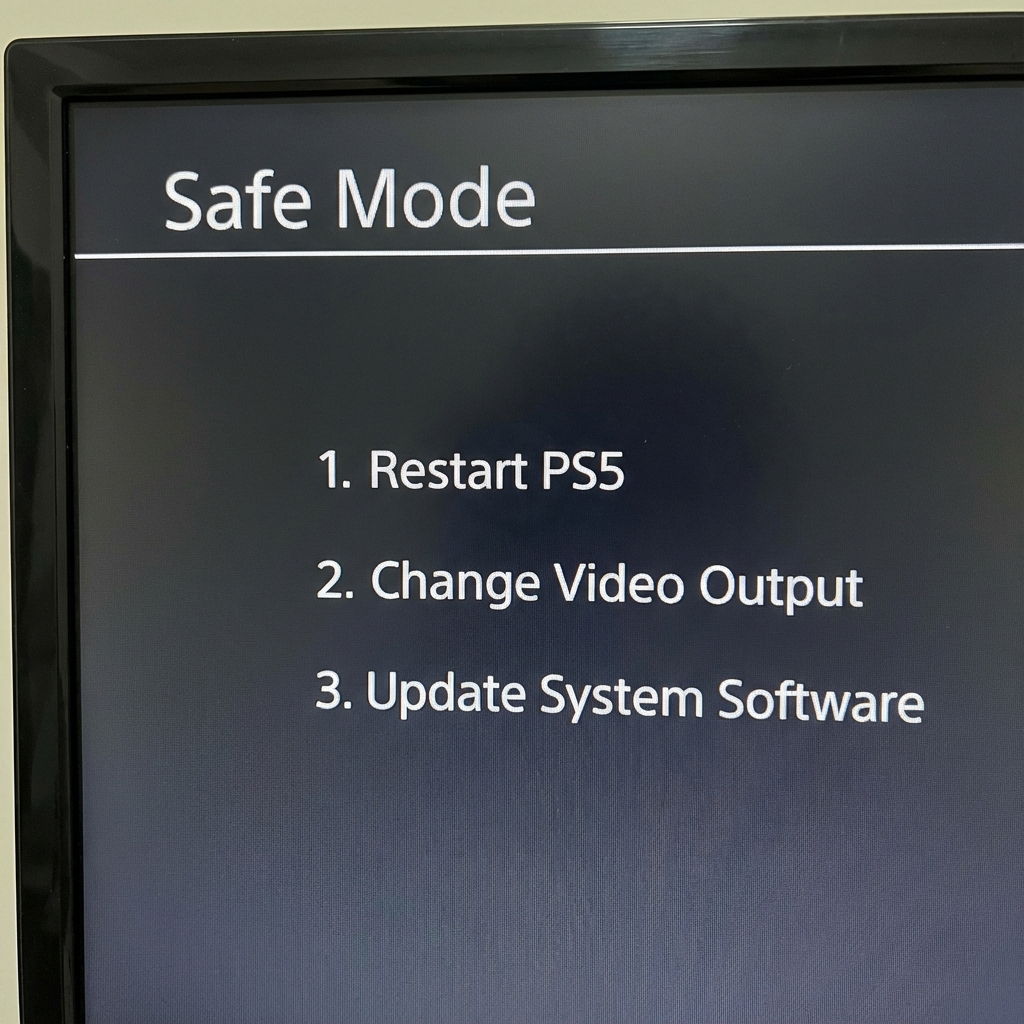
Safe Mode is your best friend when troubleshooting display issues. It boots your PS5 in a basic video mode that works with virtually any TV, letting you access settings and recovery options. The procedure below matches Sony's official Safe Mode documentation, which is the authoritative source if you want to cross-reference each menu option.
How to Enter Safe Mode
-
Turn off your PS5 completely - Make sure it's fully off, not in rest mode. If you can't see the screen to turn it off properly, press and hold the power button until the console turns off completely (the light will go out).
-
Press and hold the power button - Listen for the first beep when you press it, then keep holding.
-
Wait for the second beep - This happens about 7 seconds after the first beep. Release the button after the second beep.
-
Connect your controller via USB - Safe Mode doesn't support wireless controllers. Use a USB-C cable to connect your controller directly to the PS5.
-
Press the PS button on your controller - The Safe Mode menu should appear on your screen.
Safe Mode Options to Fix Black Screen
Once in Safe Mode, try these options in order:
Change Video Output
This is your first port of call for black screen issues.
- Select "Change Video Output"
- Choose "Change Resolution"
- Select "Set to HDCP 1.4 Only" (reduces copy protection issues)
- Try "Default" resolution first
- If that doesn't work, try "480p" then work your way up
Rebuild Database
This reorganises data on your hard drive and fixes many software-related issues.
- This does NOT delete your games or save data - it's completely safe
- Takes 10-30 minutes depending on your storage
- Fixes corrupted data, improves performance, resolves many display glitches
Update System Software
If your PS5's software is corrupted, updating can fix it.
- Choose "Update from Internet" if your PS5 has ethernet connected
- Or download the update to USB from PlayStation's website and use "Update from USB Drive"
Reset PS5 (Last Resort)
This is a factory reset - it will delete everything on your console. Only use this if nothing else works and you suspect corrupted system software. Make sure your saves are backed up to PS Plus cloud storage first.
What If the Basic PS5 Black Screen Fixes Didn't Work?
If Safe Mode didn't solve your problem, try these more advanced fixes:
Disable HDCP
HDCP issues cause more black screens than you'd think. Here's how to disable it:
- Boot into Safe Mode (instructions above)
- Once you have a picture, navigate to: Settings > System > HDMI
- Turn off "Enable HDCP"
- Restart your PS5 normally
Note: Disabling HDCP means you won't be able to use some streaming apps (like Netflix) until you turn it back on.
Fix 4K/HDR Issues
Your PS5 might be outputting a signal your TV can't handle. Try these adjustments:
On your PS5:
- Boot into Safe Mode and set resolution to 1080p
- Once you have a picture: Settings > Screen and Video > Video Output
- Set "4K Video Transfer Rate" to -1 or -2 (reduces bandwidth)
- Try disabling HDR temporarily
- Set "120Hz Output" to Off if your TV doesn't support it
On your TV (enable HDMI 2.1 features):
Different TV brands call this different things:
| Brand | Setting Name | Location |
|---|---|---|
| Samsung | Input Signal Plus / Game Mode | Settings > General > External Device Manager |
| LG | Ultra HD Deep Colour | Settings > Picture > Additional Settings |
| Sony | Enhanced format (HDMI) | Settings > Watching TV > External inputs |
| Hisense | Enhanced HDMI | Settings > Device Preferences > Inputs |
Disable Rest Mode (Prevent Future Issues)
Until Sony fully fixes the rest mode bug, you might want to disable it:
- Go to Settings > System > Power Saving
- Set "Time Until PS5 Enters Rest Mode" to "Don't Put in Rest Mode"
- Instead of rest mode, use quick resume when possible or just turn the console off fully
Try a Different TV or Monitor
If you have access to another display:
- Connect your PS5 to a different TV or monitor
- If it works, the problem is your original TV or cable
- If it's still black, the problem is likely the PS5 itself
When Should I Take My PS5 to a Repair Shop?
Sometimes DIY fixes aren't enough. Here's when it's time to seek professional help.
Signs of Hardware Failure
Your PS5 likely has a hardware problem requiring repair if:
- Black screen occurs on every boot - not just occasionally, but 100% of the time
- No light on the console when you press power - this suggests deeper power or motherboard issues (see our PS5 not turning on guide)
- Clicking or unusual sounds from inside the console
- Visible damage to the HDMI port - bent pins, cracked plastic, loose feeling when you insert the cable
- Console overheats rapidly - gets extremely hot within minutes of turning on
- You hear the console working (fan, disc drive) but never see any picture on any TV
- Burn marks or smell - stop using immediately, this indicates serious component failure
What Professional Repair Involves
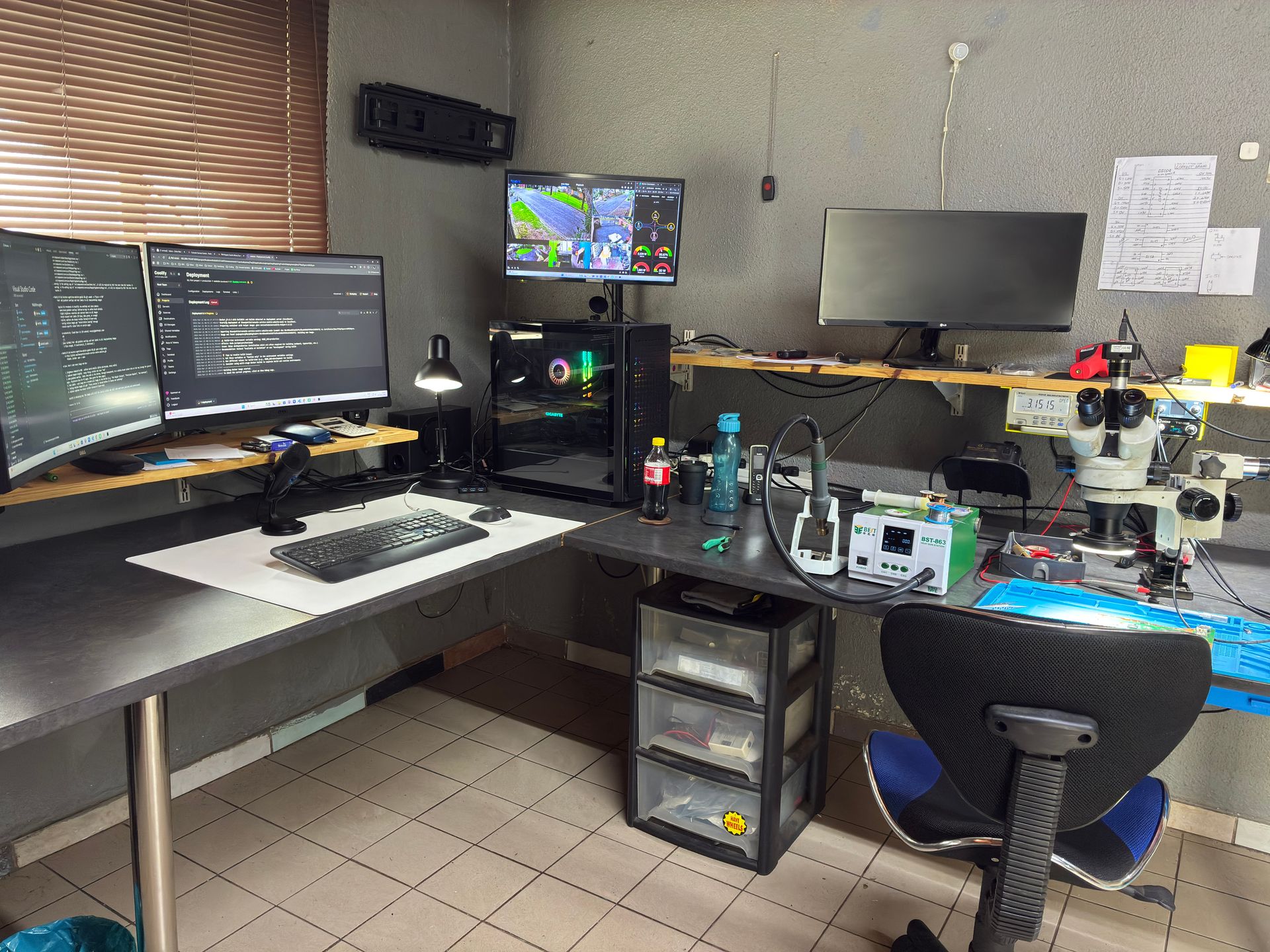
At Console Service Centre, here's how we approach PS5 black screen repairs:
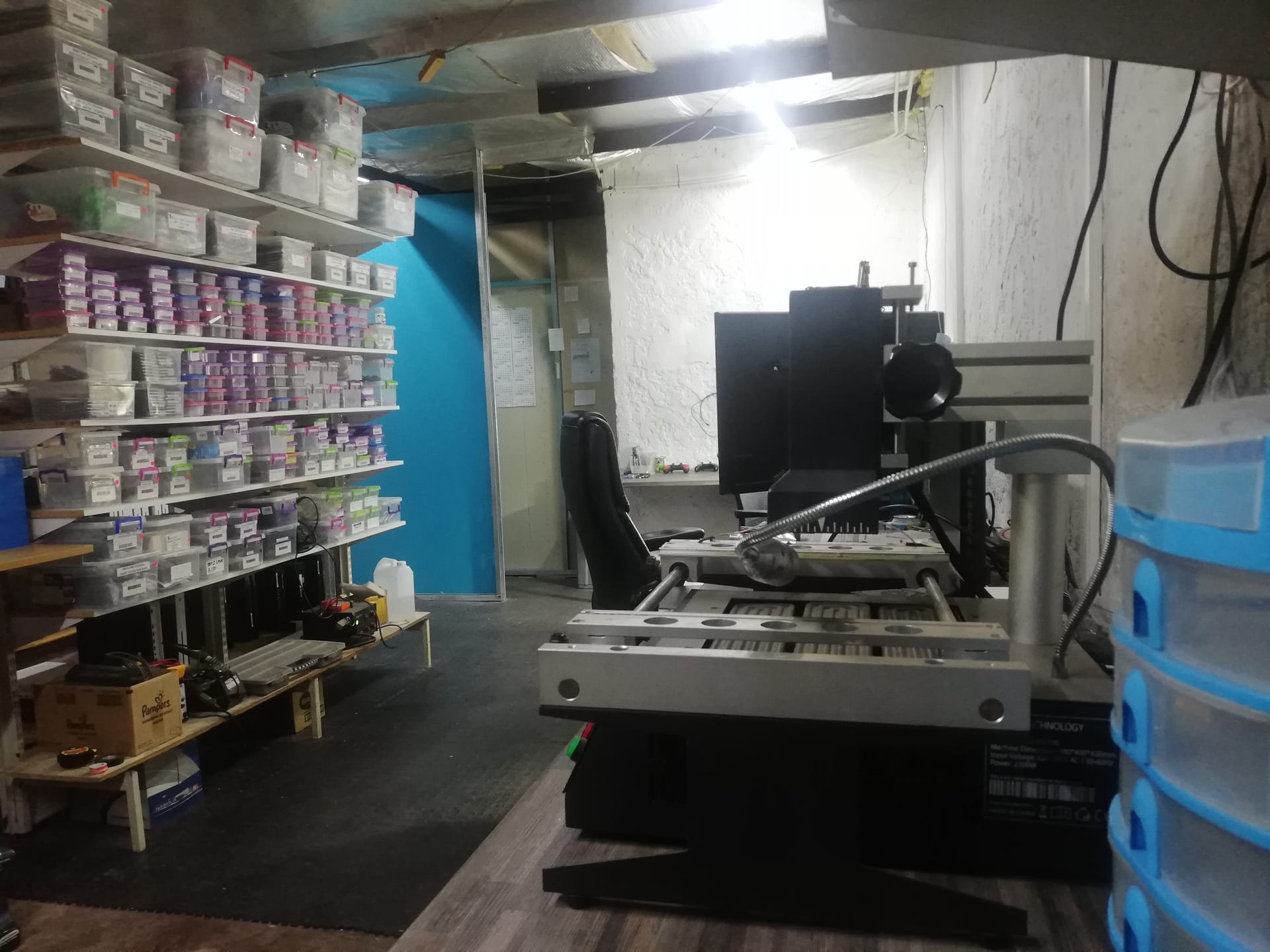
Diagnostic Testing We connect your console to our test equipment to identify the exact fault. Is it the HDMI port? The encoder chip? The GPU? Knowing precisely what's wrong prevents wasting time and money on guesswork.
HDMI Port Replacement The most common repair for black screen issues. This involves:
- Removing the damaged HDMI port
- Cleaning and preparing the motherboard pads
- Micro-soldering a new port in place
- Testing all HDMI functions (4K, HDR, 120Hz)
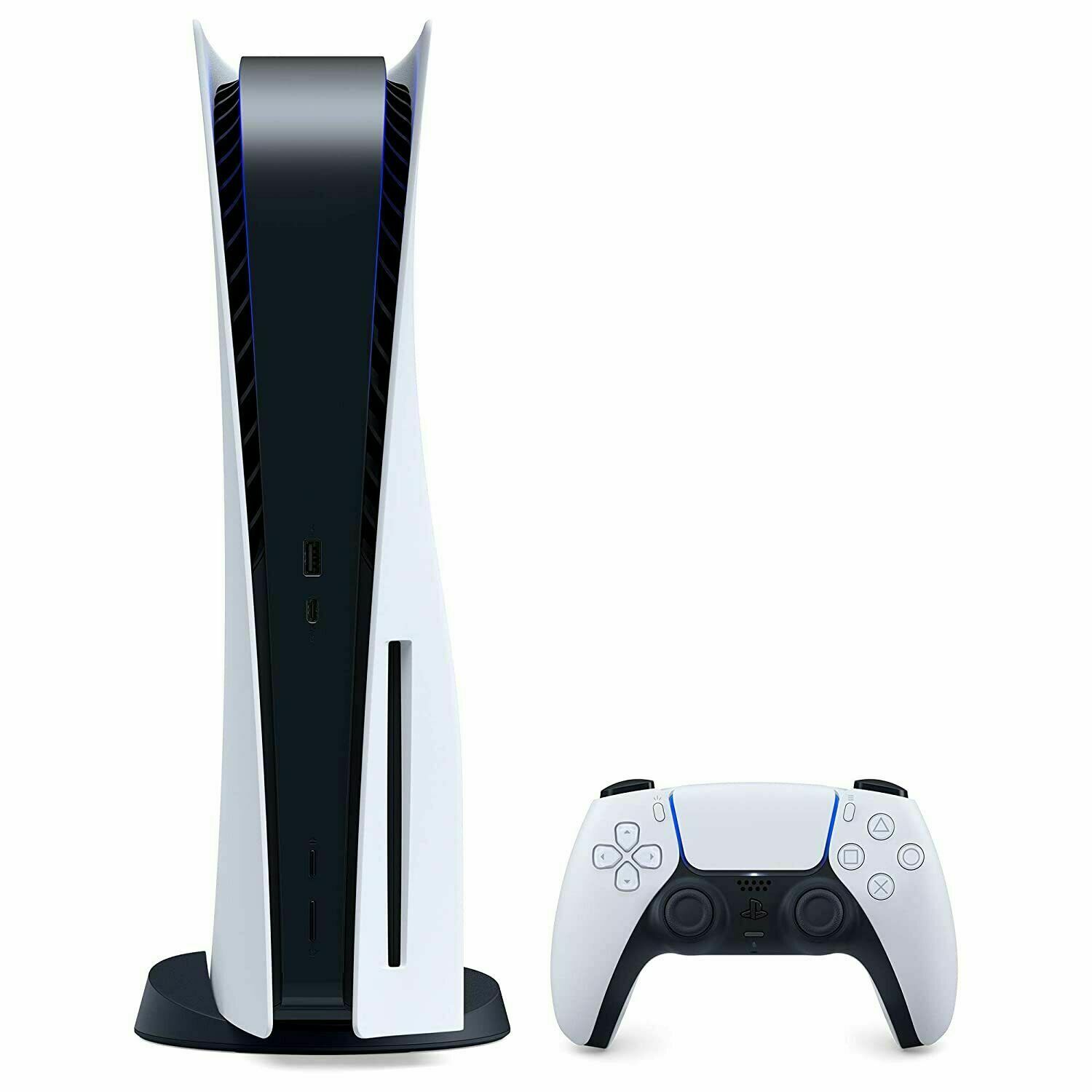
HDMI Encoder Chip Repair If the port is fine but the encoder chip has failed, we replace or reball the chip. This requires specialised equipment and expertise.
GPU Reballing (Less Common) If the graphics processor itself has failed due to overheating or manufacturing defects, we can sometimes repair it by reballing - removing the chip, cleaning it, applying new solder balls, and reattaching it. However, not all GPU failures are repairable.
PS5 Repair Pricing at Console Service Centre
We believe in transparent pricing. Here's what PS5 repairs typically cost:
| Repair | Price |
|---|---|
| Full Service | R1,249 |
| HDMI Port Replacement | R1,299 |
| HDMI Port Trace Repair | R1,499 |
| ADP-400DR Power Supply | R1,749 |
| ADP-400FR Power Supply | R1,799 |
| HDMI IC MN864739 | R1,799 |
| ADP-400ER Power Supply | R1,849 |
| 497A Laser | R1,999 - R2,049 |
| ADP-400GR Power Supply | R2,049 |
| Disc Drive Only | R2,199 - R2,299 |
| Complete Drive with Laser | R2,699 - R2,749 |
| Pro ADP-420DR Power Supply | R4,199 |
*Prices shown are the total amount payable.
Get an exact quote on WhatsApp →R599 bench fee applies if you choose not to proceed with the repair or if the console is unrepairable.
Not sure what's wrong? WhatsApp us at 087 550 2307 - we respond immediately, 24/7, and can often give you a good idea of what's wrong based on your symptoms before you send your console in.
How Do I Prevent PS5 Black Screen Issues?
Prevention is better than cure. Here's how to avoid black screen problems in the future:
1. Use Premium High Speed HDMI Cables
Not all HDMI cables are created equal. For PS5's full capabilities (4K at 120Hz with HDR), you need:
- HDMI 2.1 certified cables (look for the official certification logo)
- Premium High Speed rating at minimum
- Under 2 metres in length - longer cables are more prone to signal degradation
- Avoid ultra-cheap cables from questionable sources
2. Avoid Rest Mode (For Now)
Until Sony completely fixes the rest mode black screen bug:
- Turn your PS5 off completely when not in use
- Or use quick resume features instead of rest mode
- If you must use rest mode, keep firmware updated
3. Keep Your PS5 Firmware Updated
Sony regularly releases updates that fix bugs, including display-related issues:
- Enable automatic updates in Settings
- Check manually every few weeks if you've disabled auto-update
- Don't skip updates - they often contain important fixes
4. Ensure Proper Ventilation
Overheating stresses components, including the HDMI circuitry:
- Keep at least 10cm clearance around all vents
- Never put your PS5 in an enclosed cabinet while gaming
- Position horizontally if possible (slightly better for airflow than vertical)
- Clean dust from the vents every few months with a low-powered vacuum (Sony's own guidance)
- Listen for loud fan noise - it's an early warning sign
5. Handle HDMI Cables Carefully
HDMI port damage is often caused by user error:
- Don't force cables - if it's not going in easily, check alignment
- Don't leave cables sticking out where they can be bumped or tripped over
- Unplug properly - pull the plug, not the cable
- Check for bent pins before inserting cables
6. Use a Surge Protector
This is especially important in South Africa with our load shedding reality:
- Use a quality surge protector (not just a power strip)
- Look for at least 1000J (joule) rating
- Replace surge protectors after they've absorbed a major surge
- Consider a UPS if you experience frequent power cuts
Frequently Asked Questions
Why is my PS5 turning on but showing no picture?
If your PS5 powers on (you see the light, hear the fan or disc drive) but your TV shows no picture, the most likely causes are: a faulty HDMI cable, an incorrect TV input, HDCP handshake failure, or a resolution mismatch. Start by trying a different HDMI cable and port, then boot into Safe Mode to reset your video output settings. If none of that works, your PS5's HDMI port may need professional repair.
How do I fix the PS5 black screen of death?
The "black screen of death" typically refers to a PS5 that boots but never displays anything. First, try a full power cycle (unplug for 60 seconds). Then boot into Safe Mode and rebuild the database. If that doesn't work, try changing the video output to a lower resolution. Persistent black screens that occur every time usually indicate HDMI port damage requiring professional repair.
Why does my PS5 have a black screen but I can hear sound?
If you can hear game audio, menu sounds, or your controller vibrates, your PS5 is working - the problem is video output specifically. This points to: an HDMI cable issue, HDCP handshake failure, or resolution/HDR settings your TV doesn't support. Try disabling HDCP in Safe Mode and setting resolution to 1080p. If sound works but video doesn't across multiple TVs and cables, the HDMI encoder may have failed.
How do I boot my PS5 into Safe Mode when the screen is black?
Even with a black screen, you can enter Safe Mode: turn off your PS5 completely (hold power until light goes off), then press and hold the power button until you hear two beeps (about 7 seconds). Connect your controller via USB cable and press the PS button. Safe Mode uses basic video settings that should display on any TV. If even Safe Mode shows nothing, your HDMI port likely needs repair.
Does rebuilding the PS5 database delete my games?
No - rebuilding the database does NOT delete your games, save data, or any content. It simply reorganises how data is stored on your drive, similar to defragmenting a computer. It's completely safe and often fixes performance issues and glitches, including some display problems. It typically takes 10-30 minutes depending on how much data you have.
Why does my PS5 black screen after Rest Mode?
This is a known Sony software bug that's affected PS5 since launch. When the console wakes from rest mode, it sometimes fails to properly initialise the display output. Fixes include: holding power for 30 seconds to force restart, unplugging the console entirely, or connecting a controller and pressing the PS button repeatedly. To prevent it, disable rest mode entirely in Settings > System > Power Saving.
How much does PS5 HDMI port repair cost in South Africa?
PS5 HDMI port replacement costs R1,299 at Console Service Centre. If the HDMI encoder chip (IC) also needs replacing, that's R1,799. We provide a firm quote after diagnosis. All repairs include our 6-month money-back warranty.
Can a PS5 black screen be fixed?
Yes, in most cases. About 85-90% of PS5 black screen issues are repairable. Software issues can usually be fixed via Safe Mode. HDMI cable and connection problems are solved by replacement. Even hardware failures like damaged HDMI ports or faulty encoder chips can be repaired with micro-soldering. The only truly unfixable scenarios are severe motherboard damage or GPU failures, which are relatively rare.
Where Can I Get My PS5 Repaired in South Africa?
Dealing with a PS5 black screen is incredibly frustrating - especially when all you want to do is play. We've been there, and we've helped thousands of South African gamers get back to their games.
Here's why Console Service Centre is your best choice:
- Console repair specialists since 2011 — we have seen every PS5 problem imaginable
- 25,000+ consoles repaired - We know what we're doing
- 1,329+ Google reviews with a 4.9-star rating - Real customers, real results
- PlayStation and Xbox specialists - We don't do phones or general electronics, just gaming consoles
- 6-month money-back warranty - If the same issue returns, we fix it free
Ready to Get Your PS5 Working Again?
WhatsApp us: 087 550 2307 - We respond immediately, 24/7
Visit us: 6 Bester Street, Witfield, Boksburg
Can't get to us? We offer nationwide courier repairs. Ship your console to us via The Courier Guy, we'll fix it and send it back. Simple.
Not sure where to get your PS5 fixed? Read our guide on where to fix your PS5 in South Africa — it covers what to look for in a repair shop and why location doesn't matter with courier service.
Don't let a black screen keep you from gaming. Whether it's a quick settings fix or an HDMI port replacement, we'll get you sorted.
Console Service Centre specialises exclusively in PlayStation and Xbox repairs. We don't do phones, TVs, or general electronics - just consoles, done properly.
Topics Covered
About the Author

Shaun Potgieter
Founder & Head Technician
Expert console technician with 15+ years of hands-on repair experience.