Your Console Is Acting Strange -- Could It Be the Hard Drive?
You sit down for a gaming session, fire up your PS4 or Xbox One, and something feels... off. Games take forever to load. You get hit with a strange error code you have never seen before. Maybe your console freezes mid-game, or worse -- it will not boot past the logo screen at all.
If any of this sounds familiar, you are not alone. Hard drive failure is one of the top four most common console problems we see at Console Service Centre. With over 25,000 consoles repaired since 2011, we have diagnosed and fixed hundreds of hard drive issues across PS4 and Xbox One consoles. In this guide, we will walk you through the warning signs of a failing hard drive, what causes it, what you can try at home, and when it is time to get professional help.
A note on PS5 and Xbox Series X|S storage: This guide covers PS4 and Xbox One consoles, which use standard 2.5-inch SATA hard drives. Newer consoles work very differently:
PS5: The storage is not a removable component at all. The NAND flash chips and the custom SSD controller are both soldered directly onto the PS5 motherboard itself -- there is nothing to unplug or swap out. Storage issues on a PS5 are motherboard-level repairs.
Xbox Series S and Xbox Series X: These consoles have a small NVMe card held in place by a single screw, so it can physically be removed -- but it is coded (paired) to the motherboard. You cannot simply swap in a blank NVMe and have the console work. If the existing NVMe is in good enough health, we can clone all its data (including the security pairing information) to a new NVMe that will then work in the console. Never format the NVMe in an Xbox Series S or X -- formatting permanently destroys the security pairing data and the console cannot be recovered after that.
If you are experiencing storage issues on a PS5 or Xbox Series S|X, contact us on WhatsApp before attempting anything.
What Quick Fixes Can I Try Before Replacing the Hard Drive?
Before you panic about a dead hard drive, there are a few simple things worth trying. These solve the problem in a fair share of the cases we see:
1. Power Cycle Your Console
A full power cycle clears temporary data and can resolve minor glitches that mimic hard drive problems.
- PS4: Hold the power button for at least 7 seconds until you hear two beeps and the console shuts off completely. Unplug the power cable, wait 30 seconds, then plug it back in and turn it on.
- Xbox One: Hold the power button for 10 seconds until the console shuts off. Unplug the power cable, wait 30 seconds, then reconnect and power on.
2. Rebuild the Database (PS4)
This is the PS4 equivalent of defragmenting your hard drive. It reorganises the data on the drive without deleting your games or saves.
- Turn off your PS4 completely (not rest mode)
- Hold the power button until you hear a second beep (about 7 seconds) to enter Safe Mode
- Connect your controller via USB cable
- Select Option 5: Rebuild Database
- Let it run -- this can take anywhere from a few minutes to several hours depending on how much data is on the drive
If the rebuild completes successfully and your problems go away, your hard drive is likely fine. If it fails or the problems return quickly, the drive may be failing.
3. Check for System Software Updates
Outdated system software can sometimes cause symptoms that look like hard drive problems -- freezing, slow loading, and boot issues.
- PS4: Safe Mode > Option 3: Update System Software
- Xbox One: Settings > System > Updates
4. Clear the Cache (Xbox One)
The Xbox One stores temporary data that can become corrupted and cause performance issues.
- Press and hold the power button for 10 seconds to shut down
- Unplug the power cable from the back of the console
- Wait at least 30 seconds (some technicians recommend 2 minutes)
- Plug the power cable back in and turn on the console
You will know the cache has been cleared if the Xbox One startup animation takes longer than usual.
5. Check Your External Storage (If Applicable)
If you are using an external hard drive for additional storage, disconnect it and see if the problems persist. A failing external drive can cause system-wide issues that make it seem like the internal drive is the problem.
Warning Signs Your Console Hard Drive Is Failing
Hard drives do not usually die without warning. In most cases, there are clear signs that the drive is on its way out. Here is what to watch for, based on what we see in our workshop every week:
Slow Loading Times
This is often the first sign. If games that used to load in 30 seconds now take two or three minutes, or if navigating the home menu feels sluggish, the hard drive may be struggling to read data. A healthy hard drive reads data at a consistent speed -- when it starts degrading, read times become unpredictable.
Frequent Freezing and Crashes
Your console freezes during gameplay, while loading a game, or even while sitting on the home screen. You might also experience random crashes where the console shuts down or restarts on its own. Occasional freezing can be a software issue, but if it happens regularly -- especially during moments when the console is reading from the drive (loading screens, installing games) -- the hard drive is a prime suspect.
Error Codes Related to Storage
Certain error codes point directly to hard drive problems:
PS4 Error Codes:
- CE-34335-8 -- "Cannot start the PS4. Connect a USB storage device that contains an update file." This is the classic hard drive failure error. Your PS4 cannot find or read the hard drive at all.
- CE-36329-3 -- An error occurred in the system software. Often appears when the drive has bad sectors.
- SU-30634-6 / SU-42118-6 -- System software update failure, often caused by a failing drive that cannot write the update files.
- CE-34878-0 -- Application crash error. While this can have many causes, repeated occurrences across multiple games suggest storage problems.
Xbox One Error Codes:
- E101 / E102 -- System update errors that frequently indicate hard drive corruption or failure.
- E200 series -- "Something went wrong" errors during startup, often linked to storage issues.
- Stuck on Xbox logo -- The console shows the green Xbox boot animation and never progresses. This is one of the most common hard drive failure symptoms on Xbox One, especially the Xbox One X.
Unusual Noises
This one is hard to miss. If you hear clicking, grinding, or screeching sounds coming from inside your console, that is the hard drive's read/write head struggling to access data on the platters. This is a serious sign -- a clicking hard drive is in the process of mechanical failure and data loss can happen at any time.
Note: Do not confuse hard drive noise with fan noise. The fan produces a consistent whirring or humming sound, while a failing hard drive makes irregular clicking or ticking sounds. If you are unsure, send us a voice note on WhatsApp -- we can usually tell the difference just from the sound.
Corrupted Save Files and Game Data
Games that were previously installed fine suddenly show as corrupted. Save files disappear or will not load. You might get errors when trying to install new games, or downloads fail repeatedly at the same point. When the hard drive develops bad sectors (damaged areas on the disk platters), any data stored in those sectors becomes unreadable.
"Cannot Start" or Boot Loop Issues
Your console gets stuck in a boot loop -- it shows the startup logo, maybe loads partially, then restarts. Or it goes directly to Safe Mode (PS4) or the troubleshooting screen (Xbox One) every time you turn it on. This often means the drive cannot read the system software files needed to boot properly.
Database Rebuild Takes Excessively Long or Fails
On PS4, if the Rebuild Database process takes many hours (more than 3-4 hours for a 1TB drive with moderate content) or fails entirely, the hard drive likely has significant physical damage.
What Causes Console Hard Drives to Fail?
Understanding why hard drives fail can help you prevent it happening in future. Here are the most common causes we encounter:
Normal Wear and Tear
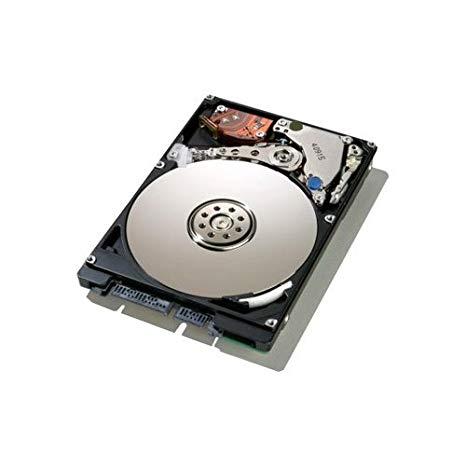
Traditional hard drives (HDDs) have moving parts -- spinning platters and a read/write head that moves across them thousands of times per minute. These mechanical components have a finite lifespan. Most console hard drives last 3 to 5 years with regular use, though some last much longer and others fail sooner. If your PS4 or Xbox One is more than four years old and you use it heavily, the hard drive is statistically approaching the end of its reliable life.
Power Interruptions
This is a big one in South Africa. Load shedding, power surges, and unexpected shutdowns are among the leading causes of hard drive corruption and failure we see in our workshop. When a console loses power while the hard drive is actively writing data, it can corrupt the file system or even damage the drive physically.
Every time the power cuts out while your console is on -- whether from load shedding, a tripped breaker, or pulling the plug without shutting down properly -- you are rolling the dice on your hard drive. We have seen consoles where the hard drive was perfectly healthy but became corrupted after a single power failure during a system update.
Prevention tip: Always use a UPS (uninterruptible power supply) or at minimum a quality surge protector. During load shedding, shut your console down properly before the scheduled outage. Read our load shedding console protection guide for detailed advice on keeping your console safe during power outages.
Overheating
Excessive heat accelerates hard drive degradation. If your console is in a poorly ventilated space, covered in dust, or placed on a soft surface that blocks the air vents, the internal temperature rises. Hard drives are particularly sensitive to heat -- the platters can warp and the lubricant on the bearings can dry out faster. If your console is also showing signs of overheating, the hard drive may be suffering along with other components.
Physical Impact
Consoles get knocked off shelves, dropped during moves, or bumped while running. Any physical shock while the hard drive is spinning can cause the read/write head to make contact with the platter surface -- this is called a "head crash" and can cause immediate, catastrophic data loss. Even minor vibrations over time can contribute to premature wear.
Manufacturing Defects
Some hard drives simply come out of the factory with flaws that only manifest after months or years of use. This is uncommon but not rare. The PS4 Original (CUH-1000 and CUH-1100 models) in particular had a batch of drives that were prone to early failure.
Corrupted System Software
Sometimes the drive itself is fine, but the data on it is corrupted beyond what the system can repair. This often happens after interrupted updates, failed downloads, or as a cumulative effect of many improper shutdowns. The symptoms look identical to hardware failure, which is why proper diagnosis matters before replacing the drive.
PS4 Hard Drive Problems: A Closer Look
The PS4 uses a standard 2.5-inch SATA hard drive -- the same type used in laptops. This is actually one of the PS4's better design decisions, because it means the drive is user-replaceable and you have options when it fails.
PS4 Hard Drive Specifications
| PS4 Model | Default Drive | Size | Speed |
|---|---|---|---|
| PS4 Original (CUH-1000/1100/1200) | 2.5" SATA HDD | 500GB | 5400 RPM |
| PS4 Slim (CUH-2000) | 2.5" SATA HDD | 500GB or 1TB | 5400 RPM |
| PS4 Pro (CUH-7000) | 2.5" SATA HDD | 1TB | 5400 RPM |
All three PS4 models use the same standard 2.5-inch SATA interface, and any compatible drive up to 9.5mm thick will fit. You can replace the stock HDD with a larger HDD or upgrade to an SSD for faster loading times.
PS4-Specific Symptoms
Beyond the general symptoms listed above, watch for these PS4-specific signs:
- "Cannot Start the PS4" screen (CE-34335-8): The most definitive PS4 hard drive failure indicator. The console cannot find or read the internal drive.
- Safe Mode loop: The PS4 boots into Safe Mode every time, and none of the Safe Mode options resolve the issue.
- Extremely slow trophy syncing: This often gets overlooked, but slow trophy sync can indicate the drive is struggling.
- Game installations that fail repeatedly: The console starts installing but fails at a certain percentage each time, especially if it happens with different games.
⚠️ Hard Drive Compatibility Warning -- Read This Before You Buy a Replacement Drive
Not all hard drives work in gaming consoles -- even if they are physically the right size and connector type. This is one of the most common (and frustrating) mistakes we see from customers who attempt a DIY replacement.
PS4 consoles are relatively forgiving on compatibility, but Xbox consoles are much more particular. Many standard hard drives that work perfectly in a laptop or external enclosure simply do not work in an Xbox One at all. SSDs are even worse for compatibility -- there are very few SSD models that actually work reliably in gaming consoles, whether we are talking about PS4 or Xbox One.
Our honest advice: rather let a professional handle the replacement. We supply and install tested, compatible drives as part of the repair -- you get the right drive, correctly installed, with a 6-month warranty. It is far less hassle than sourcing a drive yourself and finding out the hard way that it does not work. Contact us for a quote or WhatsApp us at 087 550 2307.
PS4 Hard Drive Replacement: What You Should Know
Sony designed the PS4 with a user-accessible hard drive bay. On the PS4 Original, it is under a glossy panel on the left side. On the PS4 Slim, it is behind a small cover on the left side at the back. On the PS4 Pro, it is behind a removable plastic cover on the right side at the back.
The physical replacement is relatively straightforward -- you remove a single screw, slide out the drive caddy, swap the drive, and slide it back in. However, there are two important catches: first, after replacing the drive you need to reinstall the PS4 system software from a USB flash drive using the full installation file (approximately 1.1GB), not the smaller update file -- many people download the wrong one and get stuck. Second, and critically, not all drives are compatible with the PS4 (see the compatibility warning above) -- always verify your replacement drive before you buy it.
After the system software is installed, you start fresh. All your games need to be re-downloaded and saves are lost unless you had them backed up to PS Plus cloud storage or a USB drive beforehand. This is why we always recommend backing up your data at the first sign of hard drive trouble -- do not wait until the drive fails completely.
Would rather have a professional handle it? We offer PS4 hard drive replacement at Console Service Centre -- we do these every day, we supply tested compatible drives, and we always attempt to recover your save data from the old drive before the swap.
Xbox One Hard Drive Problems: A Closer Look
The Xbox One also uses a 2.5-inch SATA hard drive, but there is an important difference: Microsoft did not design the Xbox One for user-accessible drive replacement. Replacing the hard drive requires opening the console, which voids any remaining warranty and involves more disassembly than the PS4.
Xbox One Hard Drive Specifications
| Xbox One Model | Default Drive | Size | Speed |
|---|---|---|---|
| Xbox One Original | 2.5" SATA HDD | 500GB or 1TB | 5400 RPM |
| Xbox One S | 2.5" SATA HDD | 500GB, 1TB, or 2TB | 5400 RPM |
| Xbox One X | 2.5" SATA HDD | 1TB | 5400 RPM |
Xbox-Specific Symptoms
- Stuck on the green Xbox logo: The console shows the startup animation and never progresses to the dashboard. This is the most common Xbox One hard drive failure symptom, particularly on the Xbox One X.
- E101 and E102 errors: These system update errors are strongly associated with hard drive corruption or failure.
- "Something went wrong" startup screen: If this appears repeatedly and the suggested troubleshooting steps do not help, the hard drive is likely compromised.
- Games and apps constantly needing to be reinstalled: If the console keeps "forgetting" installed content, the drive has bad sectors.
- Extremely long boot times: A healthy Xbox One boots to the dashboard in under 30 seconds. If it takes several minutes, the hard drive is struggling.
Xbox One Hard Drive Replacement: What You Should Know
Unlike the PS4, replacing the hard drive in an Xbox One is not a simple swap. You need to:
- Open the console case (requires special tools depending on the model)
- Remove internal components to access the drive
- Replace the drive
- Format and prepare the new drive with the Xbox operating system
The formatting step is where things get complicated. Older Xbox One firmware versions cannot format a blank replacement drive -- the console expects a pre-formatted drive with the correct partition structure. Newer firmware versions handle this automatically, but if your console cannot even boot, you may be stuck.
This is one of the main reasons we recommend professional Xbox One repair for hard drive issues. We have the tools, firmware images, and experience to get the job done right the first time.
When Should I Take My Console to a Repair Shop for Hard Drive Issues?
Not every hard drive problem needs a professional. If a database rebuild, power cycle, or system reinitialisation fixes the issue, you are good to go. But there are clear situations where you should bring your console to a specialist:
Signs You Need Professional Repair
- Clicking or grinding noises from the hard drive -- the drive is mechanically failing and will only get worse
- CE-34335-8 error on PS4 that persists after trying a fresh system software install on the same drive
- Xbox One stuck on logo after attempting an offline system update
- E101/E102 errors on Xbox One that repeat after every attempted fix
- The console does not recognise any hard drive -- this may indicate a motherboard-level fault rather than a drive issue
- You have already tried a new drive and it still does not work -- the SATA connector or motherboard may be damaged
- You need data recovered from a failing drive before replacement
What Professional Repair Involves
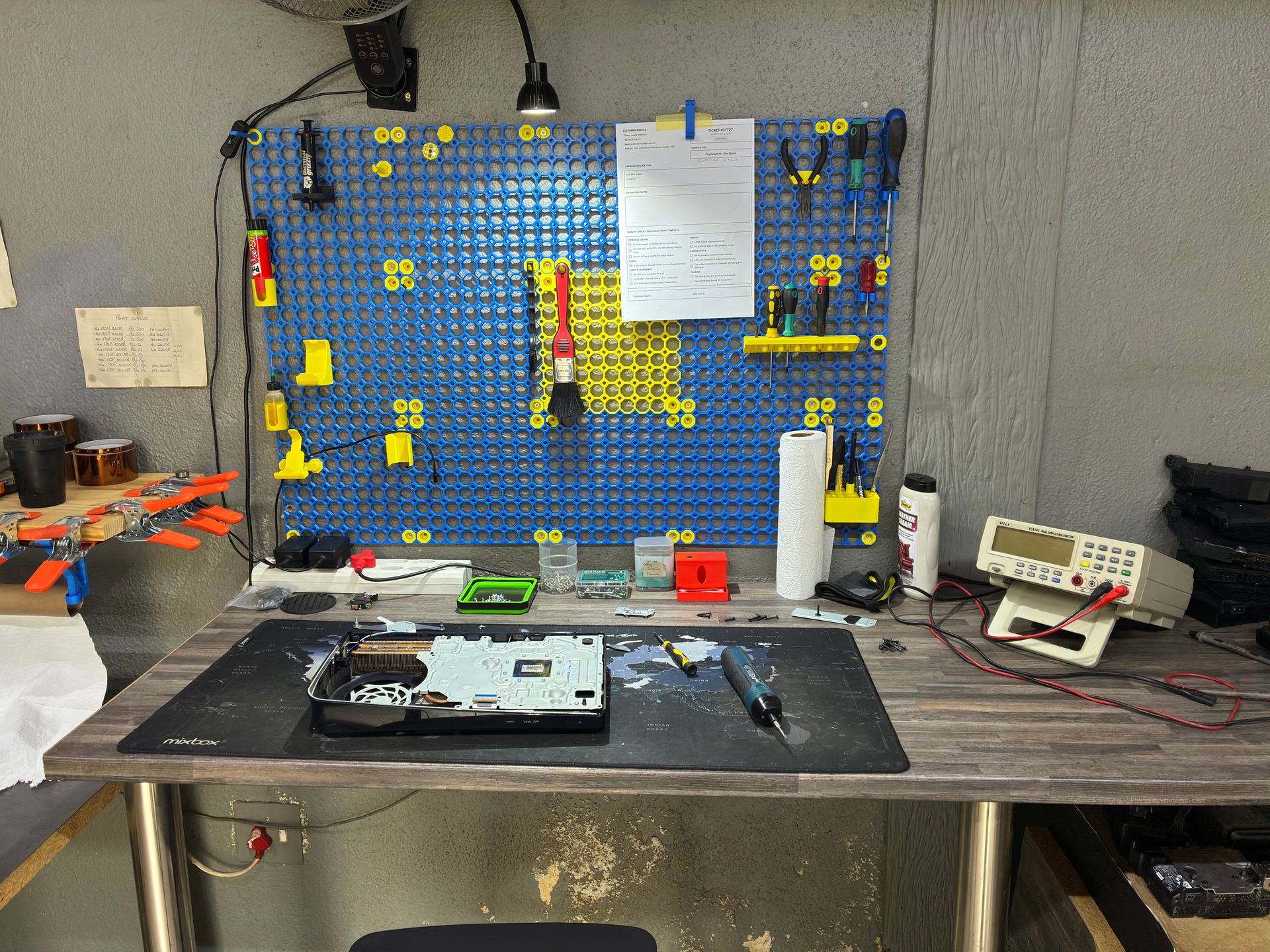
When you bring a console with hard drive problems to Console Service Centre, here is what typically happens:
- Diagnostic assessment: We test the drive, check for bad sectors, and determine whether the problem is the drive itself, the SATA connector, or the motherboard
- Drive replacement (if needed): We install a new, tested drive and set up the system software
- Data recovery attempt: Where possible, we try to recover save data from the old drive before swapping it out
- Full system test: We run the console through its paces to make sure everything works properly before handing it back
Not sure what is wrong? WhatsApp us at 087 550 2307 -- we respond immediately, 24/7, and can often give you a good idea of what is wrong based on your symptoms before you send your console in.
SSD Upgrade: Should You Upgrade While You Are At It?
If your hard drive has failed and needs replacing, it is worth considering whether to replace it with another HDD or upgrade to a solid-state drive (SSD). Here is what you need to know:
(On a PS5 the internal storage is not user-replaceable, but you can add capacity with an M.2 SSD — see our PS5 SSD upgrade guide for South Africa for compatible drives and installation.)
HDD vs SSD for Consoles
| Feature | HDD (Hard Disk Drive) | SSD (Solid State Drive) |
|---|---|---|
| Moving parts | Yes (spinning platters) | No (flash memory) |
| Loading speed | Standard | 2-3x faster on PS4 |
| Reliability | Good (3-5 year average) | Excellent (no mechanical wear) |
| Noise | Audible (clicking, whirring) | Silent |
| Shock resistance | Vulnerable | Very resistant |
| Heat generation | Moderate | Lower |
Is an SSD Worth It for PS4?
An SSD will noticeably improve loading times on PS4. Games that took 60 seconds to load on an HDD might load in 25-30 seconds with an SSD. The PS4 home menu also feels snappier. However, because the PS4 uses a SATA II interface (on the original model) or SATA III (on the Slim and Pro), you will not see the same dramatic speed improvements that a PC with NVMe would get.
The bigger benefit of an SSD in a console is reliability. With no moving parts, an SSD is far less likely to fail from physical shock, power interruptions, or normal wear. If load shedding is a concern (and in South Africa, it usually is), an SSD is significantly more resilient to power-related damage.
Is an SSD Worth It for Xbox One?
The situation is similar for Xbox One. Loading times improve, reliability increases, and the console runs quieter. The internal interface is SATA III on all Xbox One models, so you will see reasonable speed improvements.
That said, because replacing the Xbox One hard drive is more complex than on PS4, this is something we recommend having done professionally. We can supply and install an SSD for you during the repair.
How Do I Prevent Hard Drive Problems on My Console?
Prevention is always better (and cheaper) than repair. Here is how to keep your console's hard drive healthy for as long as possible:
Always Shut Down Properly
Never pull the power cable while your console is on. Never switch off at the wall while the console is running. Use the system menu to shut down properly every time. This single habit prevents more hard drive corruption than any other measure.
Protect Against Power Interruptions
This is critical in South Africa. Load shedding and power surges are a leading cause of hard drive failure in consoles. At minimum, use a quality surge protector between the wall socket and your console. Better yet, invest in a small UPS (uninterruptible power supply) -- it will keep your console running long enough to shut down properly when the power cuts.
Keep Your Console Cool
Overheating degrades hard drives faster. Make sure your console has adequate ventilation -- at least 10cm of clearance on all sides, especially around the air vents. Keep it off carpet, blankets, and other soft surfaces. If your console is getting excessively hot, our guide to safe console cleaning covers what you can do at home, and you can always book a professional PS4 full service that includes thorough cleaning and thermal maintenance.
Avoid Moving the Console While It Is On
Never pick up, shake, or move a console while it is running. The hard drive's read/write head is hovering nanometres above the spinning platter -- any sudden movement can cause it to make contact and damage the disk surface.
Back Up Your Data Regularly
This will not prevent hard drive failure, but it will save you from losing your game saves when it happens. On PS4, back up your saves to PS Plus cloud storage or a USB drive. On Xbox One, make sure your saves are synced to Xbox Live (this happens automatically if you are connected to the internet).
Consider an SSD Upgrade
If your console is more than 3-4 years old and you want peace of mind, consider upgrading to an SSD before the original drive fails. This is especially worthwhile for PS4, where the drive swap is straightforward.
Frequently Asked Questions
How do I know if my PS4 hard drive is failing?
The most common signs are slow loading times, frequent freezing, error code CE-34335-8 ("Cannot start the PS4"), corrupted save files, and unusual clicking or grinding noises from inside the console. If you experience multiple symptoms at once, the hard drive is likely the problem. Try rebuilding the database first (Safe Mode > Option 5) -- if that fails or the problems return quickly, the drive needs replacing.
Can I replace the PS4 hard drive myself?
Yes -- Sony designed the PS4 for user-accessible hard drive replacement. You need a Phillips screwdriver, a compatible 2.5-inch SATA drive (up to 9.5mm thick -- and note that not all drives are compatible, so check before you buy), and a USB flash drive with the full PS4 system software installation file. The physical swap takes about 10 minutes; the tricky part is getting the correct system software file and ensuring your replacement drive is actually compatible with the PS4. If you are not confident with the process, we offer professional PS4 hard drive replacement -- we handle it every day and supply tested, compatible drives.
Can I replace the Xbox One hard drive myself?
While it is technically possible, it is significantly more difficult than on PS4. You need to open the console case (voiding any warranty), access the internal drive, and then format the replacement drive with the correct partition structure and Xbox operating system files. On older firmware versions, the console cannot format a blank drive on its own. We recommend professional Xbox One repair for hard drive replacement.
Will I lose my game saves if I replace the hard drive?
Yes -- everything on the old drive is lost when you swap to a new one. On PS4, back up your saves to PS Plus cloud storage or a USB drive before the old drive fails completely. On Xbox One, game saves sync automatically to Xbox Live if you are connected to the internet. Downloaded games can be re-downloaded from your account on the new drive, but any game saves not backed up or synced will be gone permanently.
Is it better to get an SSD or another HDD as a replacement?
An SSD is the better choice in almost every situation. It loads games 2-3x faster, has no moving parts (so it is far more reliable), is silent, resistant to physical shock, and handles power interruptions better than a mechanical drive. The only advantage of an HDD is cost -- an SSD costs more per gigabyte. However, with SSD prices continuing to drop, the small extra investment is well worth the performance and reliability gains, especially in South Africa where power interruptions are common.
How much does console hard drive replacement cost in South Africa?
Pricing depends on the console model, whether you want an HDD or SSD, and the storage capacity you choose. Rather than publish prices that might change, we prefer to give you an accurate, personalised quote. WhatsApp us at 087 550 2307 with your console model and we will get back to you immediately with pricing.
How long does a console hard drive typically last?
Most console hard drives last 3 to 5 years with regular use. Heavy daily use, poor ventilation, and frequent power interruptions (like load shedding) can shorten this lifespan significantly. Some drives last much longer, while others fail earlier due to manufacturing defects. The PS4 launched in 2013, so many original PS4 hard drives are now well past their expected lifespan.
Can a failing hard drive damage my console?
A failing hard drive itself will not damage other components. However, if you continue using a console with a severely failing drive, you might encounter cascading software corruption that makes recovery more complicated. The sooner you address hard drive problems, the simpler and cheaper the fix tends to be.
Where Can I Get My Console's Hard Drive Replaced in South Africa?
Here is why Console Service Centre is your best choice for hard drive problems:
- Console repair specialists since 2011 -- over 25,000 consoles repaired
- Hundreds of hard drive cases -- We have seen every scenario
- 1,346+ Google reviews with a 4.9-star rating
- PlayStation and Xbox specialists -- We do not do phones or general electronics
- 6-month money-back warranty -- If the same issue returns, we fix it free
Ready to Get Your Console Working Again?
WhatsApp us: 087 550 2307 -- We respond immediately, 24/7
Visit us: 6 Bester Street, Witfield, Boksburg
Can't get to us? We offer nationwide courier repairs. Ship your console to us via The Courier Guy, we will fix it and send it back. Simple.
Topics Covered
About the Author

Shaun Potgieter
Founder & Head Technician
Expert console technician with 15+ years of hands-on repair experience.