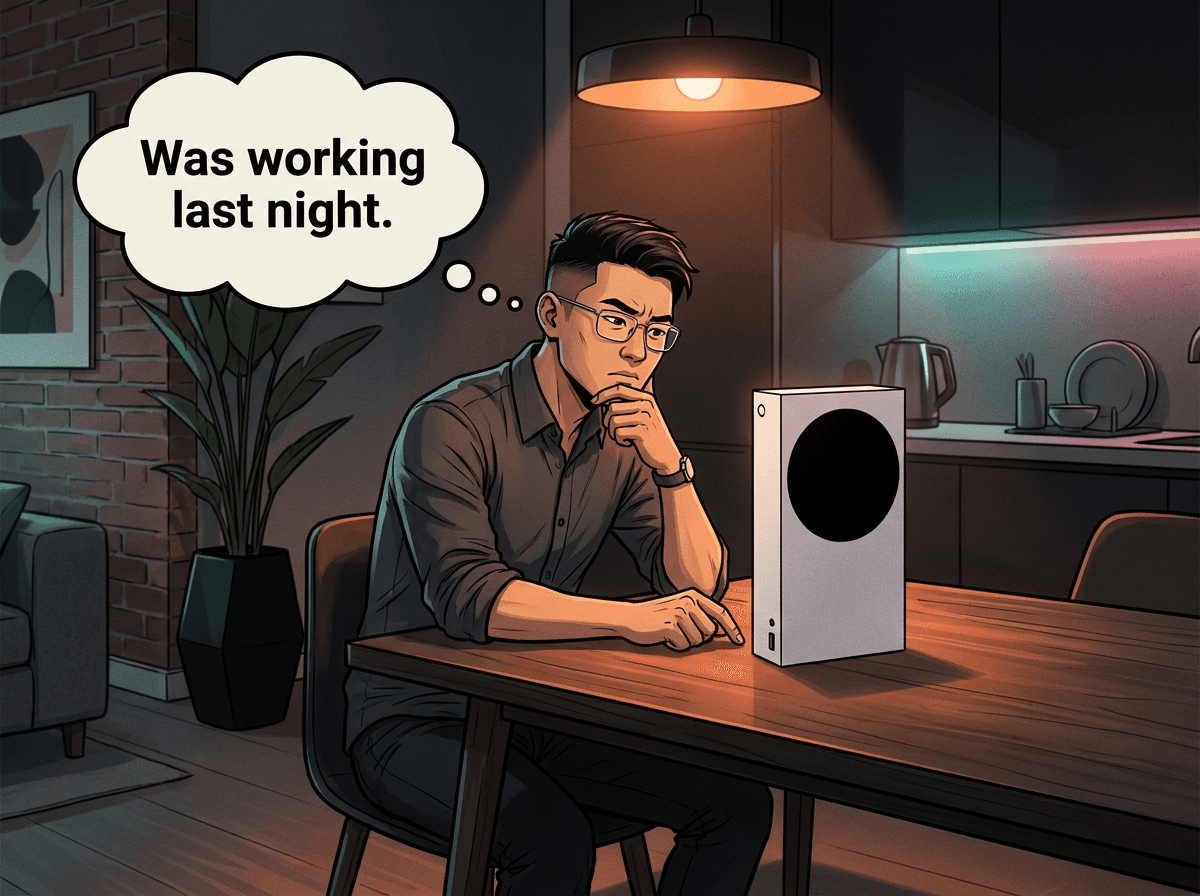
The Xbox Series S is Microsoft's most affordable next-gen console — compact, digital-only, and genuinely capable of 1440p gaming at up to 120fps. But its small form factor comes with trade-offs. Less internal space means heat builds up faster, and with 16+ repair tickets on our books for this model alone, we see the same faults come through repeatedly.
If your Xbox Series S isn't turning on, is shutting down mid-game, has no video output, or is giving you Wi-Fi grief — you're not alone. Most of these issues have a clear cause and a straightforward fix, either at home or with a professional. This guide covers every common Xbox Series S problem we see at Console Service Centre in Boksburg, what's causing it, and what to do about it.
Quick Wins — Try These First
Before assuming it's a hardware fault, run through these. They solve a fair number of the cases we see:
-
Hard reset the console — Hold the power button on the front of the console for 10 seconds until it shuts down completely. Wait 30 seconds, then power on again. This clears cached system states.
-
Unplug from the wall for 60 seconds — Not standby mode — physically remove the power cable from the wall outlet. This forces a full capacitor discharge and often resolves power-cycling issues.
-
Swap the HDMI cable — HDMI cables go bad silently. Use the one that came with the console or borrow a known-good cable. Plug into a different HDMI port on your TV while you're at it.
-
Check your TV's input source — The Xbox Series S outputs via HDMI only. Make sure your TV is set to the correct HDMI input. Some TVs auto-switch; some don't.
-
Check for system updates — If the console boots but behaves erratically, go to Settings → System → Updates and install any pending updates. Corrupted update files cause all kinds of strange behaviour.
-
Move the console — If it's in an enclosed media unit, in a cupboard, or has anything sitting on top of it, move it somewhere with open airflow. The Series S runs warm by design; blocking vents makes it worse.
Common Xbox Series S Problems — What's Actually Going On
1. No Power — Completely Dead
What you see: Nothing. The power button doesn't light up, no startup sound, no response at all.
Likely causes:
- Faulty or loose IEC power cable (the figure-8 style cable connecting console to wall)
- Tripped surge protector or extension cord
- Failed internal power supply unit (PSU)
- Blown main board fuse
What to check at home:
- Try a different IEC C7 power cable — the same type used on most small laptops. These cables fail occasionally and replacements cost under R100.
- Plug the console directly into a wall socket, bypassing any extension cords or surge protectors. Some lower-quality surge protectors develop faults and cut power intermittently.
- Check that the socket itself is live — plug in a phone charger or lamp to confirm.
- Try holding the power button for 15 seconds with the cable plugged in — some consoles recover from an interrupted startup this way.
If none of that works, the issue is internal. The PSU or main board needs professional diagnosis.
2. Console Turns On Then Shuts Off
What you see: The console powers up, possibly shows the Xbox splash screen or dashboard, then switches itself off after a few seconds or minutes. Sometimes the power button pulses orange.
Likely causes:
- Overheating (the most common cause in a compact chassis)
- Thermal paste dried out on the processor
- Blocked exhaust vents
- A corrupted system update
- Main board fault (less common)
What to check at home:
- Feel the black circular vent — that is the exhaust (the side vents are the intake). If it's pumping extremely hot air out within 2–3 minutes of startup, overheating is the culprit.
- Move the console to an open space — on a hard, flat surface with at least 15cm clearance on all sides. The Series S exhausts through the large black circular vent, so never stand anything on top of it.
- Check it's horizontal — the Series S is designed to sit upright or on its side, but both orientations need clear space around the vents.
- Boot in low-resolution mode — With the console off, hold the Xbox button and the Pair button on the console until you hear a second beep. The Series S has no eject button, so this is the combination it uses. The console starts at 640x480, which almost any TV can display; then go to Settings > General > TV & display options and set a resolution your TV supports.
If it overheats quickly every time, regardless of placement, the thermal paste on the processor has likely dried out. This is a professional repair — a full service involves stripping the console, cleaning the cooling system, and applying fresh thermal paste.
3. No Video / Black Screen (Console Is On)
What you see: The console's power button is lit, you can hear startup sounds or controller sync tones, but your TV shows nothing.
Likely causes:
- Damaged HDMI port (most common hardware cause)
- Faulty HDMI cable
- Wrong TV input selected
- Corrupted display settings (resolution mismatch)
What to try at home:
- Swap the HDMI cable for a known-good one.
- Try a different HDMI port on your TV — ports fail, especially on older TVs.
- Try on a different TV or monitor entirely. This rules out your display.
- Reset display settings via safe mode:
- Power off the console fully
- Hold the power button on the console (not the controller) for 10 seconds until you hear two beeps
- Select "Restart console" from the safe mode menu
- Select "Reset display" if prompted
- The console will restart at 480p — navigate to Settings → Display to reconfigure
If you can hear the console responding but get no picture at all, and safe mode doesn't help, the HDMI port is likely physically damaged. Inspect the port with a torch — if you see bent or missing pins inside, that's confirmed.
HDMI port facts: The Xbox Series S has an HDMI 2.1 port capable of 1440p at 120Hz or 4K at 60Hz (upscaled). Port replacement requires a hot air rework station — it cannot be done with a regular soldering iron without damaging the board. This is a micro-soldering repair. At Console Service Centre, Xbox Series S HDMI repairs are a routine job — turnaround depends on our workshop queue, which we'll confirm on WhatsApp before you bring it in.
Citable fact block: HDMI port repair on an Xbox Series S involves removing the damaged port with a hot air rework station at around 350–400°C, cleaning the pads, and soldering a new port in position. A R1,299 repair from Console Service Centre comes with a 6-month warranty. DIY attempts without the correct equipment cause lifted pads and board damage — which turns a straightforward fix into a complex board-level repair.
4. Overheating and Loud Fan
What you see: The console runs very loud, gets extremely hot to the touch, or shuts down mid-game. Occasionally you'll see a temperature warning on screen.
The Xbox Series S cooling challenge: The Series S is 28% smaller than the Series X but runs a version of the same architecture. Less internal volume means the fan works harder, and thermal paste on the processor has less margin before it degrades. We see overheating issues on Series S units as young as 18 months when used in enclosed spaces.
What to try at home:
-
Vacuum the vents — The intake vents run along the sides and the exhaust is the black circular vent. Unplug the power cable, then run a low-powered or handheld vacuum along them from the outside, keeping the nozzle just off the shell. A vacuum lifts dust out; blowing air in tends to push it deeper onto the heatsink. Do not open the console.
-
Improve airflow — Minimum 15cm clearance on all sides. Never stack anything on the console. Keep it off carpet. The fan draws air in through the side vents and exhausts through the black circular vent.
-
Check ambient temperature — Gaming in a hot room in summer, or placing the console in direct sunlight, will tip an already-warm unit into thermal shutdown.
-
Check for load shedding damage — Repeated power cuts without a UPS cause voltage spikes on restore. These stress the processor and power delivery circuitry, accelerating component degradation.
Citable fact block: A full Xbox Series S service at Console Service Centre costs R1,249 and includes complete disassembly, dust removal from all internal components, thorough fan and heatsink cleaning, and fresh high-quality thermal paste on the processor. Turnaround depends on the workshop queue — we'll give you a realistic timeframe when you book it in. A 6-month warranty covers all serviced thermal work.
Opening the console yourself is strongly discouraged. The internal layout of the Series S is compact and the fan and its connector are easily damaged during reassembly. Power supplies contain capacitors that store dangerous voltage even after power is removed. Leave internal thermal work to professionals.
5. Wi-Fi Issues — Dropping, Slow, or Not Connecting
What you see: Your Xbox Series S can't find your Wi-Fi network, connects but loses connection mid-game, has significantly slower speeds than other devices on the same network, or shows NAT type errors.
Likely causes:
- Network congestion (too many devices on the 2.4GHz band)
- Router firmware issue
- Console Wi-Fi module fault (less common)
- DNS or NAT configuration issue
- The console's location is too far from the router
What to try at home:
-
Switch to 5GHz if your router supports it — Go to Settings → General → Network → Network Settings → Set up wireless network. The 5GHz band is faster and less congested, though it has shorter range.
-
Restart your router and console — Turn both off at the wall, wait 30 seconds, power the router on first and wait for it to fully connect before turning on the console.
-
Set a manual DNS — Go to Settings → Network Settings → Advanced Settings → DNS settings → Manual. Set Primary DNS to
8.8.8.8(Google) or1.1.1.1(Cloudflare). Microsoft's default DNS servers occasionally have latency spikes. -
Move closer to your router — If you're testing in a far room or through multiple walls, signal attenuation could be the entire problem. Test next to your router before concluding the console has a fault.
-
Test NAT type — Settings → General → Network → Test NAT type. NAT Type 1 (Open) is ideal. If you're on Strict NAT, your router's UPnP may be disabled. Enable it in your router settings.
-
Factory reset network settings only — Settings → System → Console info → Reset. Choose "Reset and keep my games and apps" — this wipes network configuration without deleting your installed games.
If the console consistently shows full signal but near-zero speeds, or can't see any Wi-Fi networks at all while other devices can, the internal Wi-Fi module may be failing. This requires a board-level inspection.
6. Storage Full — The 512GB Problem
What you see: Error messages about insufficient storage. New games won't install. Updates fail mid-way.
This isn't a fault — it's a limitation. The Xbox Series S ships with 512GB of internal storage, of which around 364GB is available to the user after the OS. Modern games range from 30GB to 120GB each. You'll fill it with 4–6 games.
Solutions:
-
Manage installed games — Press the Xbox button → My games & apps → See all → Games. Uninstall games you're not actively playing. They stay in your library and re-download when needed.
-
Check what's taking space — My games & apps → More options (three dots) → Manage storage. This breaks down what's installed and how large each title is.
-
Use cloud storage for saves — Your saves sync to the cloud automatically. This is free and does not need a subscription. You can uninstall games without losing progress.
-
Add a Seagate Storage Expansion Card — Microsoft sells proprietary storage expansion cards (1TB and 2TB) that plug into the dedicated slot on the rear of the console. These are expensive (R2,500–R4,500) but run at full NVMe speed — next-gen games need this for fast loading. Standard USB hard drives work for storing older backward-compatible games but not Xbox Series S/X optimised titles.
-
Use a USB drive for backward-compatible games — A USB 3.0 external drive can store and play Xbox One, Xbox 360, and original Xbox titles. Plug it in and format it as Xbox storage. This frees internal storage for Series S-optimised games.
When to Bring It In for Professional Repair
Some issues can't be resolved without opening the console. Bring it to us if:
- Console is completely dead and you've already tried a different power cable and wall socket
- No HDMI output despite trying different cables and TV inputs, and safe mode reset didn't restore the picture
- Overheating that persists regardless of placement — this means the thermal paste has failed and the cooling system needs cleaning internally
- Console turns on for a few seconds then shuts off — same as above, plus possible PSU fault
- Wi-Fi not detecting any networks when other devices work fine — likely a hardware module issue
- Physical damage — cracked casing, bent HDMI port, port pushed inwards, console dropped
Opening your Xbox Series S yourself is not recommended. The chassis is compact, cables are short and easily strained, and the power supply retains dangerous charge even when unplugged. If a technician causes trace or connector damage during reassembly, the repair becomes significantly more complex and expensive. A professional repair done right the first time is almost always cheaper than fixing a DIY attempt that went wrong.
Not sure what's wrong? WhatsApp us at 087 550 2307 — we respond immediately, 24/7, and can usually tell you what you're dealing with based on your symptoms before you bring the console in.
Xbox Series S Repair Pricing
| Repair | Price |
|---|---|
| Full Service | R1,249 |
| HDMI Port Replacement | R1,299 |
| HDMI Port Trace Repair | R1,499 |
| Power Supply | R1,849 |
*Prices shown are the total amount payable.
Get an exact quote on WhatsApp →A R599 bench fee applies if you decline the repair or the console is found to be unrepairable. Repairs currently take 1-2 working days, based on our live workshop queue, and complex jobs or a parts wait can take a little longer.
Prevention — How to Keep Your Series S Running Well
Ventilation
Place your Xbox Series S in an open space. The exhaust runs along the rear panel — give it at least 15cm of clear space behind the console. Entertainment units with glass doors trap heat badly.
Load Shedding Prep
South Africa's load shedding schedule is hard on electronics. Every time power is cut and restored, there's a voltage spike. Over time this stresses the PSU and main board.
A UPS (Uninterruptible Power Supply) worth R600–R1,200 at Makro or Incredible Connection protects the console from spikes and gives you time to save and shut down cleanly during cuts. This is one of the most cost-effective investments you can make for your gaming setup.
Don't Leave It on Standby Constantly
Instant-on mode keeps the console powered in a low-energy state 24/7. During load shedding, this means it's live when power cuts happen. Consider switching to Energy-saving mode (Settings → General → Power options) which fully powers down between sessions and draws less power overall.
Regular External Cleaning
Once every 3–6 months, run a low-powered vacuum along the vents from the outside with the power cable unplugged. Keep the console on a hard surface — not carpet, which restricts the bottom vents and feeds fibres straight into them.
Manage Storage Proactively
Don't let the drive hit 100% capacity. Windows and Xbox OS both degrade when a storage drive is completely full. Keeping 10–15% free space improves system performance and reduces the risk of corrupted updates.
Frequently Asked Questions
Why does my Xbox Series S keep turning itself off?
Automatic shutdown is almost always overheating. The Series S has a compact thermal design and a small internal fan. If thermal paste on the processor has dried out (common after 2–3 years of heavy use) or the heatsink is clogged with dust, the console hits its thermal limit and shuts down to protect itself. Check that vents aren't blocked and that the console has open space around it. If the problem persists, a full service is needed — this involves internal cleaning and fresh thermal paste.
How much does Xbox Series S repair cost in South Africa?
HDMI port replacement costs R1,299, full cleaning and thermal service costs R1,249, and no-power repairs start from R1,849. All prices come with a 6-month warranty. Console Service Centre in Boksburg covers all Xbox Series S repairs, with courier service available nationally via The Courier Guy.
Is it worth repairing an Xbox Series S?
Yes, in almost all cases. The Xbox Series S still retails for R5,000–R6,500 new. Most common repairs — HDMI port damage, overheating, power cycling — cost R1,249–R1,299. That's 10–20% of replacement cost with a 6-month warranty. The only time repair doesn't make sense is if the main board has failed due to extreme damage or a catastrophic power spike, which we'll tell you upfront before starting any work.
My Xbox Series S has no disc drive — is that normal?
Yes, completely. The Xbox Series S is a digital-only console by design. It has no disc drive and never did. If you want to play disc games, you'd need an Xbox Series X (which does have a drive) or buy digital copies of your games from the Microsoft Store. This is not a fault — it's how the Series S was built. Microsoft positioned it as a lower-cost, digital-only next-gen option.
Can Xbox Series S games be stored on an external hard drive?
Partially. Xbox Series S-optimised games (marked with the Xbox Series S badge) must be stored on internal storage or the proprietary Seagate expansion card. Standard USB external drives cannot run these games due to speed requirements. However, backward-compatible Xbox One, Xbox 360, and original Xbox games can be stored and played from a USB drive. It's a useful way to free up internal SSD space for your current-gen titles.
How long does an Xbox Series S repair take at Console Service Centre?
Xbox Series S repairs currently take 1-2 working days, based on our live workshop queue. Complex board-level work or a parts wait can take a little longer. We'll give you a realistic timeframe on WhatsApp before you book it in, and keep you updated throughout the repair.
Does the Xbox Series S have a known design flaw?
The main criticism of the Series S is its small thermal headroom. It runs warm under sustained load, and the 512GB storage fills up quickly. These aren't manufacturing defects, but they're real limitations. The thermal paste on the processor will degrade over time — this is normal for all consoles, not unique to Series S. A thermal service every 3–4 years is good preventative maintenance.
What's the difference between Xbox Series S and Xbox Series X problems?
Both share similar fault types — HDMI damage, overheating, power cycling. The key difference is that overheating tends to appear earlier on the Series S due to its smaller chassis and less thermal mass. The Series X has a much larger heatsink, a 130mm fan, and more internal space. Series S users in South Africa also hit storage limits faster because 512GB goes quickly with modern game sizes.
Get Your Xbox Series S Fixed
Here's why Console Service Centre is your best choice:
- 15+ years of console repair experience — We started in 2011 and have seen every failure mode
- 25,000+ consoles repaired — Xbox Series S, Series X, Xbox One, PS4, PS5 — all models
- 1,353+ Google reviews with a 4.9-star rating
- Xbox specialists — We don't do phones or general electronics
- 6-month money-back warranty — Same fault returns, we fix it free
Ready to Get Your Xbox Series S Working Again?
WhatsApp us: 087 550 2307 — We respond immediately, 24/7
Visit us: 6 Bester Street, Witfield, Boksburg
Can't get to us? We offer nationwide courier repairs. Send your console via The Courier Guy — we'll diagnose, fix, and ship it back. Simple.
See all our Xbox Series S and Series X repair services, or check out our guide on Xbox Series X common problems for comparison.
Topics Covered
About the Author

Shaun Potgieter
Founder & Head Technician
Expert console technician with 15+ years of hands-on repair experience.